

BIZOMAT CAD AutomationFormerly CADOS
Your AI assistant, working in SOLIDWORKS on your own computer.
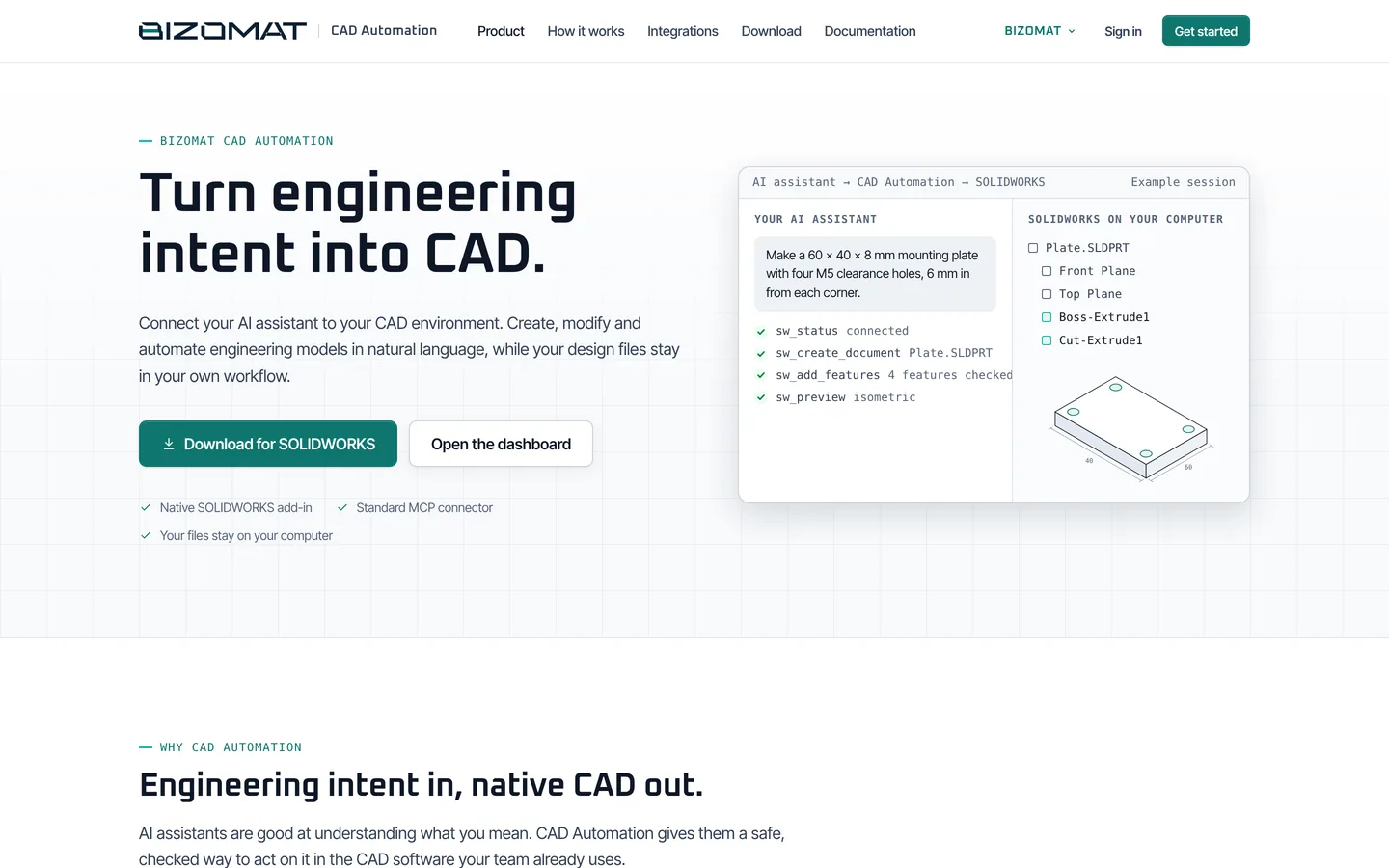
BIZOMAT CAD Automation connects Claude, ChatGPT or another assistant that supports MCP connectors to SOLIDWORKS on your PC. You describe the part, the change or the check; it builds native, editable features in your own files.
Needs Windows, SOLIDWORKS and an AI assistant that supports MCP connectors. Sign-in required.
How it connects
Your assistant asks. Your SOLIDWORKS does the work.
The assistant calls BIZOMAT's tools over MCP. BIZOMAT checks each step, then sends it to your computer, where the add-in makes native features in your session.
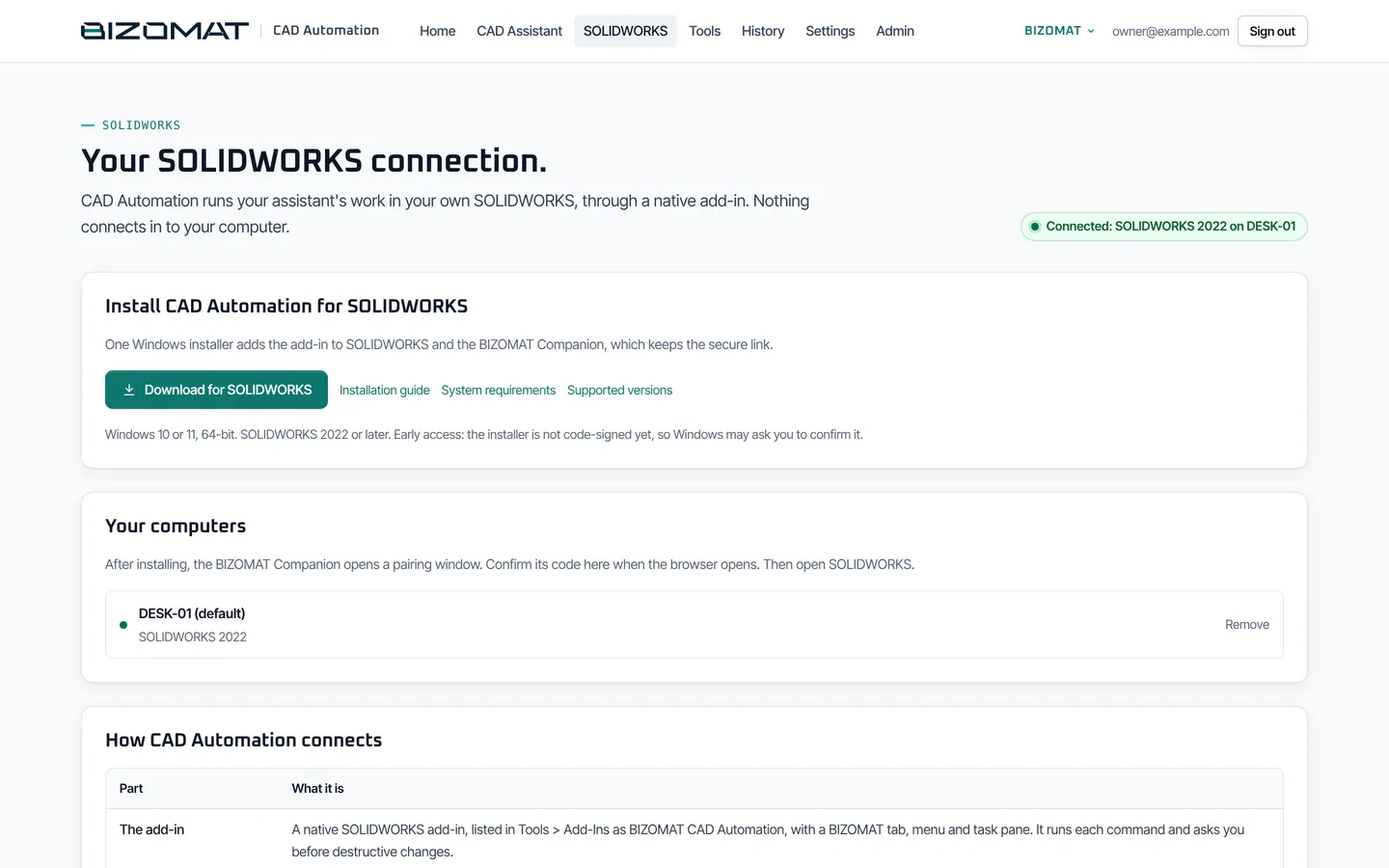
Install on Windows
One installer adds the SOLIDWORKS add-in and the BIZOMAT Companion, a small tray app that starts with Windows.
Pair the computer
Sign in once from the Companion. The computer gets its own key, kept in Windows and never exported.
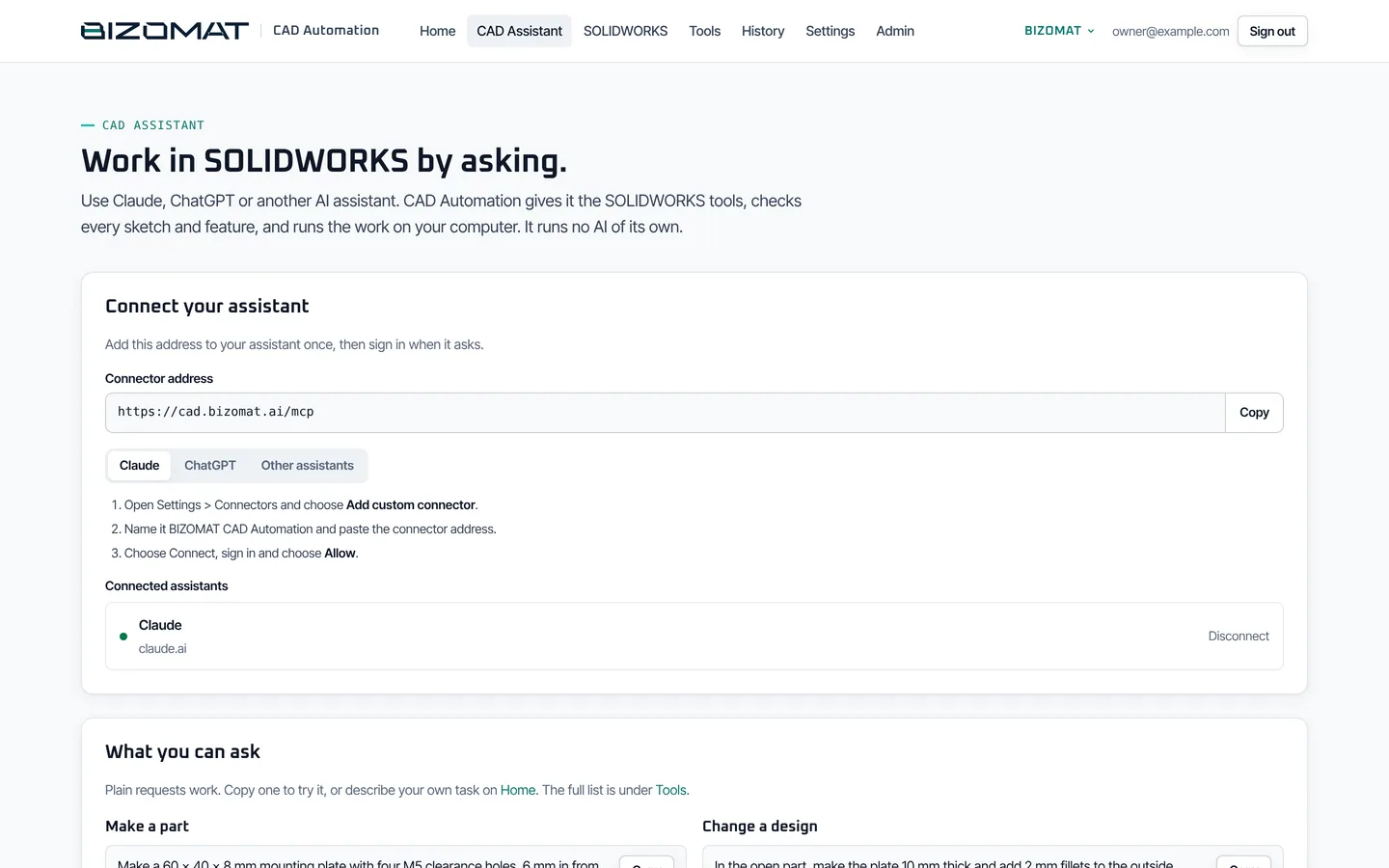
Connect your assistant
Add the connector address in Claude, ChatGPT or another MCP app and sign in. The assistant now has the SOLIDWORKS tools.
Ask in plain language
Describe the work. Each command goes over an outgoing HTTPS link to your computer and runs in your SOLIDWORKS session.
Local execution, by design
- SOLIDWORKS runs on your computer, with your licence, templates and file locations.
- Only commands and their results travel. Model files are read and saved where they are.
- Each sketch is solved and each feature is rebuilt on BIZOMAT's own kernel first, so the expected volume and size are known before SOLIDWORKS changes anything.
- Several computers can be paired; you choose which one runs a command.
Works with Claude, ChatGPT (where your plan allows custom connectors) and any assistant that supports remote MCP servers over Streamable HTTP.
Capabilities
Parts, assemblies and drawings, in plain language
Everything it makes is a native SOLIDWORKS feature you can edit like any other.
Parts
Sketches with relations and dimensions, solved before they reach SOLIDWORKS; over-defined sketches are refused. Extrude, revolve, sweep, loft, hole, fillet, chamfer, shell, draft, mirror, patterns and reference planes.
Assemblies
Insert components, add mates, find mate candidates and check interference. ISO screws, nuts, washers and ball bearings made to size.
Drawings
Native .SLDDRW drawings with standard or named views, preferred scales, model dimensions and title block fields. Section, detail and projected views, notes and a bill of materials.
Your existing files
Open your own parts and assemblies, read features, dimensions and topology, change parameters and equations, measure and preview.
Import and export
Open STEP, IGES and Parasolid files. Export STEP, STL, Parasolid or IGES, and drawings as PDF (every sheet), DWG or DXF.
Checks before changes
Every feature is rebuilt on an OpenCascade kernel first, so the expected volume and size are known before SOLIDWORKS is touched. Deletions ask you to confirm on your computer.
Supported operations
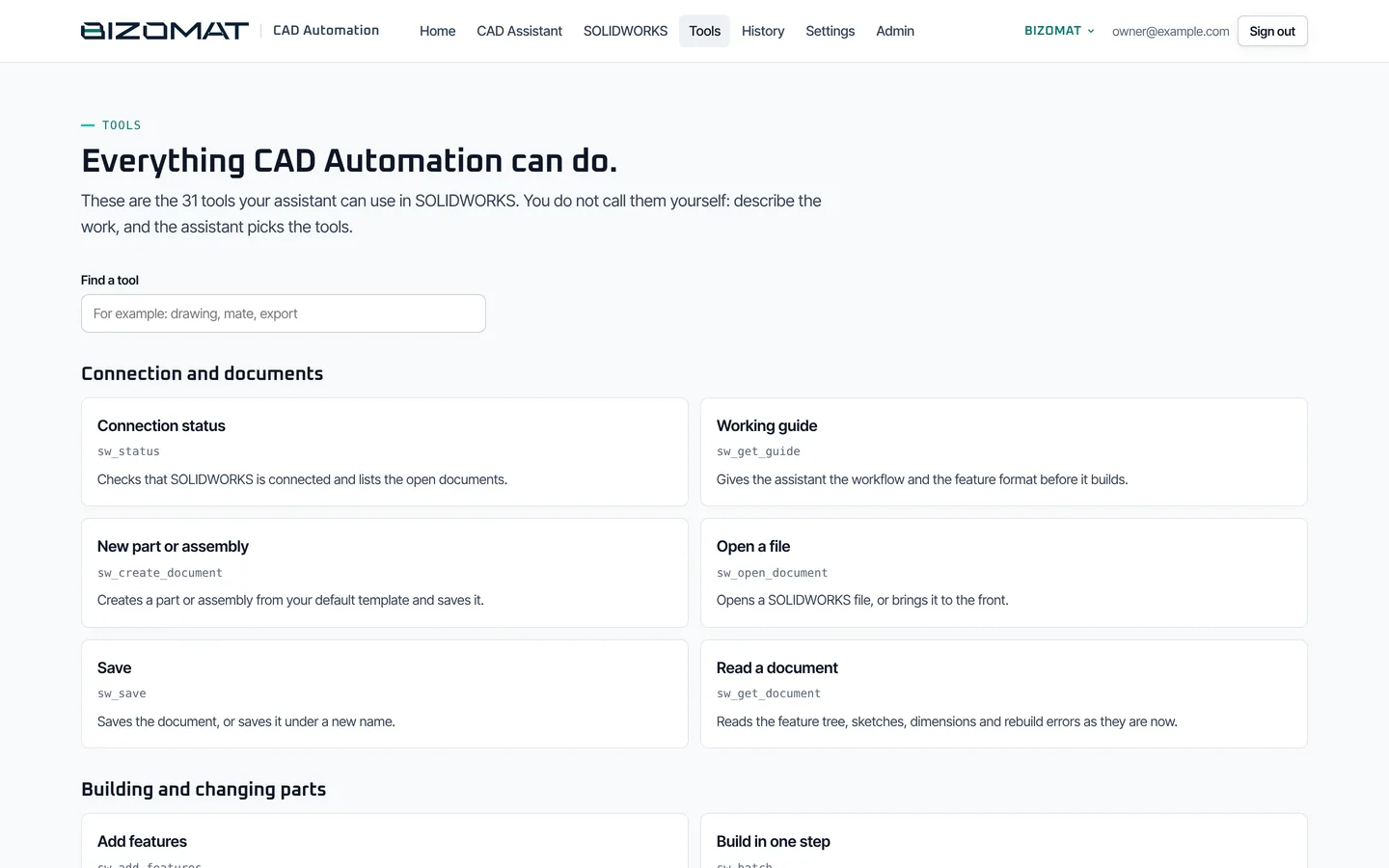
All 31 tools your assistant can call
The same list the application shows. Long commands report progress and can be cancelled.
Connection and documents
- sw_status
- Connection status. Checks that SOLIDWORKS is connected and lists the open documents.
- sw_get_guide
- Working guide. Gives the assistant the workflow and the feature format before it builds.
- sw_create_document
- New part or assembly. Creates a part or assembly from your default template and saves it.
- sw_open_document
- Open a file. Opens a SOLIDWORKS file, or brings it to the front.
- sw_save
- Save. Saves the document, or saves it under a new name.
- sw_get_document
- Read a document. Reads the feature tree, sketches, dimensions and rebuild errors as they are now.
Building and changing parts
- sw_add_features
- Add features. Makes sketches and features: extrude, revolve, sweep, loft, hole, fillet, chamfer, shell, draft, mirror, patterns, planes. Every sketch is solved and checked first.
- sw_batch
- Build in one step. Runs several steps as one change; if one fails, the whole change is taken back.
- sw_delete_items
- Delete features. Deletes features or components. By default you confirm it in SOLIDWORKS first.
- sw_undo
- Undo. Undoes recent changes. By default you confirm it in SOLIDWORKS first.
- sw_set_parameter
- Global variables. Creates, changes or removes a global variable.
- sw_set_equation
- Equations. Drives a dimension with an equation of global variables.
- sw_standard_part
- Standard parts. Makes an ISO screw, nut, washer or ball bearing to size, ready to insert.
Assemblies
- sw_insert_component
- Insert a component. Inserts a part or sub-assembly at a position.
- sw_add_mate
- Add a mate. Adds a mate between two components.
- sw_find_mate_candidates
- Suggest mates. Finds likely mates, such as shafts in holes and faces lying on each other.
- sw_check_interference
- Interference check. Lists every pair of components that overlap, with the overlap volume.
Checking and measuring
- sw_inspect_design
- Inspect the design. Reports feature states, volume, area, centre of mass and size, to compare with what you meant.
- sw_measure_items
- Measure. Measures faces, edges and points, like Evaluate > Measure.
- sw_body_topology
- Faces and edges. Lists the body's faces and edges so the assistant can pick the right ones.
- sw_preview
- Preview image. Shows a picture of the model from any standard view.
Drawings
- sw_create_drawing
- Create a drawing. Makes a native drawing with standard views, a preferred scale, model dimensions and title block fields.
- sw_get_drawing
- Read a drawing. Reads the sheet, every view and the title block.
- sw_edit_drawing
- Edit a drawing. Adds section, detail and projected views, notes and a bill of materials, and moves or rescales views.
Files
- sw_import
- Import a file. Opens a STEP, IGES or Parasolid file and saves it as SOLIDWORKS files.
- request_upload
- Send a large file. Gives the assistant a one-time link to send a large file for import.
- sw_export
- Export. Exports STEP, STL, Parasolid, IGES, PDF, DWG or DXF and returns a download link valid for one hour.
Computers and commands
- sw_list_devices
- Your computers. Lists your paired computers and which have SOLIDWORKS open.
- sw_command_status
- Command progress. Shows where a long command is and its result when done.
- sw_cancel_command
- Cancel a command. Cancels a command that has not finished.
- sw_selftest
- Self test. Checks a computer step by step: sketches, features, an assembly and a drawing.
Requests to try
Make a part
“Make a 60 x 40 x 8 mm mounting plate with four M5 clearance holes, 6 mm in from each corner.”
“Make a flanged bushing: 30 mm outside, 16 mm bore, 25 mm long, with a 45 mm flange 5 mm thick.”
Change a design
“In the open part, make the plate 10 mm thick and add 2 mm fillets to the outside edges.”
“Add a global variable called wall, set it to 2.5 mm and drive the shell thickness with it.”
Assemblies
“Insert the plate and four M5 x 12 socket head cap screws into a new assembly and mate the screws in the holes.”
“Check the open assembly for interference and tell me which parts overlap.”
The real product
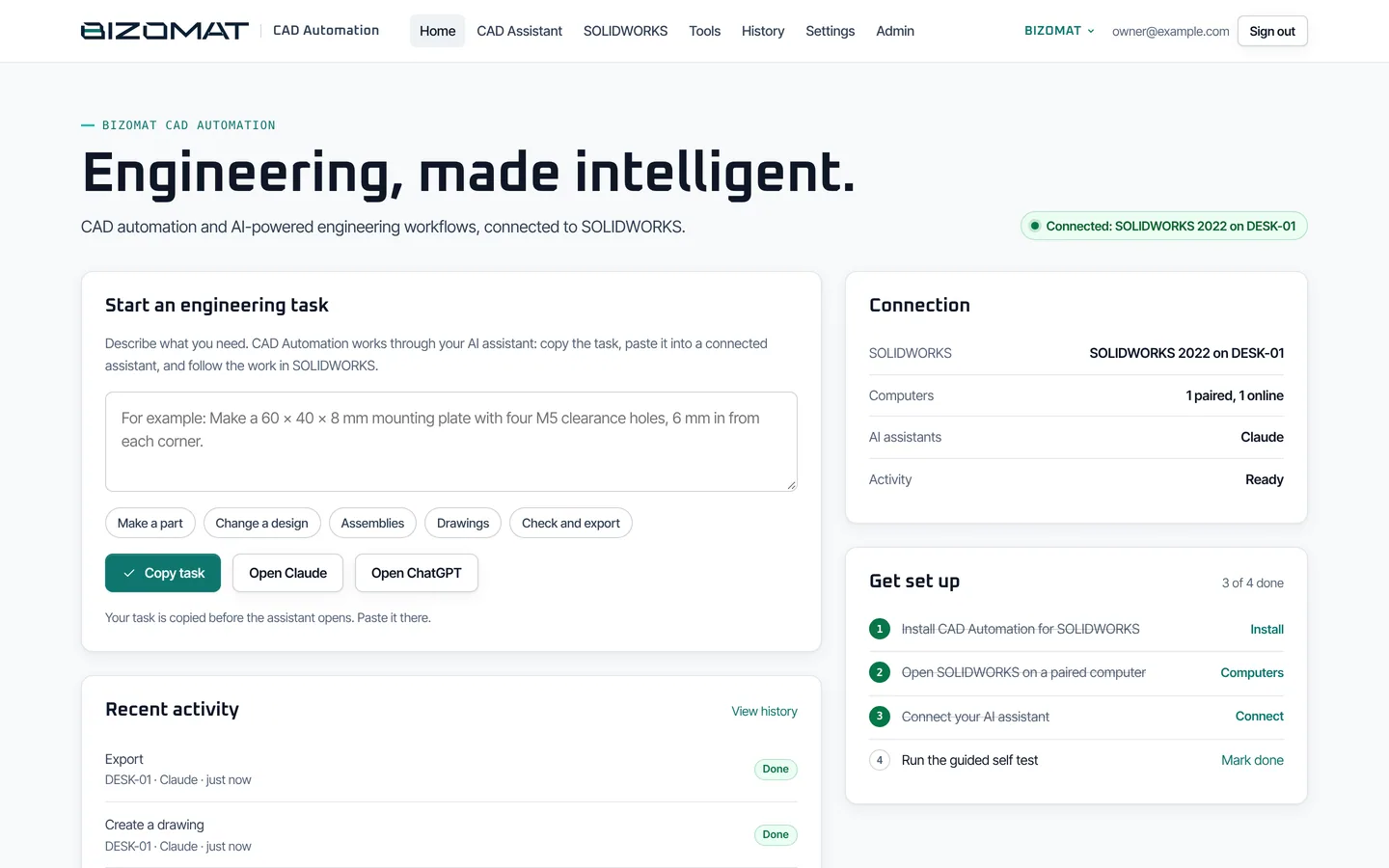
Your assistant, your computers and your tools, in one place
Captured from the running application with example data.
Install and configure
Set up in four steps
Sign in to CAD Automation, download the installer for Windows, pair the computer, then add the connector to your assistant. The application's own guide walks through each step.
The download needs a CAD Automation account. Connector address for your assistant: https://bizomat.ai/cad/mcp
What you need
- Windows, 64-bit, with SOLIDWORKS installed (the add-in is built against the SOLIDWORKS 2022 API).
- An AI assistant that can add an MCP connector, such as Claude or ChatGPT.
- A CAD Automation account (your administrator can add you).
Check the set-up
Ask your assistant to run the self test. It builds a plate, a set of shapes and an assembly on your computer, makes a drawing and a PDF, and reports each step as ok, check or failed with the reason.
Security
Built to keep your CAD environment yours
Signed commands
Every command to your computer is signed by BIZOMAT (ES256) and checked by the Companion before it runs. Replayed, expired or altered commands are refused.
A key per computer
Pairing makes a key on the computer, kept by Windows (in the TPM where there is one) and never exported. Removing a computer cuts it off.
Sign-in for every AI app
Assistants sign in with OAuth (PKCE, refresh rotation, revocation). You see each connected app and can disconnect it.
You confirm deletions
Deleting features or undoing work asks you in SOLIDWORKS first, by default.
Your files stay with you
SOLIDWORKS saves your models on your computer. To check and measure, BIZOMAT works on a copy of the current body held briefly in memory; exports you ask for are kept for one hour.
Outgoing connections only
The Companion reaches BIZOMAT over HTTPS; nothing on your network has to accept incoming connections.