

BIZOMAT Finance
Personal, household and business money, on a proper ledger.
BIZOMAT Finance keeps your accounts, transactions, quotes, invoices, credit notes, bills, budgets and reports in one place, for personal, household and business money. Every entry is double-entry and balanced, with GST for Australian businesses.
Sign-in required. It uses your BIZOMAT account: the same email and password as Project Management and the CRM. New to BIZOMAT? Create an account on the sign-in page.
What it does
Your money, in order, in one place
Finance records where money comes from and where it goes, what you are owed and what you owe, and what you planned. Everything sits on a double-entry ledger, the method accountants use, so the reports always add up.
Workspaces for every part of your money
Personal, household and business workspaces, as many businesses as you need. A personal workspace stays private until you invite someone; a household shares its accounts with the people you invite.
Double-entry underneath
Every transaction, invoice, bill and payment writes a balanced journal. Posted entries are never edited or deleted: a change reverses and reposts, and a locked period refuses anything dated inside it.
Transactions and bank statements
Money in, money out and transfers, split across categories, with GST, attachments, approvals and duplicate warnings. Import CSV, OFX or QIF statements, match each line and reconcile.
Quotes, invoices and credit notes
Quotes that customers accept online, kept version by version, then invoiced in full or in parts. Credit notes applied to invoices or refunded. A live A4 preview that is the PDF itself, secure online links and your own templates. Bills, purchase orders and expense claims too.
Reports from the ledger
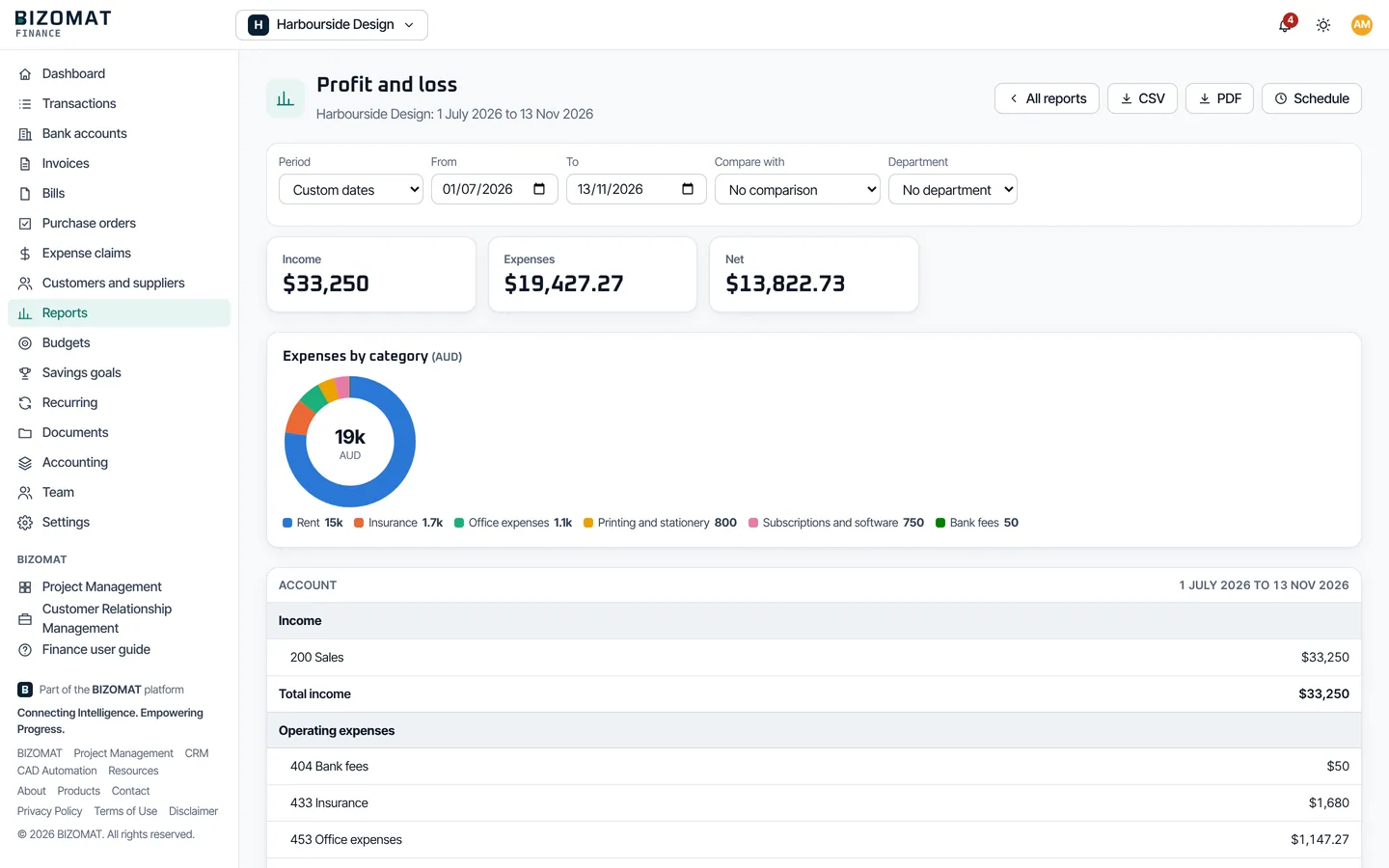
Profit and loss, balance sheet, cash flow statement, trial balance, general ledger, budgets against actual, a cash forecast, aged receivables and payables, and a GST and BAS worksheet. CSV and PDF.
Budgets, goals and alerts
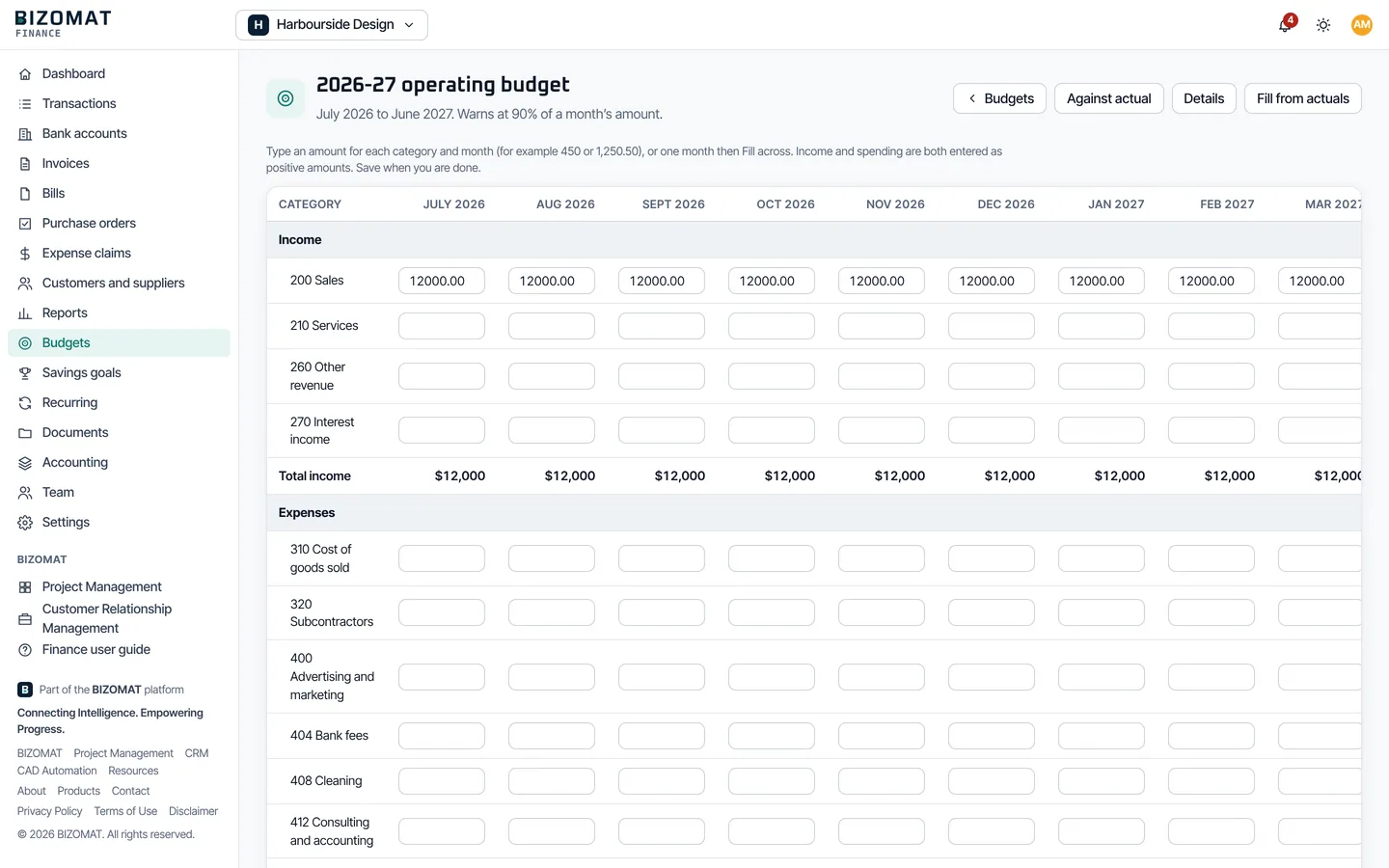
Monthly budgets by category, department or project, savings goals, and alerts for invoices and bills falling due, budgets nearly spent and a monthly summary.
Workspaces
Keep personal, household and business money apart
Each workspace has its own accounts, records, members and settings. Switch between them from the top of the screen.
Personal
Your own accounts, spending, budgets and savings goals, with everyday categories such as Groceries and Fuel. Private to you unless you invite someone.
Household
Money shared at home. Everyone you invite sees the household accounts, budgets and reports, adds their own spending, and can see it by person or together.
Business
A chart of accounts with codes, GST, customers and suppliers, quotes, invoices, credit notes, bills, purchase orders, expense claims and financial reports. Run as many businesses as you need.
What it looks like
The real product
Captured from the running application with a fictional business and example data. More screens are in the user guide.
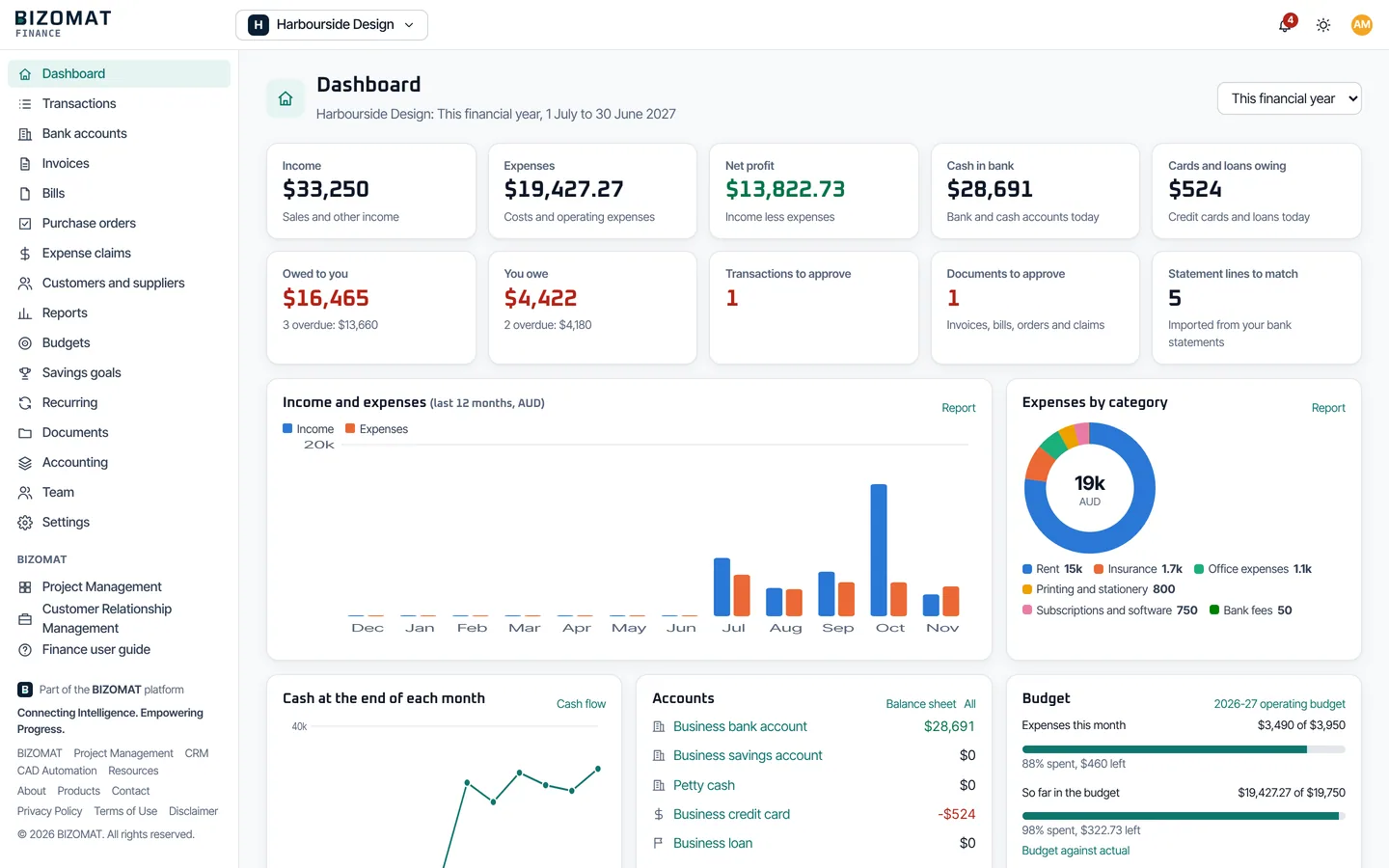
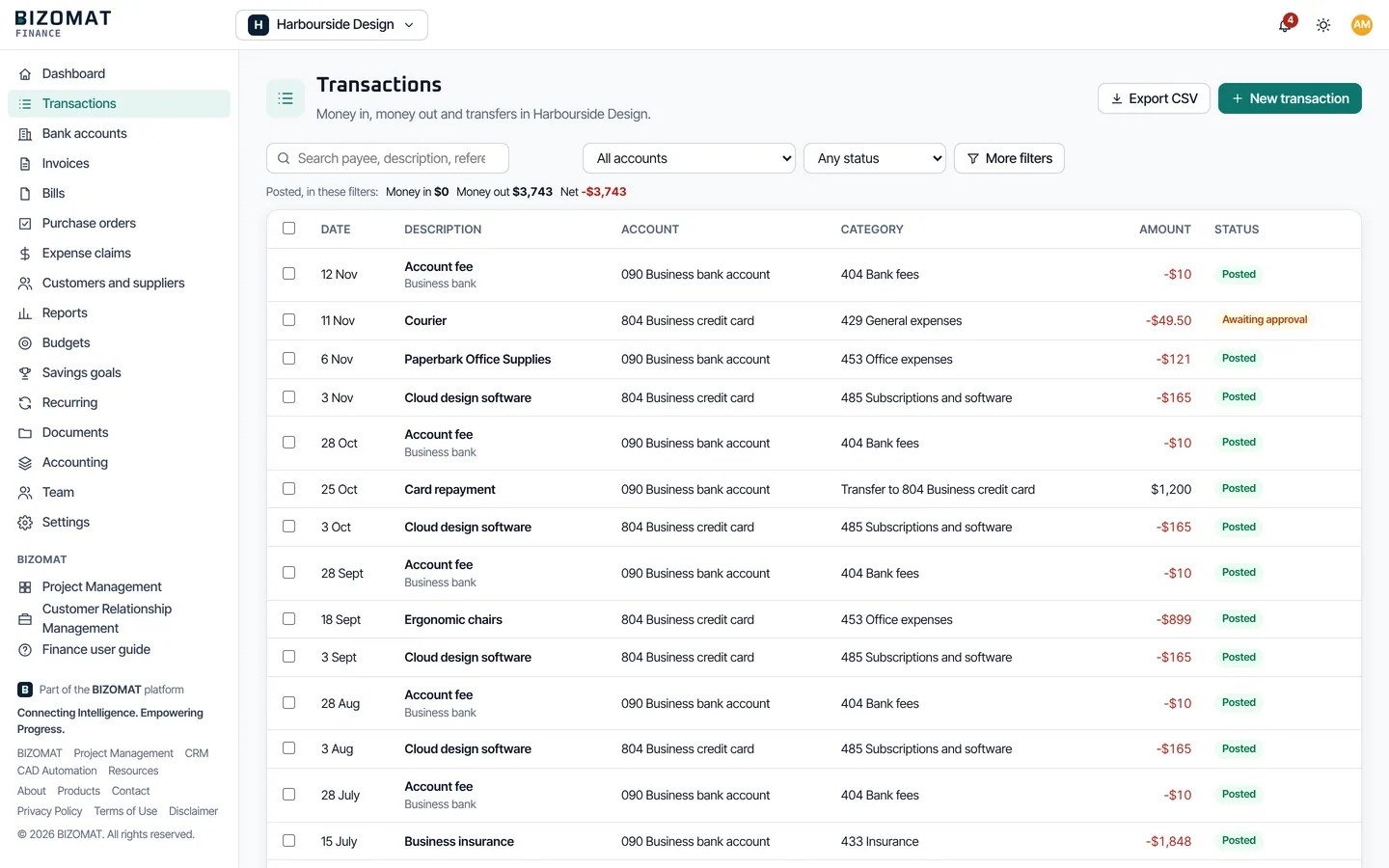
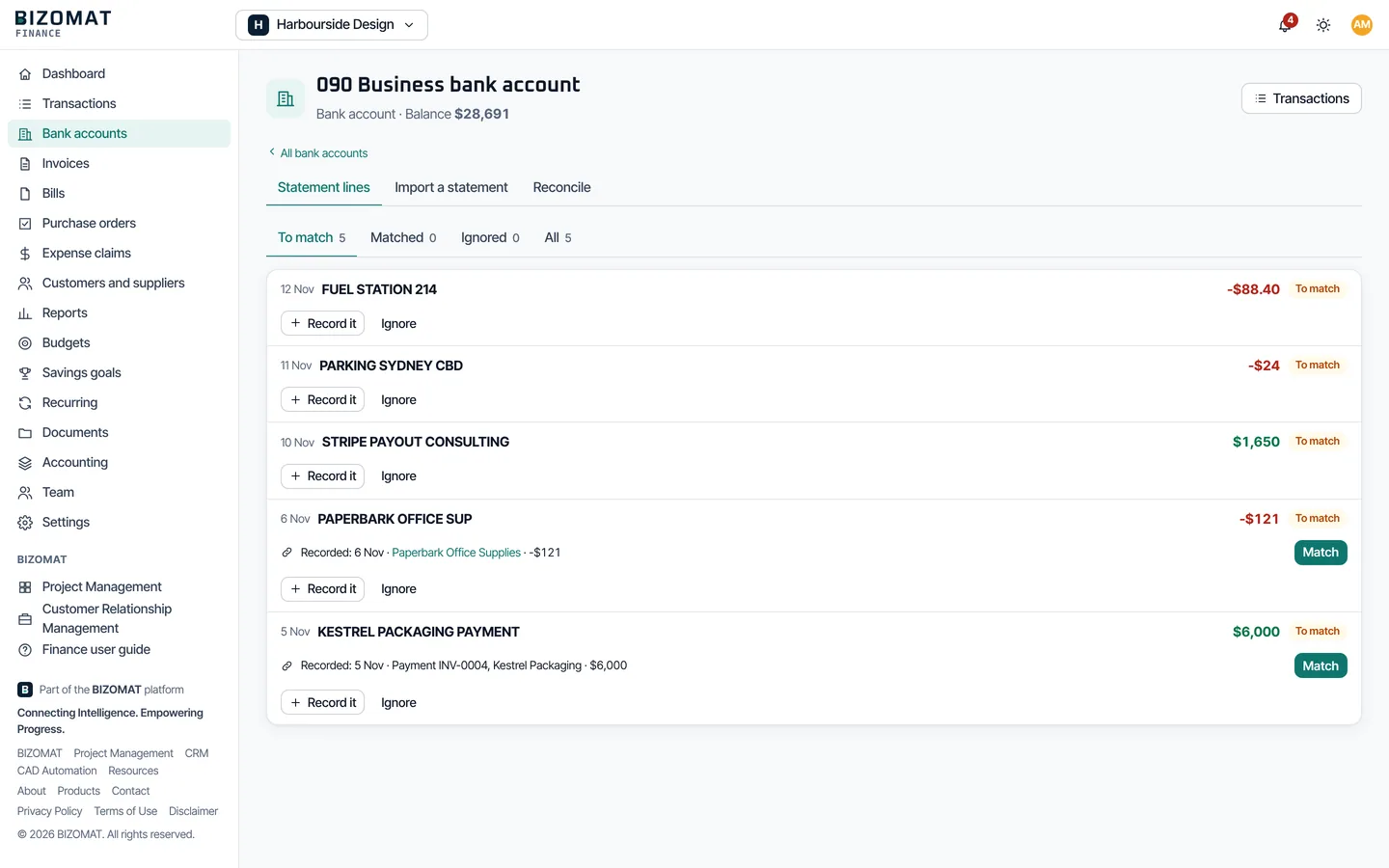
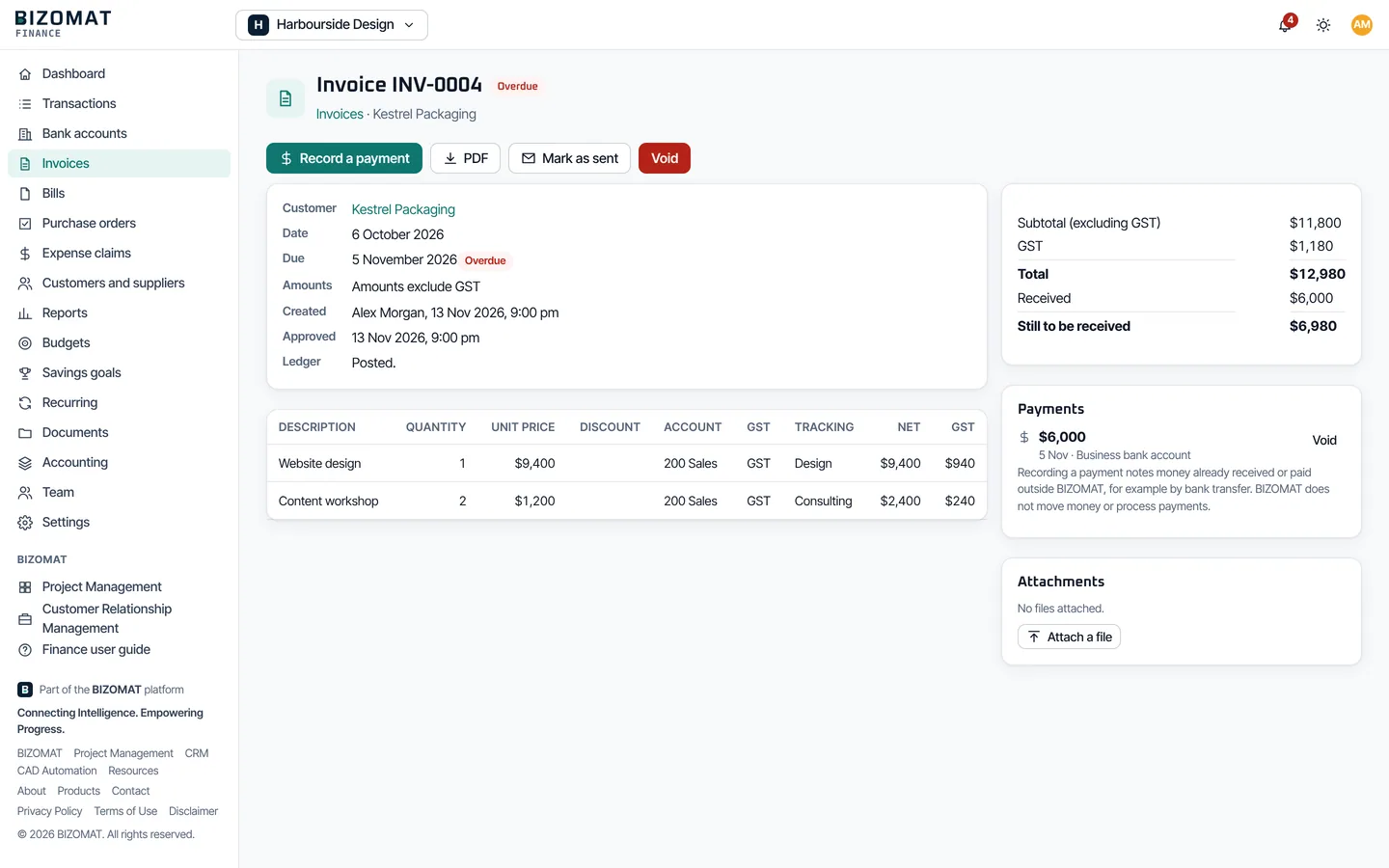
The ledger underneath
Double-entry, so the books always balance
Every entry balances
Each transaction, invoice, bill and payment writes a journal whose debits equal its credits. The database itself refuses to post one that does not.
Posted means posted
A posted entry is never edited or deleted. Changing it reverses it and posts the new version, so the history shows both.
Lock a period
Set a lock date when a month or year is closed. Nothing dated on or before it can be posted; corrections go in a later period.
Categories are accounts
Income and expense categories, with subcategories, are accounts in the chart. Rename, reorder, give them codes, archive them, and add departments, projects and cost centres.
Transactions and bank statements
From your bank statement to categorised transactions
Finance never connects to your bank and never asks for your internet banking password. You download the statement and upload it.
Money in, out and between accounts
Record income, spending and transfers. Split one payment across several categories, add GST, a note and a receipt.
Import your statement
Download a statement from your bank and upload it: CSV, OFX and QIF. A CSV file shows its columns so you can match them; lines already imported are skipped.
Match and reconcile
Each line finds the transaction or payment it matches. Confirm it, or turn it into a new transaction in one step and let Finance remember the category. Then compare the statement balance with the ledger.
Approvals and duplicates
In a business, a contributor's spending waits for approval. Finance warns about a likely duplicate before you save it.
Quotes, invoices, bills and claims
Know who owes you, and whom you owe
Recording a payment records money you have already received or paid. Finance does not take or send payments.
Quotes
Headings, optional items and a discount on the whole quote. The customer opens a secure link and accepts or declines; each version sent is kept. An accepted quote becomes invoices, in full or in parts.
Invoices
Numbered automatically, with due dates from your terms, line discounts and GST. A live A4 preview that is the PDF itself, a secure online copy, part payments and what is overdue.
Credit notes
Credit all or part of an invoice. Approving one lowers income and GST; the credit is applied to the customer's invoices or recorded as refunded.
Bills and purchase orders
Record bills as they arrive and pay them in part or in full. Approve a purchase order and turn it into a bill when the goods arrive.
Expense claims
Staff claim what they paid for the business, with receipts. Approve and reimburse; the claim records who is owed.
Recurring
Rent, subscriptions and regular invoices repeat weekly, fortnightly, monthly, quarterly and yearly, posted automatically or left as drafts to check.
Reports and budgets
Reports computed from the ledger when you open them
Filter by dates, department, project or cost centre; in a household, by person. Compare with the previous period or year. Export CSV or PDF, or schedule a report each month or quarter.
Budgets are set by category and month, for the whole workspace or a department or project, and can start from last year's figures. Savings goals track an account or an amount you enter. The dashboard brings income, spending, cash, what is owed, budgets and upcoming payments together.
12 reports
- Profit and loss
- Balance sheet
- Cash flow statement
- General ledger
- Trial balance
- Account transactions
- Income and expenses by month
- Budget against actual
- Cash flow forecast
- Aged receivables
- Aged payables
- GST and BAS worksheet
Australian GST and BAS
GST worked out on every line
Australian dollars and a July to June financial year by default. Prices can include or exclude GST, and each line has a tax code: GST, GST-free, input-taxed or excluded.
The GST and BAS worksheet adds up labels G1, 1A and 1B (and G2, G3, G10 and G11 for full reporting) on the cash or accrual basis. It is a worksheet to check against your records before you or your agent lodge with the ATO: BIZOMAT does not lodge, and is not a certified tax, payroll or statutory accounting product.
The tax codes a GST-registered business starts with
- GST GST on income
- FRE GST-free income
- EXP GST-free exports
- ITS Input-taxed income
- GSTP GST on expenses
- CAP GST on capital purchases
- FREP GST-free expenses
- CAPF GST-free capital purchases
- ITP Input-taxed expenses (no GST credit)
- BASX BAS excluded
Add your own codes or change their rates and BAS labels.
Members, roles and permissions
Share the work, not more than you choose
Invite your partner, bookkeeper, accountant or staff by email and give each a role. Owners and administrators can change what the other roles may view, create, edit, delete, approve, import and export, module by module.
Owner
Complete control of the workspace, including ownership and deletion.
Administrator
Manages members, permissions, settings and every financial record.
Accountant
Keeps the books: every record, the chart of accounts, tax codes, journals and the period lock.
Finance Manager
Runs day-to-day finance: transactions, invoices, bills, approvals, budgets and reports.
Contributor
Adds transactions, receipts, bills and expense claims, for approval where required.
Viewer
Reads the records and reports the workspace allows, and changes nothing.
Accounts and security
Your financial records stay in your workspace
- One BIZOMAT account for Project Management, the CRM and Finance, with the same protected sign-in.
- People outside a workspace cannot see it, or even tell that it exists. A personal workspace is private until you invite someone.
- Every list, report and file is limited to its workspace, and the database refuses links between two workspaces.
- The server checks every permission for every financial operation; the screens only hide what you cannot use.
- Receipts and documents are served only to people who can see the record they belong to.
- An audit trail records changes, approvals, imports, exports and permission changes. Your data is backed up with the rest of BIZOMAT.
What Finance does not do
BIZOMAT Finance does not connect to banks and never asks for internet banking passwords: you import statements you download. It records payments; it does not make them. The GST report is a worksheet to check against your records before you lodge a BAS with the ATO; BIZOMAT does not lodge, and is not a certified tax, payroll or statutory accounting product.
Category suggestions come from your own rules and history. Every posted entry and every figure is calculated by the application's own checked logic.
Getting started
Start in five steps
The user guide walks through each step, and everything after it, screen by screen.
Sign in
Use your BIZOMAT account (the same email and password as Project Management and the CRM), or create one on the sign-in page.
Create a workspace
Choose personal, household or business. It starts with a chart of accounts and no sample records; a business also starts with the standard GST tax codes, used once it is registered for GST.
Set up your accounts
Add your bank accounts and cards with their opening balances, and adjust the categories.
Bring in your transactions
Import a statement or record transactions by hand, then match and reconcile.
Invoice, budget and report
Send invoices, record bills, set budgets, and read the reports. Invite the people who should share the work.