

BIZOMAT CRM · Customer Management SystemFormerly BIZOMAT Customer Relationship Management
Customers, leads and deals, managed with your team.
BIZOMAT CRM is a Customer Relationship Management (CRM) system for small businesses and their teams: one shared place for your contacts, companies, leads, deals and follow-ups. Work your pipeline on a board, plan every activity and see what is closing from live reports.
Opens inside BIZOMAT ERP, in the Sales and CRM module. Sign-in required: use your BIZOMAT account, the same one as BIZOMAT Finance and BIZOMAT Projects. New to BIZOMAT? Create an account on the sign-in page.
What it does
Every customer, and every conversation with them, in one place
Customer relationship management is how a business keeps track of the people it sells to and everything said and agreed with them. BIZOMAT CRM keeps contacts, companies, leads, deals and activities on shared records, so anyone on the team can pick up where a colleague left off.
- Live Works today in BIZOMAT.
- Connected Works today by linking two BIZOMAT systems, without copying records.
- In development Being built: parts exist, but it is not switched on for everyone yet.
- Planned Designed, not built. Not available today.
Contacts and companies Live
Everyone you deal with and the businesses they work for: several emails and phone numbers, tags, custom fields, pictures and logos, and a warning before you add a duplicate.
Leads you can qualify Live
Statuses from New to Converted, a lead score that explains itself, and conversion into a contact, a company and a deal in one step.
Pipelines and deals Live
Your own pipelines, stages and probabilities. A board you drag deals across, Won and Lost, products and services on each deal, and its stage history.
Activities and follow-ups Live
Calls, emails, meetings, visits, demonstrations, tasks and more, assigned with a due date and priority, on lists, a calendar and your own calendar app.
Dashboard and reports Live
Open pipeline, weighted forecast, win rate and overdue follow-ups at a glance, and eleven reports with a chart, a table and CSV export.
Automations Live
Seven ready-made automations in every new organisation, and your own: a trigger, conditions and actions such as notify, create a follow-up or flag a deal.
Who it is for
Who should use it
Any business that sells to other people and wants one shared record of its customers. Someone working alone can use it too: register in your own name.
Business owners
See every customer, every open deal and every follow-up in one place, and what is likely to close.
Sales people
Work your own leads and deals, plan calls and meetings, and keep a record of what was said. The Sales Executive role is made for this.
Sales managers
Set up pipelines, lists and automations, and read the forecast, win rate and each person's results, by person and by team.
Account and service staff
Keep notes, meeting notes and documents on each customer, so whoever picks up the next call knows the history.
Administrators
Invite people, choose each person's role, and adjust what each role may view, create, edit, delete, import and export.
Companies on BIZOMAT
A company that also runs BIZOMAT Finance and BIZOMAT Projects turns deals into quotes, invoices and projects without typing them again.
Problems it solves
What changes when the team shares one CRM
Customer details are spread across inboxes, spreadsheets and phones Live
Contacts, companies, leads and deals sit on shared records. Each has one timeline of changes, activities, notes and documents, newest first.
Follow-ups slip Live
Every call, meeting and visit is an activity with an owner and a due date. Overdue follow-ups show on the Overview and in their own list, and an automation reminds people.
Nobody knows what will close Live
The pipeline board shows the deals and their value at each stage. The weighted forecast multiplies each deal's value by its probability.
The same customer is entered twice Live
While you type, the CRM warns you when an email address, phone number, name or website matches a record you already have.
Work is lost when someone leaves Live
When you remove a member, you can hand their records and open activities to a colleague. The timeline keeps the history.
Quotes and invoices are typed again Connected
In a company that also runs BIZOMAT Finance, the CRM company becomes the Finance customer once, and a deal starts a quote or, once won, a draft invoice.
Features
Every feature, explained
What BIZOMAT CRM does today, area by area, and what is planned. The user guide shows where each working feature is in the application.
Leads, contacts and companies Live
- Capture leads
- Record each enquiry with its source and estimated value. Statuses run New, Contacted, Engaged, Qualified, Unqualified and Converted, and you can change them.
- Score and qualify
- Each lead gets a score from its details and its activity, and the lead shows how the score was reached. Set it by hand when you know better.
- Convert in one step
- Turn a qualified lead into a contact, a company and a deal at once, new or existing. Its activities move with it, and a lead converts only once.
- One history per customer
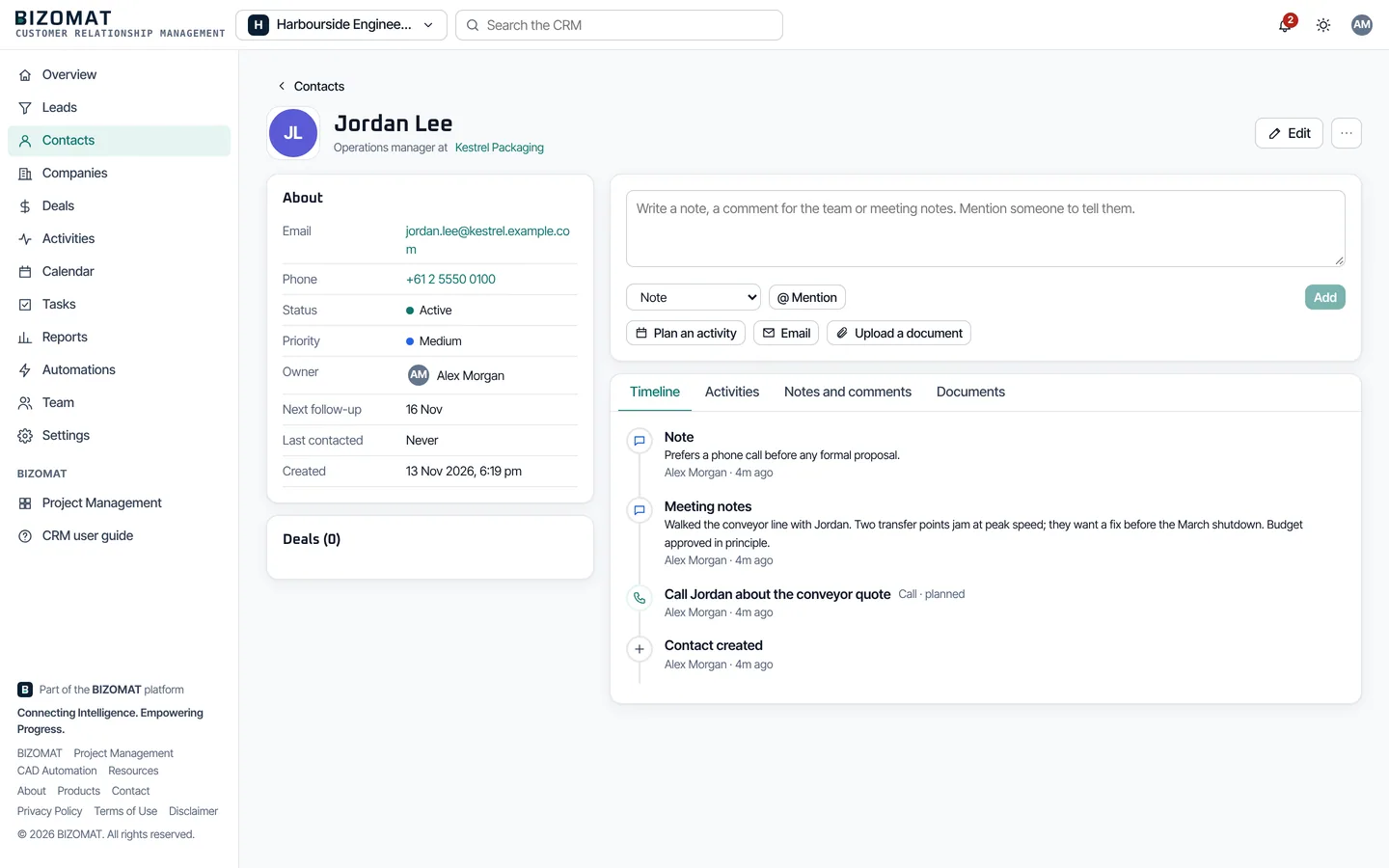
- Every record has a timeline of changes, activities, notes and documents, newest first. A company's timeline includes its contacts and deals.
- Duplicates flagged
- While you type, the CRM warns you when an email address, phone number, name or website matches a record you already have.
- Your own fields and lists
- Add custom fields of 11 types, tags, and your own lists of statuses, sources, industries and lost reasons.
Pipelines and deals Live
- Stages
- A new organisation starts with a sales pipeline of 5 stages: Qualification (10%), Needs analysis (25%), Proposal (50%), Negotiation (75%) and Contract sent (90%). Rename them, add your own, set each stage's probability, or add more pipelines.
- The board
- Drag a deal to the next stage, or onto Won or Lost; a menu on each card does the same from the keyboard.
- Each deal
- Keeps its value, products and services, contacts, competitors and the time it spent in each stage.
- Weighted value
- Value times probability. It feeds the forecast.
- Won or Lost
- Closed deals leave the board and count in the reports. A lost deal records why.
Activities and follow-ups Live
- Plan every follow-up
- Plan every call, meeting and visit against the customer and the deal, and assign it with a due date and a priority.
- 11 activity types
- Call, Email, Meeting, Appointment, Follow-up, Presentation, Demonstration, Proposal, Customer visit, Task and General. Rename them or add your own.
- Your day in one list
- My activities, Overdue, Upcoming, Team activities and Completed. Tick an activity to complete it, and record the outcome.
- A calendar, and yours
- A month calendar of activities, a calendar file for any activity, and a private address your own calendar app can subscribe to.
- Notes, comments and documents
- Notes, internal comments and meeting notes on any record, with @mentions that notify a colleague. Proposals, quotes and contracts are kept with their versions.
- Log emails
- Write to a contact from a template. Your own mail program sends it, and the CRM logs it on the record (more below).
Dashboard and reports Live
- Overview
- Open pipeline, weighted forecast, value won, win rate, new leads, lead conversion, contacts and companies, and overdue follow-ups, with charts below. Computed from your records when you open it (figure by figure).
- 11 reports
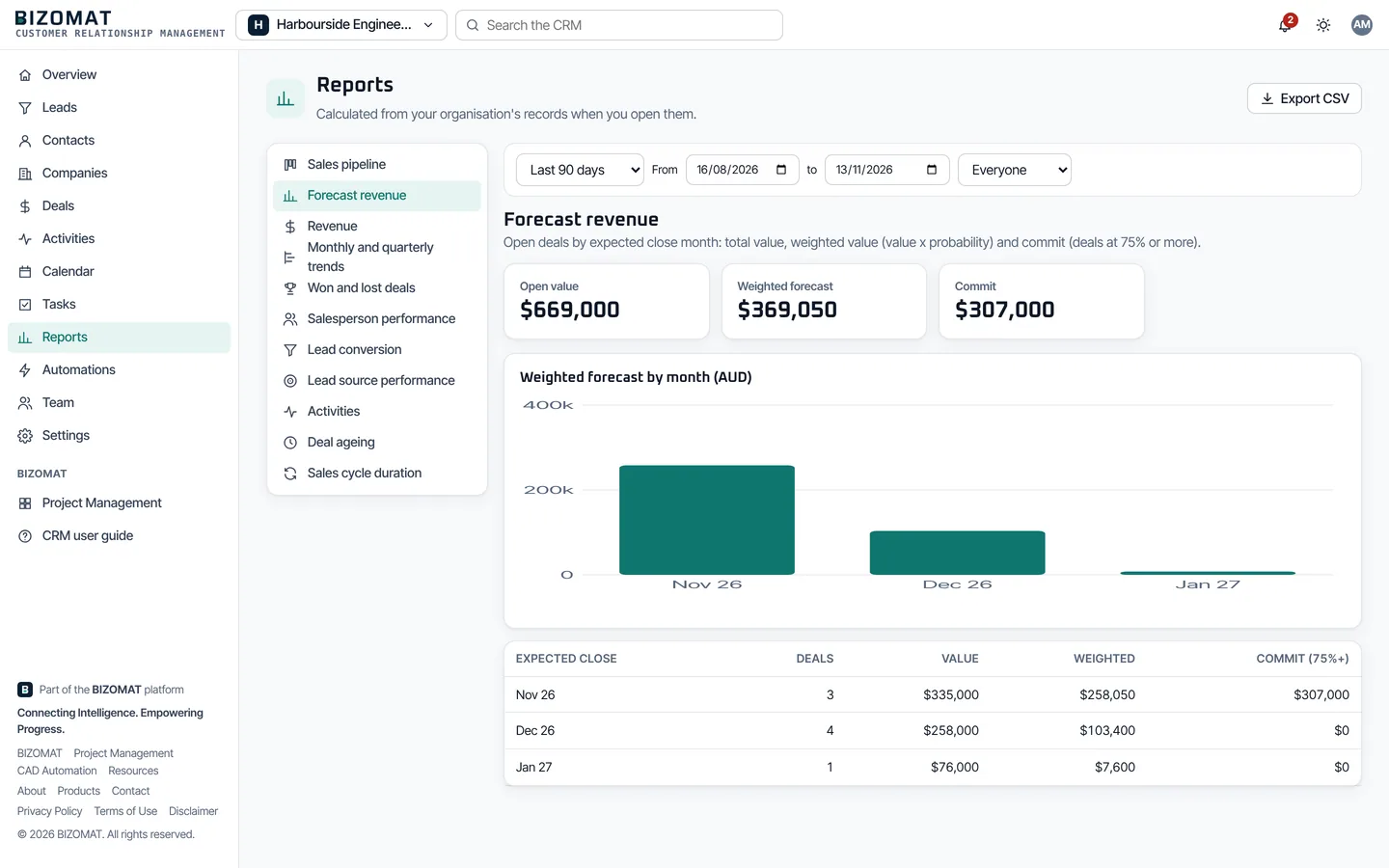
- Lead conversion, sales pipeline, revenue, won and lost deals, salesperson performance, lead source performance, activities, monthly and quarterly trends, forecast revenue, deal ageing and sales cycle duration.
- Each report
- Its figures, a chart, a table and CSV export. Filter by dates, owner, team and pipeline.
Automations Live
- How they work
- An automation is a trigger, conditions and actions. Each event runs an automation once, and every run is kept in its history.
- Triggers
- A new or reassigned lead, a lead changing status, a new contact, a deal being created, entering a stage, won, lost or close to its expected close date, and an activity being assigned or becoming overdue.
- Actions
- Notify people, create a follow-up, set a priority, flag a deal or assign an owner.
- Ready-made
- Every new organisation starts with these 7: Tell the owner about a new lead, remind about overdue follow-ups, tell managers when a high-value deal moves, follow up after a proposal, tell people about tasks assigned to them, flag deals close to their expected close date and tell the team when a deal is won or lost. Switch any of them off, change them, or add your own.
Organisations, teams and roles Live
- Organisations
- Create one for each business you run, belong to several, and switch between them. Invite colleagues and group them into teams.
- Owner
- Everything, including handing over ownership and deleting the organisation. Each organisation has exactly one.
- Administrator
- Everything else: members, roles, permissions, settings and every record.
- Manager
- All records, pipelines, fields, lists, products, automations and teams. Invites people but does not change roles.
- Sales Executive
- Sees all records and adds new ones; edits and deletes the records they own; sees reports. No import or export.
- Member
- Sees all records, adds new ones and edits the ones they own. Never deletes.
- Viewer
- Reads everything their organisation allows, and changes nothing.
- Permissions
- Owners and administrators can fine-tune what the other roles may view, create, edit, delete, import and export.
Search, views and your data Live
- Search everything
- One search across contacts, companies, leads, deals, activities and notes.
- Filters and saved views
- Filter on any field, tag or custom field, choose and sort the columns, and save the view. Managers and administrators can share a view with the whole team.
- Bulk changes
- Select records to assign them, change their status or priority, tag, archive, delete or restore them at once.
- Import and export
- Bring contacts, companies and leads in from a CSV file, matching its columns and deciding what happens to duplicates. Export what you can see.
Accounts and security Live
- One BIZOMAT account for BIZOMAT CRM, BIZOMAT Finance and BIZOMAT Projects, with the same protected sign-in.
- People outside an organisation cannot see it, or even tell that it exists.
- Every list, search and report is limited to your organisation, and the database itself refuses links between two organisations.
- The server checks every permission; the screens only hide what you cannot use.
- Documents are served only to people who can see the record they belong to.
- An audit trail records changes, imports and exports. Archived and deleted records can be restored.
Not built yet
- Gmail and Microsoft 365 Planned
- Mailbox synchronisation, and sending from your own mailbox, are not built: the CRM does not read your mailbox or send from it. Settings, Integrations in the app says the same. Until then, emails to customers go from your own mail program and the CRM logs them as logged, never as sent.
- Sales orders Planned
- Sales orders made from accepted quotes or won deals, as an ERP module.
- Deliveries Planned
- Deliveries with picking and packing, and their history on the CRM timeline.
- Pricing rules and rebates Planned
- Not built. Today a deal's products and services carry a price, a quantity and a discount.
- Credit management Planned
- Not built. What a customer owes is shown from Finance on the CRM company (Connected).
- Service contracts Planned
- Not built.
Screenshots
The real product
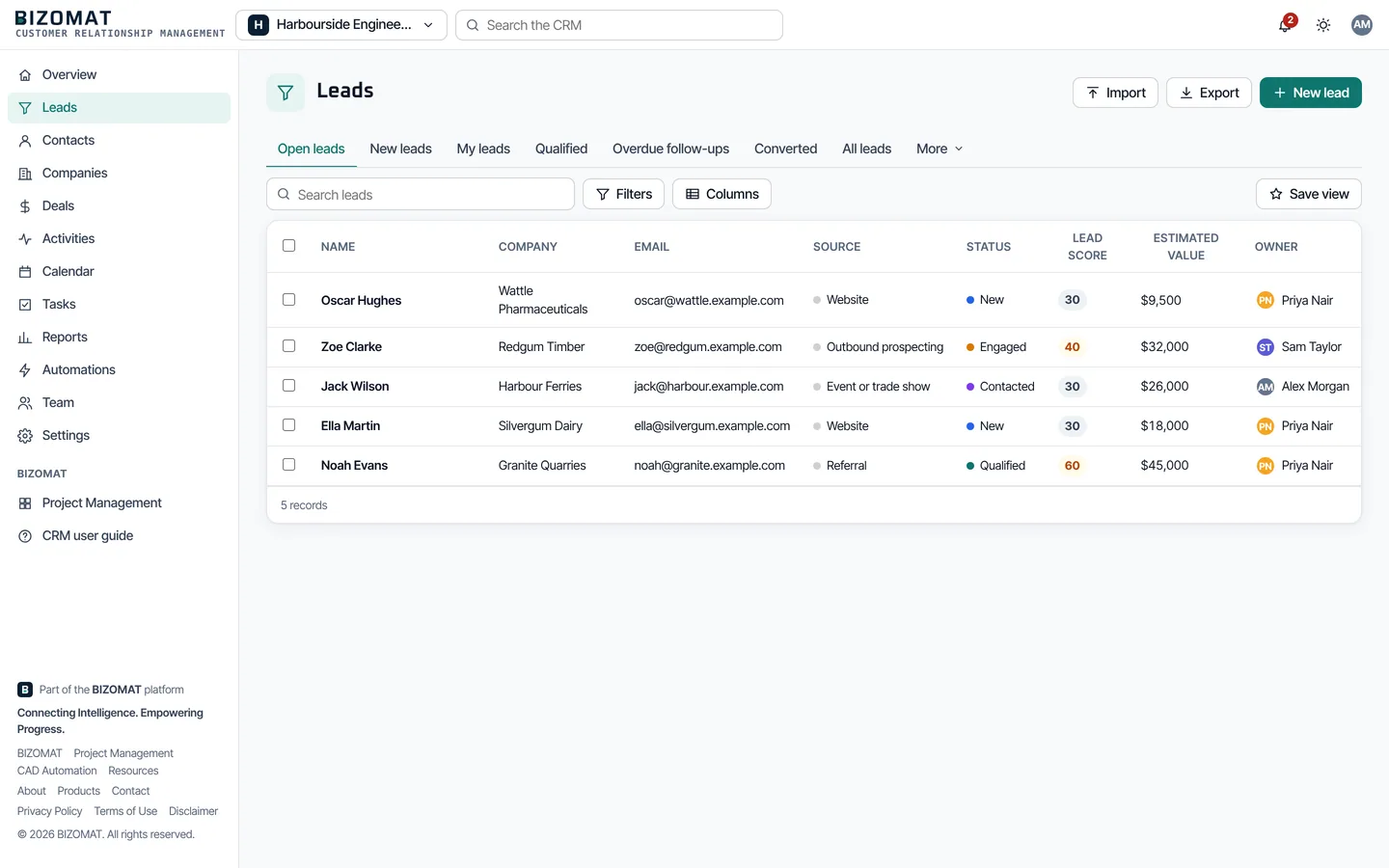
Captured from the running application with a fictional organisation and example data. More screens are in the user guide.
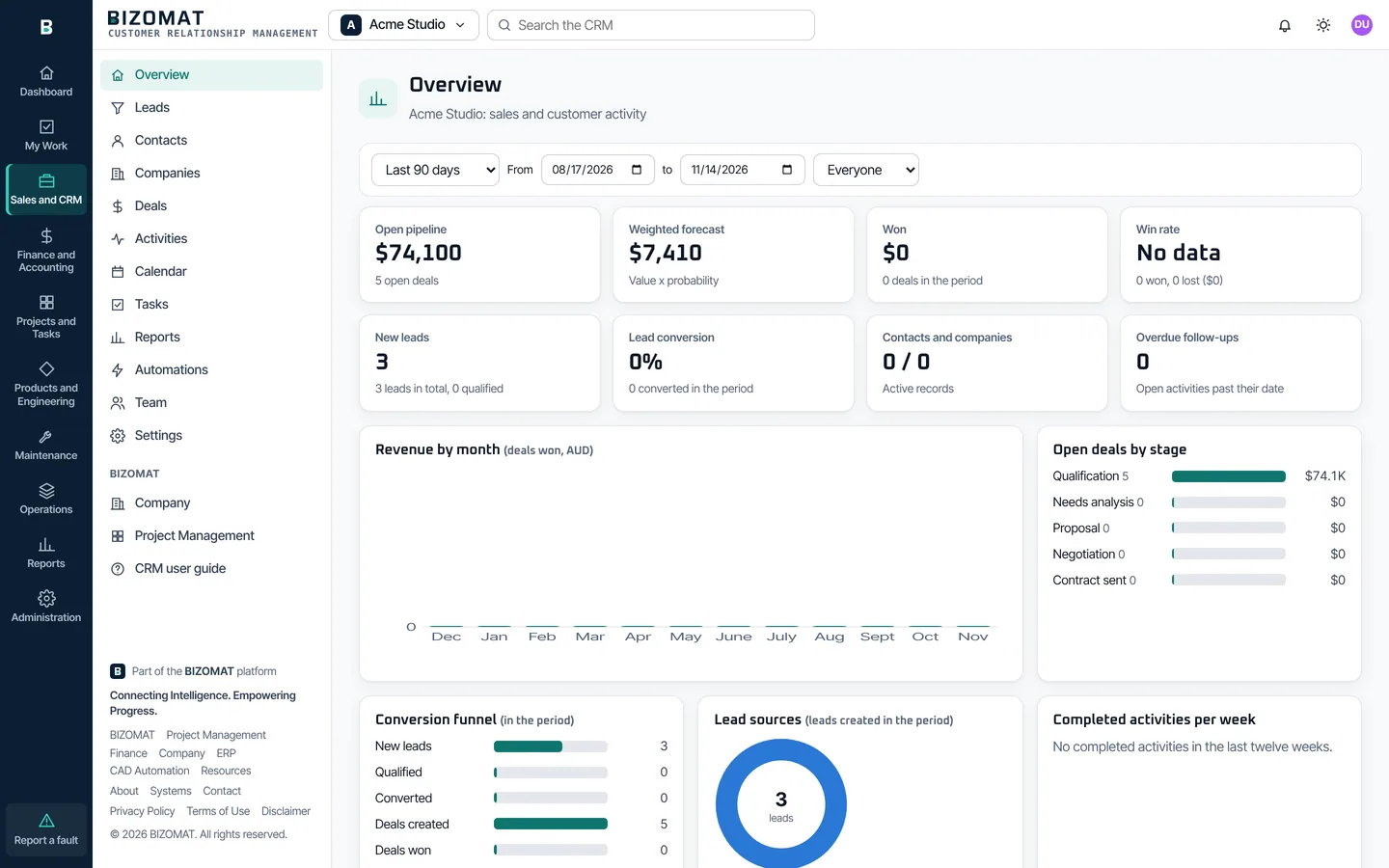
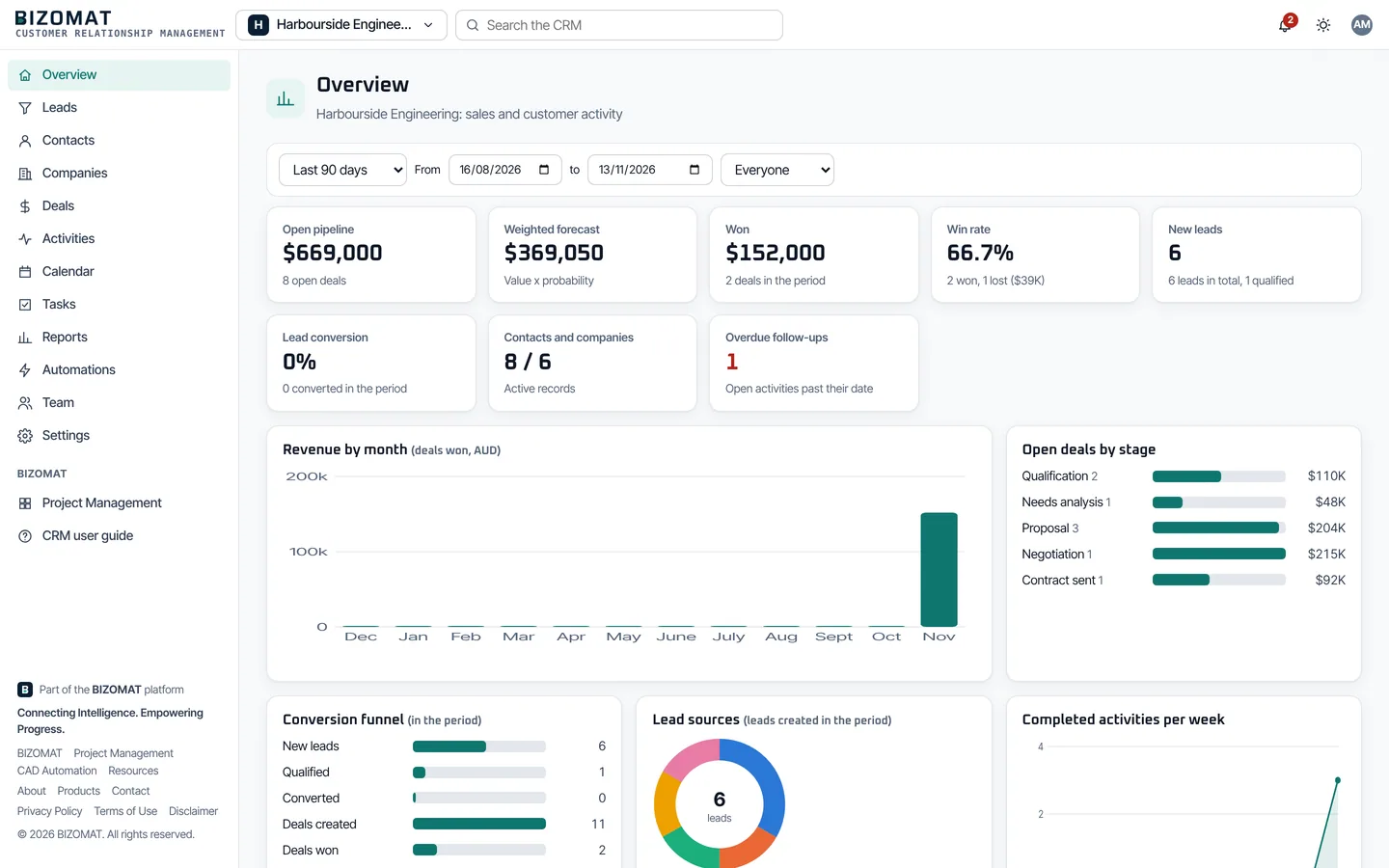
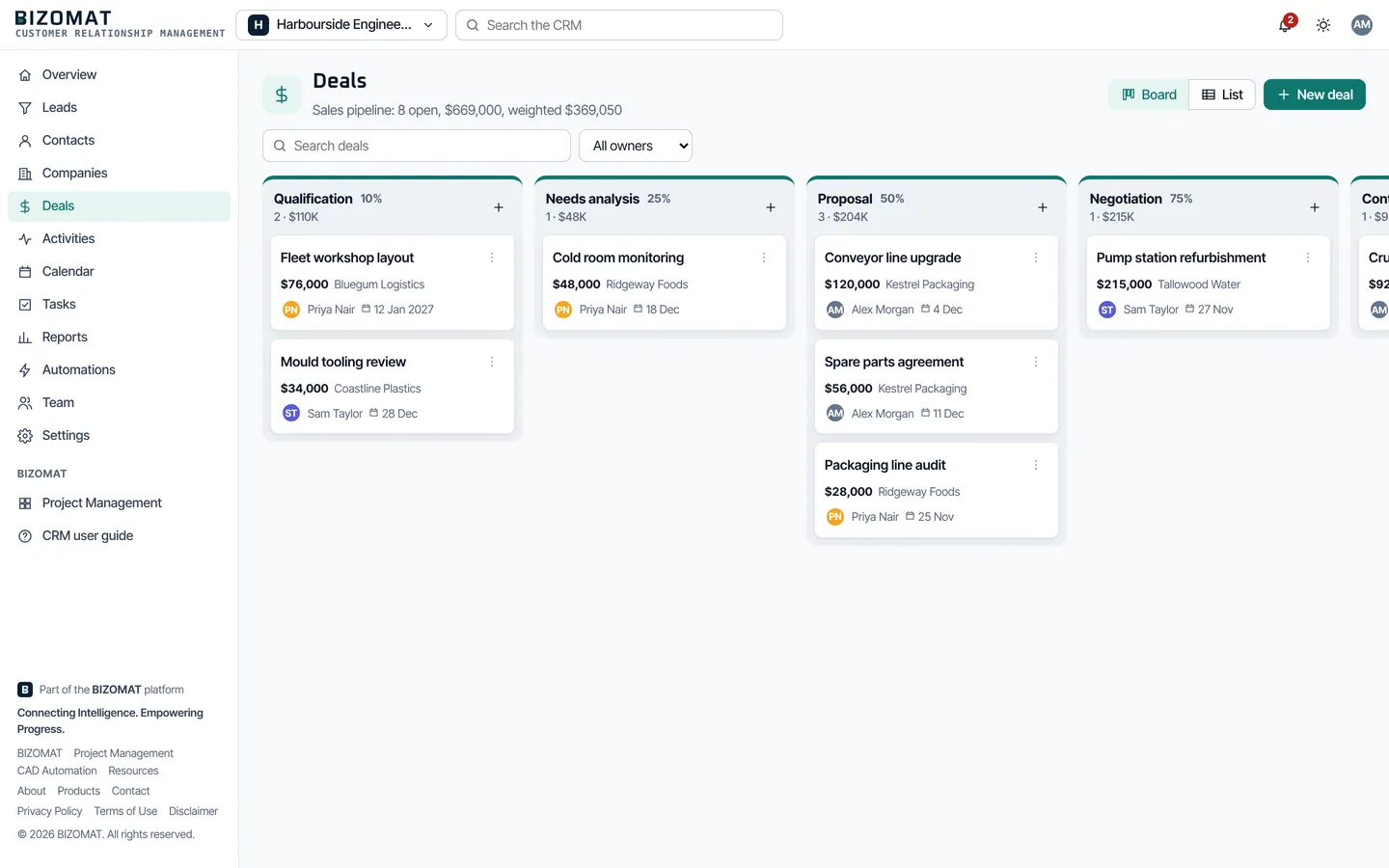
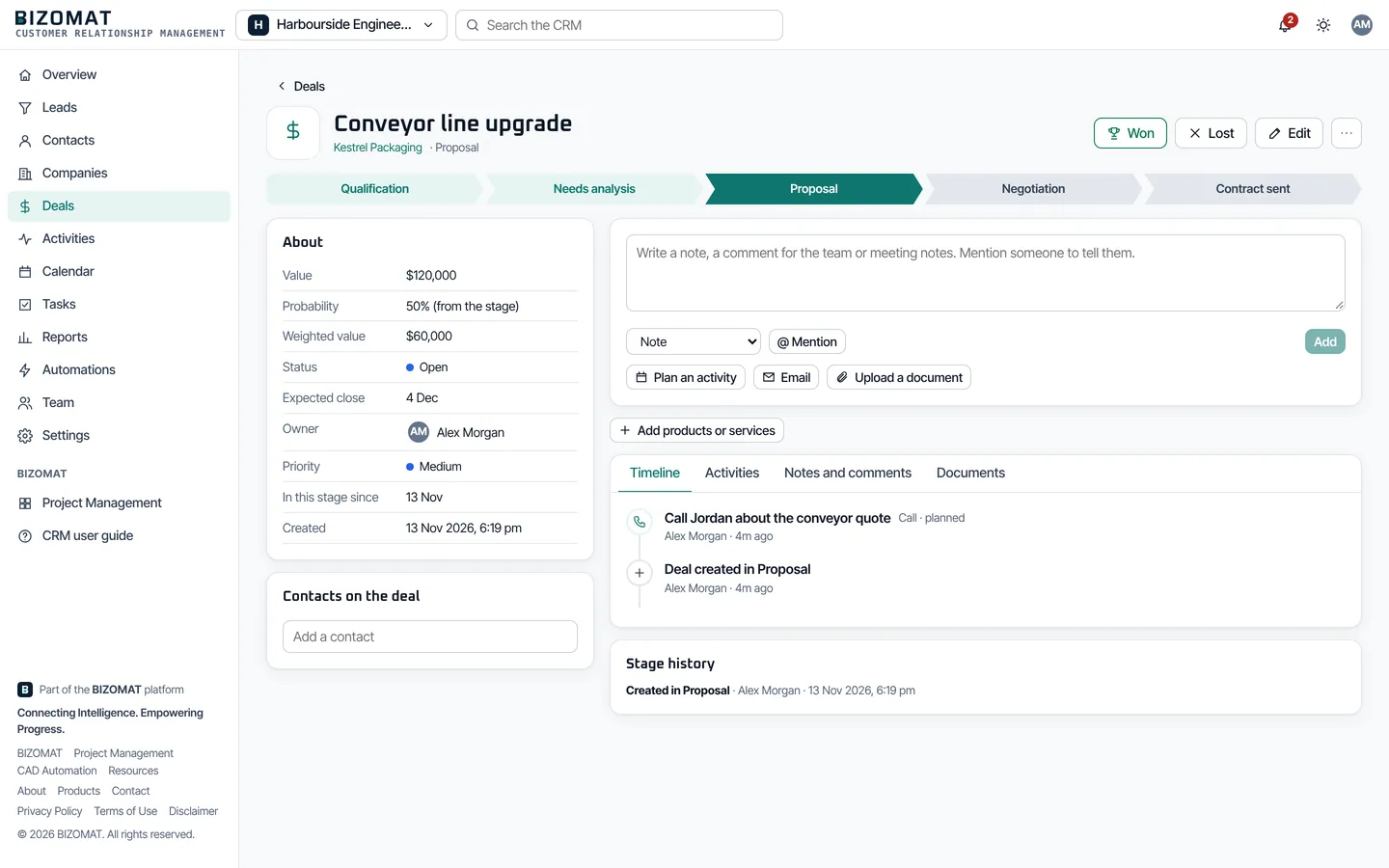
The main dashboard
The Overview, figure by figure
The Overview is the CRM's dashboard. Every figure is computed from your records when you open it, and each one opens the list or report behind it.
The figures Live
- Open pipeline
- The value of every open deal, and how many there are.
- Weighted forecast
- Each open deal's value times its probability (the deal's own, or its stage's), added up.
- Won
- The value of the deals won in the period, and how many.
- Win rate
- Deals won as a share of the deals won or lost in the period. Below it: how many were lost, and their value.
- New leads
- Leads created in the period, with the number of leads in total and how many are qualified.
- Lead conversion
- The share of the period's new leads that have been converted.
- Contacts and companies
- How many active contacts and companies the organisation has.
- Overdue follow-ups
- Open activities past their due date, marked as a warning when there are any.
Charts and lists Live
- Revenue by month
- The value of the deals won each month, over the last twelve months.
- Open deals by stage
- How many open deals each stage of the pipeline holds, and their value.
- Conversion funnel
- For the period: new leads, qualified, converted, deals created and deals won.
- Lead sources
- Where the period's new leads came from.
- Completed activities per week
- The last twelve weeks of finished calls, meetings and other activities.
- Team performance
- For each person in the period: deals won, revenue, deals lost, win rate, open pipeline and activities done.
- Upcoming meetings and calls
- Meetings, calls, visits and demonstrations due in the next 14 days.
Choose a period or exact dates and a person (Everyone, Me or a colleague); where you have them, a team and a pipeline. Every role sees the Overview by default; owners and administrators can change that in Settings, Permissions.
Screen by screen
What each screen is for
Live The CRM's menu lists these screens, and every one works today. Your role decides which ones you see.
Overview
You see: The figures and charts above, for the period you choose.
You do: Pick dates, a person, a team or a pipeline. Click a figure to open the list or report behind it.
Leads
You see: Open leads with their source, status, lead score and estimated value.
You do: Add a lead, import a CSV file, move leads through their statuses, then Convert.
Contacts and Companies
You see: Everyone you deal with and the businesses they work for, in lists you can filter, sort and save as views.
You do: Add or import records, tag them, open one to see its timeline.
Deals
You see: Board: each stage with its deals and their value. List: the same deals as a table.
You do: Add a deal, drag it to the next stage, or onto Won or Lost.
A record
You see: A deal's stage path, or a contact's details, with notes, activities, documents and the timeline.
You do: Edit it, write a note, plan an activity, upload a document, or archive it.
Activities
You see: My activities, Today's follow-ups, Overdue, Upcoming, Team activities and Completed.
You do: Plan an activity, tick it to complete it, or log an email.
Calendar and Tasks
You see: Activities by month, and the tasks and follow-ups for you and your colleagues.
You do: Open an activity, or add one on a day.
Reports
You see: 11 reports, each with its figures, a chart and a table.
You do: Filter by dates, person, team and pipeline, then Export CSV if your role allows it.
Automations
You see: Each automation with its trigger and whether it is on, and its execution history.
You do: Switch one on or off, edit it, or build your own.
Team
You see: Members, Invitations and Teams.
You do: Invite people, change roles, group people into teams, or hand over records.
Settings
You see: Organisation, pipelines and stages, custom fields, statuses and lists, tags, products, email templates, permissions, notifications, calendar feed and audit trail.
You do: Set the CRM up for the way your business sells.
Getting started
Start in 7 steps
The user guide walks through each step, and everything after it, screen by screen.
Sign in to BIZOMAT ERP
Go to bizomat.ai/erp/login and sign in with your BIZOMAT account, or create one on the sign-in page.
Choose Sales and CRM
In the module rail at the left of the ERP (a bar along the bottom on a phone), choose Sales and CRM.
Create your organisation
Give it a name and a currency. It starts with a 5-stage sales pipeline and 7 automations, and no sample records. A company registered in BIZOMAT already has one.
Set it up
In Settings, adjust the pipeline stages, statuses, lists and custom fields to the way you sell.
Add your customers
Create contacts, companies and leads, or import them from a CSV file.
Invite your team
In Team, invite colleagues by email and choose each person's role.
Work your pipeline
Add deals, move them across the board, plan follow-ups, and watch the Overview.
Typical workflows
How the work flows through the CRM
Four common jobs, step by step. The steps that reach BIZOMAT Finance and BIZOMAT Projects need a company that runs them.
From first enquiry to an invoice Connected
- Record the enquiry as a lead, with its source and estimated value.
- Plan a call as an activity, and move the lead to Contacted, then Engaged.
- When it is Qualified, choose Convert: a contact, a company and a deal at once.
- On the deal, Start a quote makes a draft quote in BIZOMAT Finance for the deal's company.
- Price the quote in detail in Finance and send it. The customer accepts it online, and the deal shows its status.
- Move the deal across the board. When it is won, drag it onto Won.
- Create the invoice from the accepted quote in Finance, or choose Make a draft invoice on the won deal.
- Check the amount, GST and account in Finance and approve it. What is owed shows on the CRM company.
A week of follow-ups Live
- Each morning, open Activities: My activities and Today's follow-ups.
- Tick each activity as you finish it, and record the outcome.
- Plan the next step straight away, against the same contact or deal.
- Check Overdue. The automation "Remind about overdue follow-ups" does the same for everyone.
- Subscribe your calendar app to your calendar feed, so the week shows there too.
From a won deal to a project Connected
- On the won deal, Start a project creates a project board named after it in the company's BIZOMAT Projects workspace.
- Turn the activities that belong to delivery into project tasks with Create a project task.
- Each task links back to the CRM, so the team can see the customer's history.
- To follow the project's costs, track it in BIZOMAT Finance from the company's Projects page.
Bringing in your existing customers Live
- Export your contacts, companies or leads from your spreadsheet or old system as a CSV file.
- On Contacts, Companies or Leads, choose Import and pick the file.
- Match each column to a field, and choose whether duplicates are skipped, updated or created.
- Select the new records to tag them or assign them to people in one step.
- Save the filters you use most as a view.
Integration
How it works with the other BIZOMAT systems
Every link between BIZOMAT systems checks both tools' own permissions, joins records of tools that belong to the same company, and never copies money: figures are read from Finance when asked. Email, your calendar and CSV files connect too.
BIZOMAT Finance Connected
- One customer record
- On a CRM company, In Finance shows the Finance customer it is billed as. Add as a customer in Finance creates it once, from the company's name, email, phone and address. Finance's From the CRM uses the same link, so a customer is never entered twice.
- What the customer owes
- The company's open invoices and the amount owed show on the CRM company, to people whose Finance role can see sales.
- A deal starts a quote
- Start a quote on a deal makes a draft quote in Finance for the deal's company, with the deal's value to price in detail there. The deal lists its quotes and their status, and its timeline records each step.
- A won deal becomes a draft invoice
- Make a draft invoice puts one line with the deal's title and value on a draft invoice, once per deal. Finance's own approval posts it, after someone checks the amount, GST and account.
- What it needs
- The CRM and Finance run by the same company, a company on the deal, the same currency in both, and a Finance role that may create quotes and invoices.
BIZOMAT Projects Connected
- A deal starts a project
- Start a project on a deal creates a project board named after it in the company's Projects workspace, once per deal. It needs a Projects role of member or above.
- An activity becomes a task
- Create a project task puts any CRM activity in a project you can add tasks to, with a link back to the CRM.
Company accounts Live
- One company, one of each tool
- A company registered in BIZOMAT runs one CRM organisation, one Finance business workspace and one Projects workspace.
- A role in each tool
- Each person has a company role and a role in each tool. No role in the CRM means no access to it.
- Departments in every tool
- Departments are made once for the company. In the CRM, each one is a team, led by the department's head.
BIZOMAT ERP
- Opens inside the ERP Live
- BIZOMAT CRM opens as Sales and CRM in BIZOMAT ERP, with the module rail beside it. The CRM's old address, bizomat.ai/crm, forwards there.
- Dashboard and Reports Connected
- The ERP Dashboard shows the CRM's open deals, deals won in 30 days, open leads and follow-ups due, to people who may see every deal. Its Reports page opens the CRM's reports.
- Permissions stay in the CRM Live
- The ERP gives no extra access: it lists only the tools you belong to, with the role you have in each.
Email, calendar and CSV Live
- Logging emails
- Write to a contact from a template; the CRM opens your own mail program with it filled in and logs the email on the record.
- Invitations and notifications
- Sent by email when the platform's email service is set up. Otherwise the CRM gives you an invitation link to share, and notifications appear in the app.
- Calendar
- A calendar file (.ics) for any activity, and a private subscription address for your calendar app, which you can replace or stop at any time.
- CSV
- Import contacts, companies and leads; export lists and reports.
Gmail and Microsoft 365 Planned
Mailbox synchronisation, and sending from your own mailbox, are not built: the CRM does not read your mailbox or send from it. Settings, Integrations in the app says the same. Until then, emails to customers go from your own mail program and the CRM logs them as logged, never as sent.
Questions
Frequently asked questions
- What is a CRM?
- A Customer Relationship Management (CRM) system keeps track of the people and businesses you sell to, and everything said and agreed with them. BIZOMAT CRM keeps contacts, companies, leads, deals and follow-ups on records your team shares.
- How do I create an organisation?
- Sign in to BIZOMAT ERP and choose Sales and CRM in the module rail. The first time, the CRM asks you to create an organisation: enter its name and currency (industry, website and country if you like), then choose Create organisation. Later, use Create or join an organisation in the organisation menu. A company registered in BIZOMAT gets its CRM organisation when it registers.
- Can I invite team members?
- Yes. In Team, then Invitations, enter the person's email address, choose their role and choose Send invitation. Owners, administrators and managers can invite. The invitation is emailed when email is set up; otherwise copy the invitation link and send it yourself. It works once and expires after 14 days. In a registered company, its administrators can also invite people with a role in each tool at once.
- How do I manage sales opportunities (deals)?
- Open Deals. The board shows each stage with its deals and their value. Add a deal with its value, company and expected close date, drag it from stage to stage, and drag it onto Won or Lost when it closes; a lost deal records why. A new organisation starts with 5 stages that you can rename, add to and give your own probabilities, and you can add more pipelines.
- Can CRM customers be used in Finance?
- Yes, when the CRM organisation and the Finance business workspace belong to the same company. A CRM company becomes one Finance customer, made from its name, email, phone and address and linked so it is never entered twice. A deal can start a draft quote, and a won deal can become a draft invoice. The customer's open invoices and amount owed then show on the CRM company, to people whose Finance role can see sales.
- Does the CRM send emails to my customers?
- No. You send them from your own mail program and the CRM logs them. BIZOMAT only sends its own invitations and notifications.
- Can I bring my data from another CRM?
- Yes, for contacts, companies and leads: export them from the other system as a CSV file and use Import. Deals and activities are added in the CRM itself.
- Who can see my organisation's customers?
- Only its members, as their roles allow. People outside the organisation cannot see it or tell that it exists.
- Do I need a separate account?
- No. One BIZOMAT account signs you in to BIZOMAT ERP, and with it to BIZOMAT CRM, BIZOMAT Finance and BIZOMAT Projects. Each keeps its own data and its own roles.
Something not covered here? Read the user guide or contact BIZOMAT.