

BIZOMAT ProjectsFormerly BIZOMAT Project Management, and KEVOS Work before that
Projects, tasks and teams in one shared workspace.
BIZOMAT Projects is project management software for teams. It brings your projects, tasks, documents and dashboards into one place: plan the work, assign it, track progress and automate the routine steps.
Opens inside BIZOMAT ERP, in the Projects and Tasks module. Sign in with your BIZOMAT account; existing accounts keep working with the email and password you already use.
What it does
Plan it, assign it, track it, finish it
A project management system keeps the plan, the people and the progress of each piece of work in one shared place. In BIZOMAT Projects, projects, tasks, teams and the conversation around them sit on one data model, so every view and dashboard shows the same work.
- Live Works today in BIZOMAT.
- Connected Works today by linking two BIZOMAT systems, without copying records.
- In development Being built: parts exist, but it is not switched on for everyone yet.
- Planned Designed, not built. Not available today.
Live
Boards for every project
Groups, items and subitems with 25 column types: status, people, dates, timelines, numbers, formulas, files and more. Inline editing, drag and drop, bulk actions, templates.
Live
Nine views of the same work
Table, Kanban, Calendar, Timeline and Gantt with dependencies and milestones, Chart, Workload, Form, Map and Files, all on one shared data model.
Live
Teams and permissions
Workspaces with owner, admin, member and viewer roles, teams, invitations, private or shared boards, board roles and an audit log.
Live
Collaboration
Updates and replies with @mentions, attachments, activity history, time tracking and linked documents on every item.
Live
Automations
Trigger, conditions, actions: status changes, dates and schedules start work for you, with run logs, retries and loop prevention.
Live
Dashboards, documents and goals
Eleven live widget types, rich-text documents with version history and comments, goals, My Work, My Day and a weekly planner.
Who should use it
For everyone who plans, does or oversees the work
Each person gets a role, and sees and changes only what that role allows.
Project managers
Plan projects, allocate tasks, follow progress on timelines and dashboards, and produce project reports.
Team members
See everything assigned to them in one list, plan the day, post updates and attach files where the work is.
Owners and administrators
Run the workspace: people, roles, teams, settings, the audit trail and an export of the data.
Guests and contractors
Work on the one project or task shared with them, and see nothing else.
Companies on BIZOMAT ERP
Run one Projects workspace for the company, beside Sales and CRM and Finance and Accounting, with one sign-in.
Sales and delivery teams
Hand a won deal to the people who deliver it, without retyping the customer or the scope.
Problems it solves
Less chasing, fewer surprises
Live
Work spread across spreadsheets, email and chat
Each project is one board: its tasks, owners, dates, files and updates in one place everyone can open.
Live
Nobody is sure who owns a task
Every item has an owner, a status and a date, and My Work shows each person what is theirs.
Live
Status meetings just to find out where things are
Dashboards and the timeline are computed from the live board, so the current position is always on screen.
Live
Deadlines that slip without warning
Due soon and overdue notifications, an overdue count on Home, and dependencies on the timeline.
Live
Routine steps that depend on someone remembering
Automations react to status changes, dates and schedules, and log every run.
Connected
A messy hand-over from sales to delivery
In a company account, a CRM deal starts the project board, and a CRM follow-up can become a project task.
Features: views and boards
9 views of the same work
Change a status in the table and the Kanban, calendar and timeline follow, because every view reads the same items. Boards use 25 column types, from status and people to dates, numbers, dependencies and formulas, and start blank or from a template.
LiveEvery view, column type and template below works today.
Table
Sort, filter with AND/OR, group, resize and hide columns, select in bulk.
Kanban
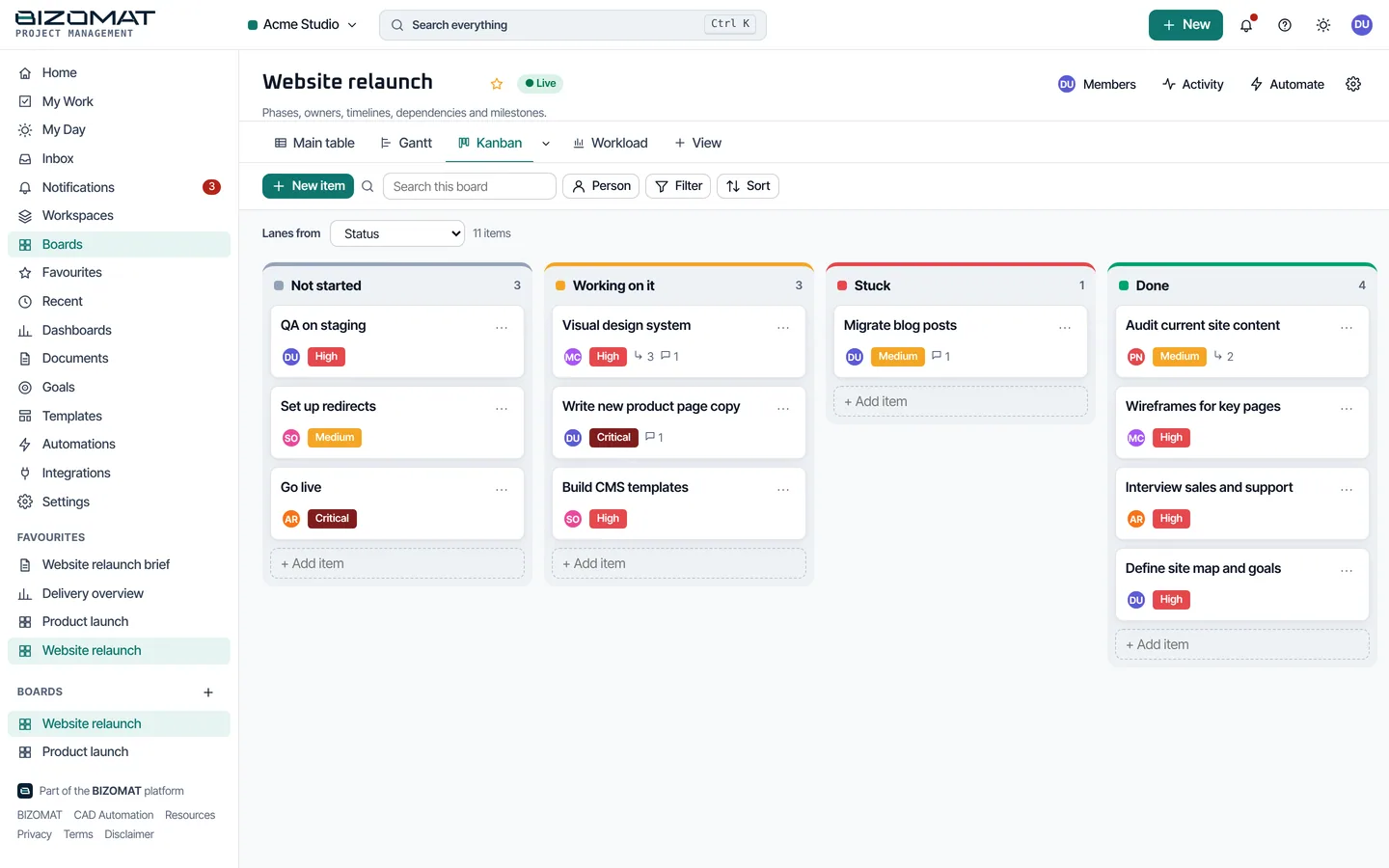
Drag cards between statuses.
Calendar
Month, week and day.
Timeline and Gantt
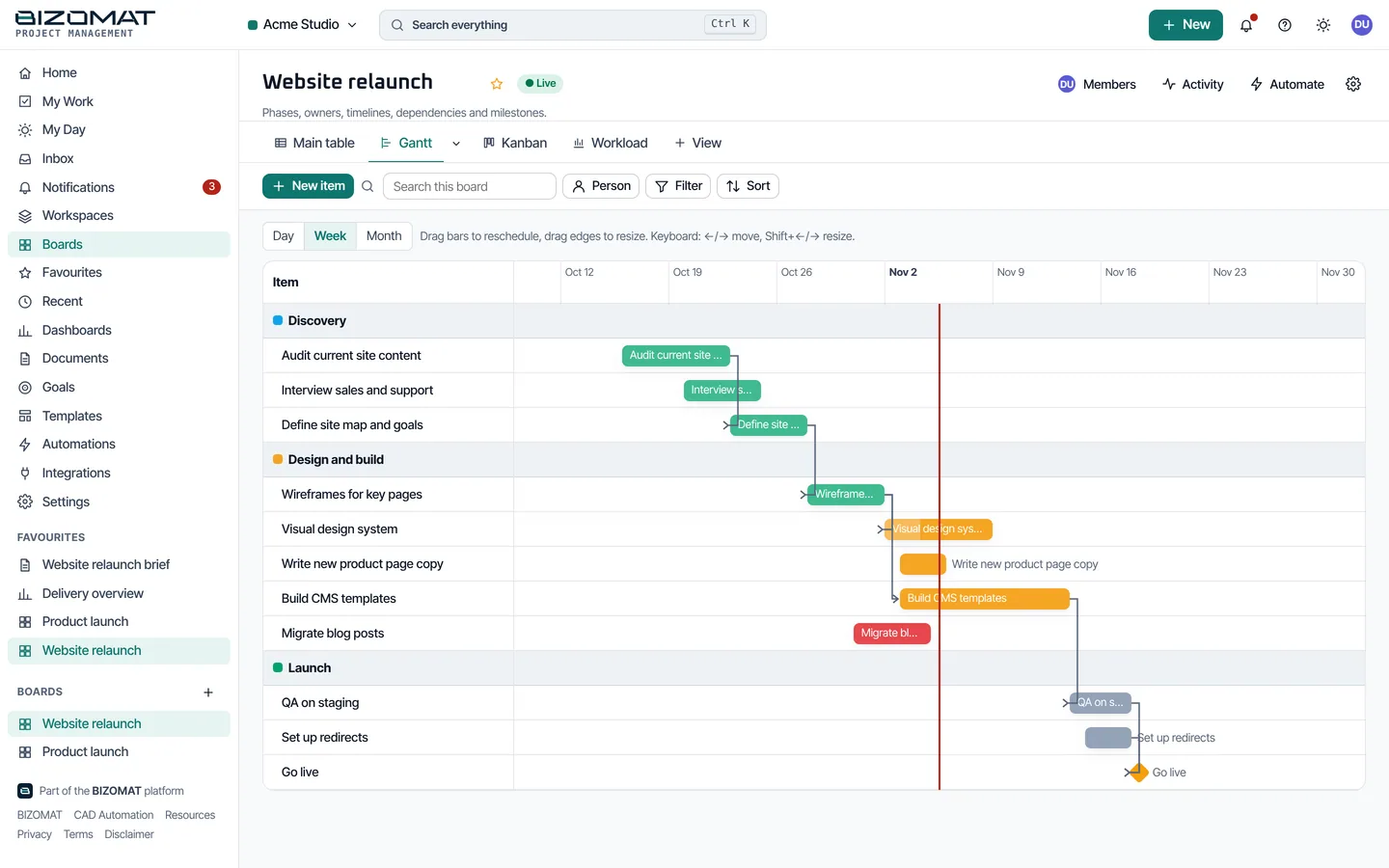
Dependencies, milestones, drag to reschedule.
Chart
Counts and sums from live board data.
Workload
Who has how much, and when.
Form
Collect new items from a form.
Map
Items with locations.
Files
Every attachment on the board.
Features: teams, roles and permissions
The right people on the right work
Live
Workspaces and roles
6 roles per workspace, from owner to guest, with board roles and private or shared boards.
Live
Project and task access
On each project, a person can manage, edit or view, and rights such as assigning tasks, seeing financial data or generating reports can be switched on or off. One task can be shared without the rest of the project.
Live
Invitations and teams
Invite people with a link, group them into teams, and give each item an owner, a status and a date.
Live
Audit and export
An audit log of changes and a JSON export of a workspace for its administrators.
The 6 workspace roles Live
- Owner: Full control: workspace settings, members, finance settings, every project and report.
- Admin: Manages members and settings, creates and manages every project, sees every report.
- Project manager: Creates projects, manages the projects they are given, allocates tasks and generates project reports.
- Member: Works on the workspace's shared projects: updates tasks, comments and uploads files.
- Viewer: Reads and comments on the workspace's shared projects.
- Guest or contractor: Sees only the projects or tasks shared with them, and nothing workspace-wide.
Features: collaboration
The conversation stays with the work
Live
Updates on every item
Updates and replies with @mentions, so the conversation stays with the work.
Live
Files and documents
Attachments on items, and rich-text documents with autosave, version history, comments and links to boards.
Live
Notifications
Assignment, mention, reply, status change, due soon and overdue, with your own preferences.
Live
Time and planning
Time tracking on items, My Work, My Day and a weekly planner.
Features: automations
Automations move routine work forward
Choose a trigger, add conditions, pick actions. Status changes, dates and schedules start work for you; every run is logged once, failures are retried, and chains cannot loop.
LiveTriggers, conditions, actions, recipes and run logs work today.
Features: dashboards, goals and reports
See the whole portfolio at a glance
Everything here is computed from the recorded work when you open it, and each person sees only what their role allows.
Live
Dashboards
11 widget types computed from live board data, with source boards, filters and date ranges.
Live
Goals
Goals with progress set by hand or worked out from boards.
Live
Project reports
Saved reports on a project, from monthly progress and outstanding tasks to critical path and earned value, each kept with PDF, Excel, HTML and CSV files.
Live
Project controls
The critical path, baselines and earned value of a project.
Live
Project finance
Approved budget, estimated and actual cost, committed, remaining budget and variance from a board's money columns, to people allowed to see financial data.
Live
Planning for each person
My Work, My Day and a weekly planner.
The 11 dashboard widgets Live
- Number
- Chart
- Task status
- Priority distribution
- Completion
- Workload
- Overdue work
- Upcoming deadlines
- Project progress
- Activity
- Time tracking
Features: accounts and security
Your projects are visible only to your workspace
LiveEvery protection below is in place today.
- Email and password sign-in with secure session cookies, CSRF protection, rate limits and lockout.
- Google sign-in where it is configured, and personal API tokens for integrations.
- Every query checks the workspace and board you belong to; one workspace never sees another.
- Sessions you can list and end, and a founder console for the platform administrator.
Screenshots
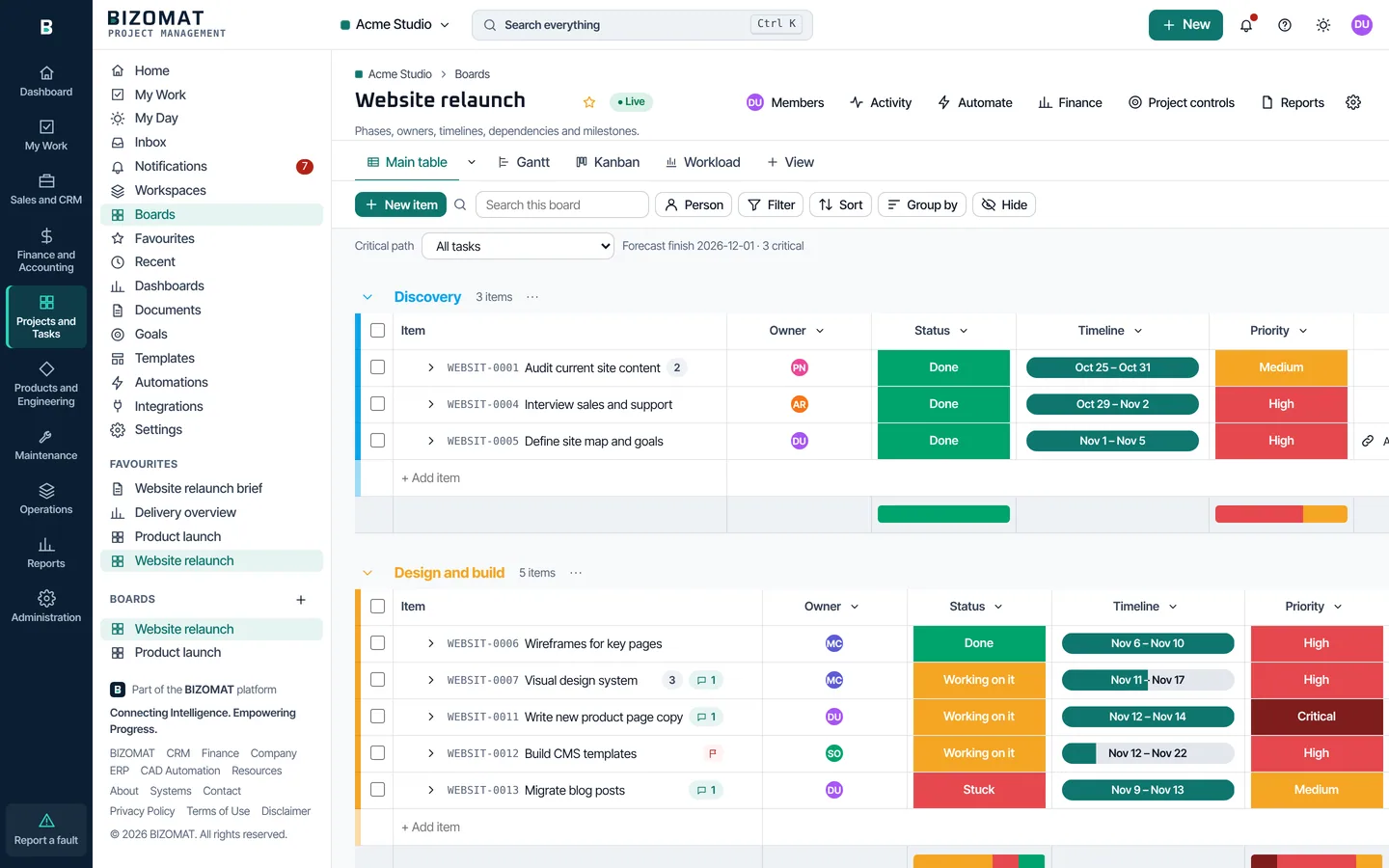
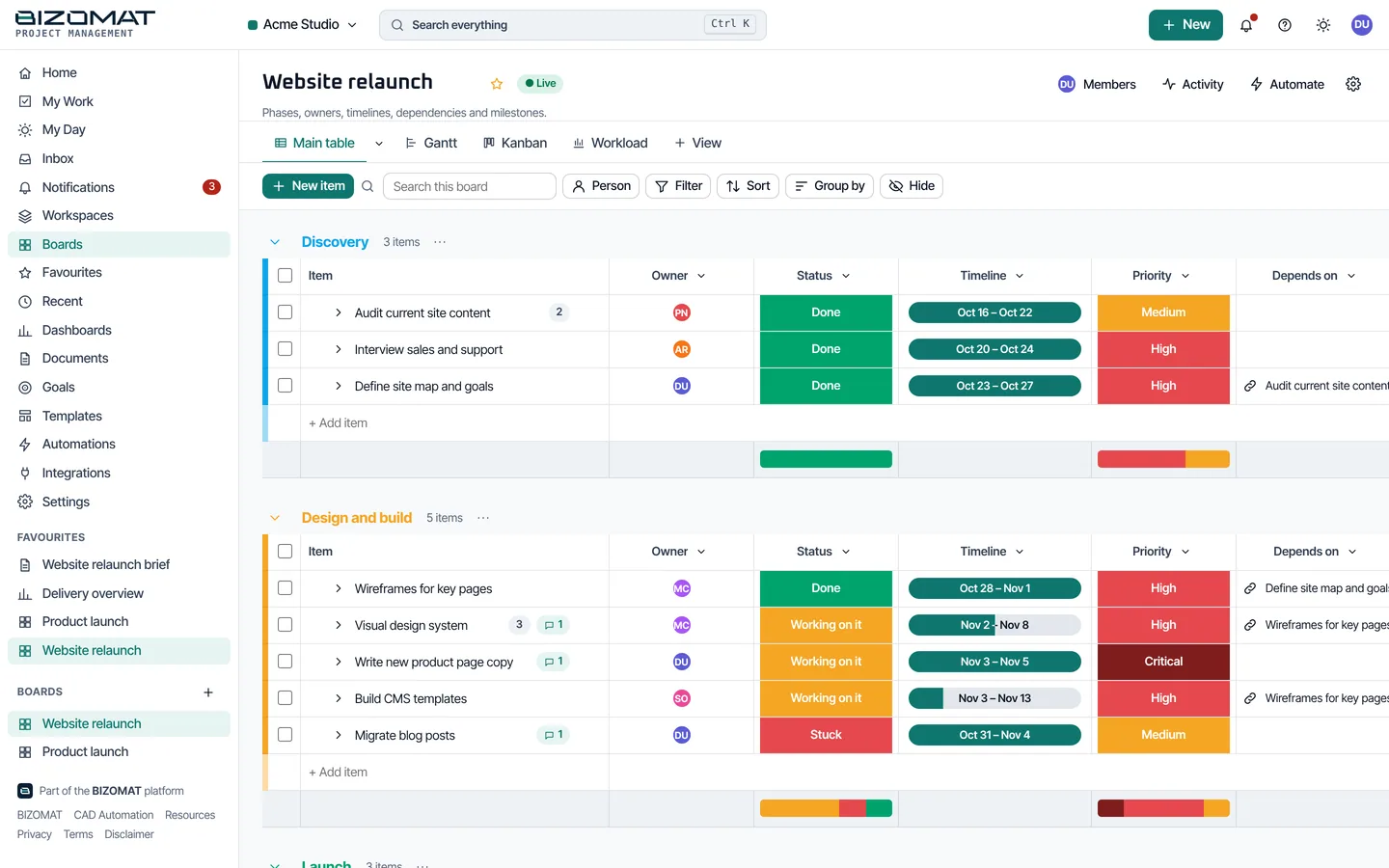
Boards, views, dashboards and documents
Captured from the running application with example data. More screens are in the user guide.
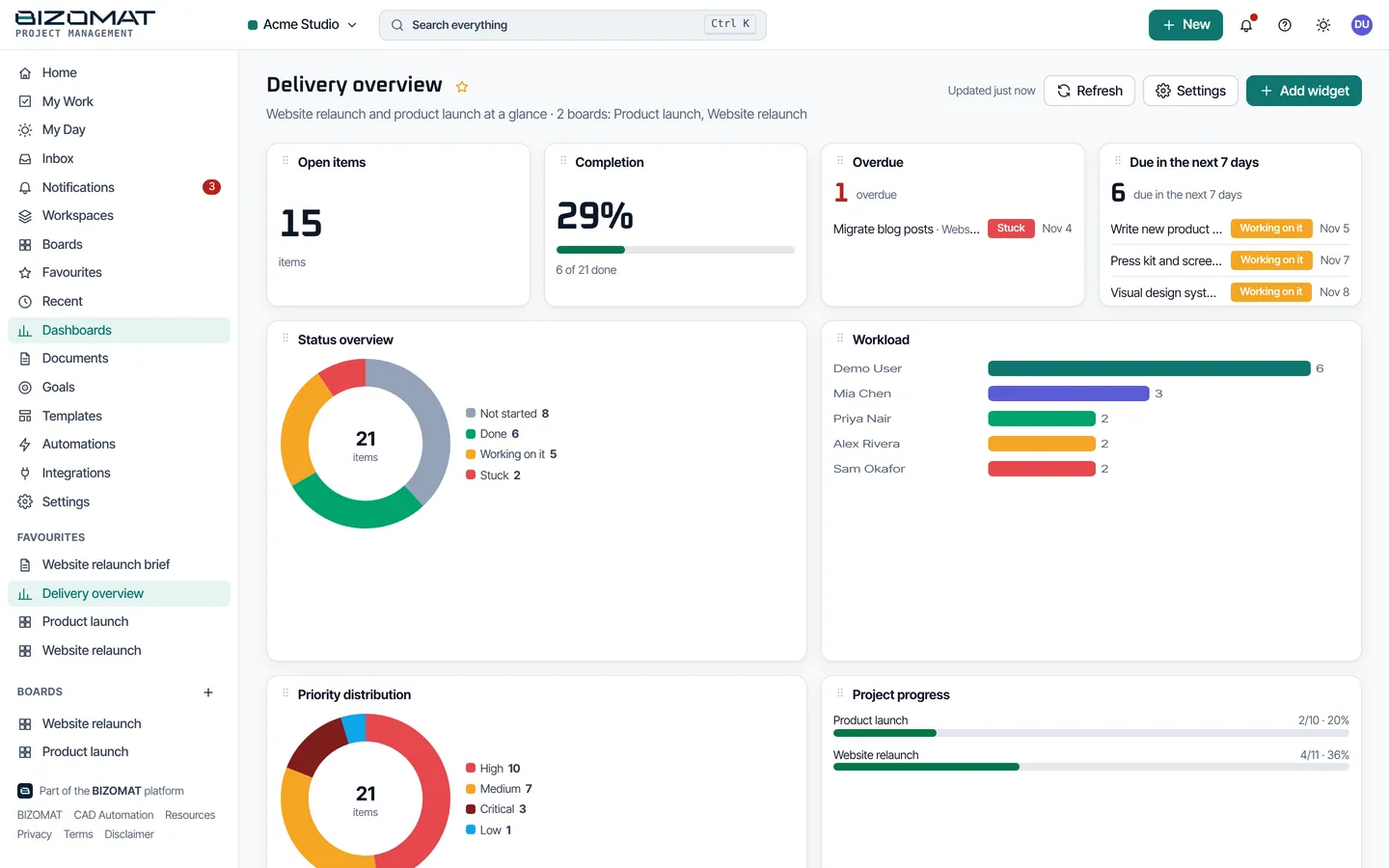
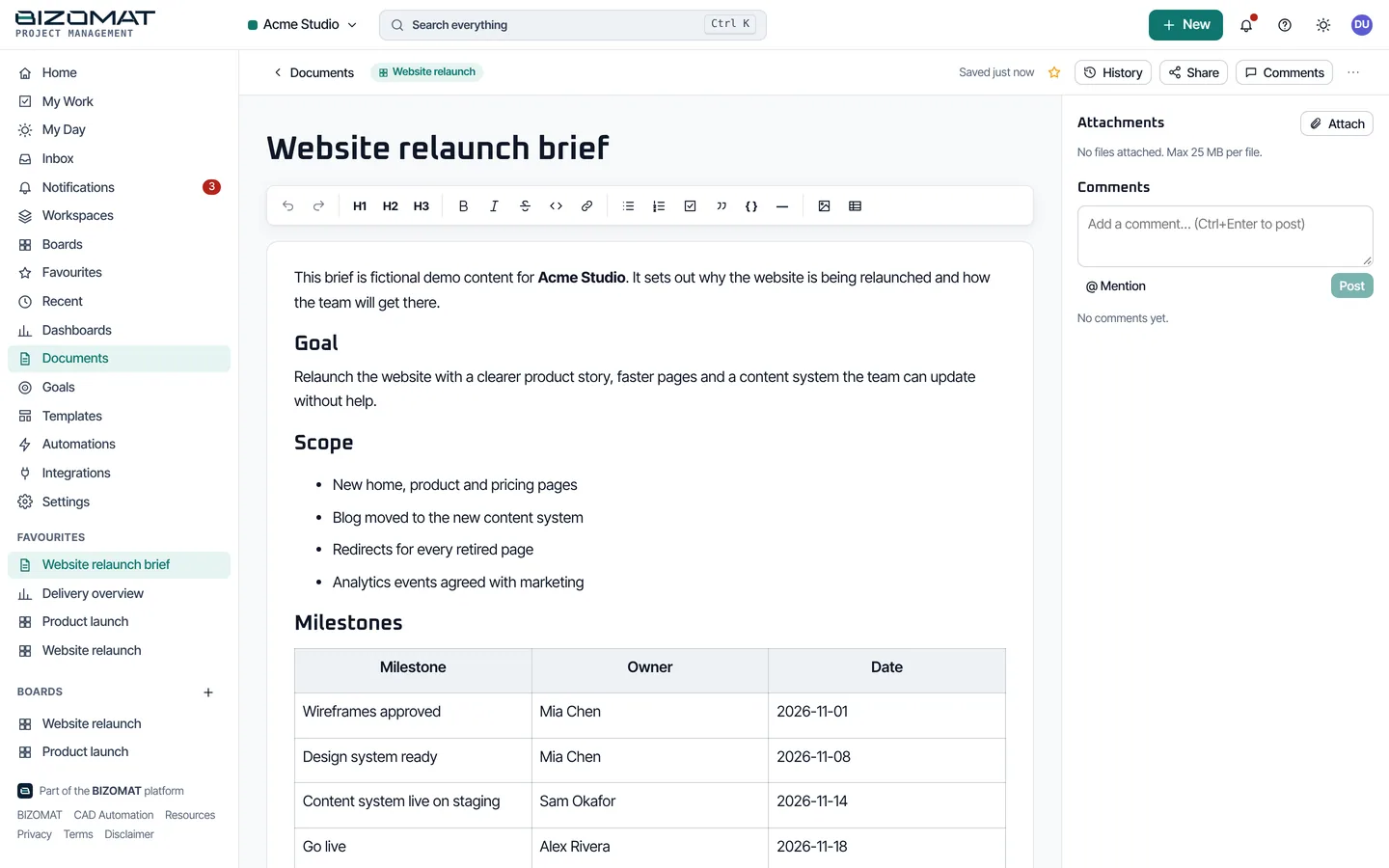
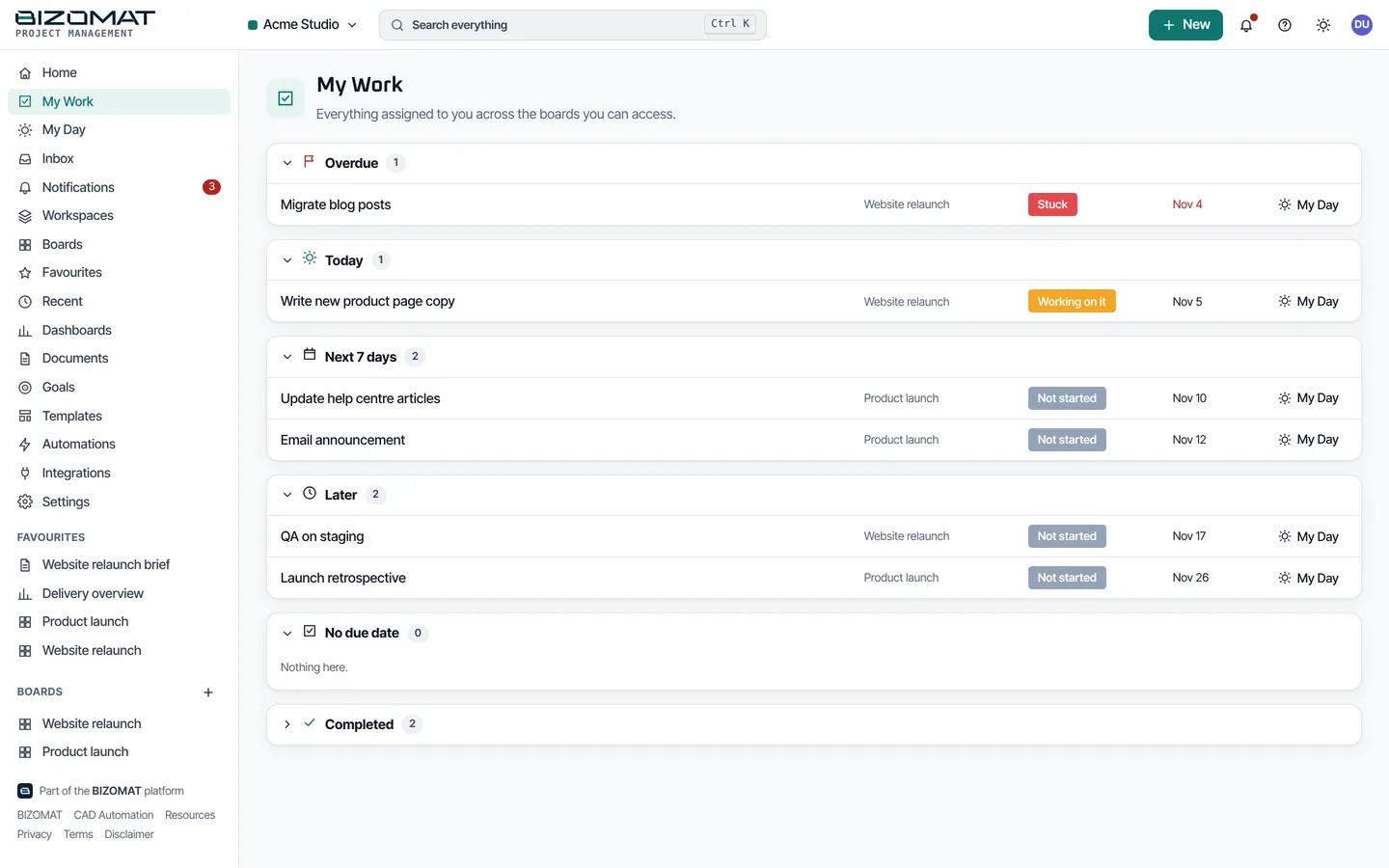
The main dashboard
Where each day starts
Four places answer "what needs doing, and how is it going?" Each counts only the work you are allowed to see.
Live
Home
Your start page in a workspace: what is overdue, due today, due in the next 7 days and planned today; a Needs your attention list; recent activity; My Day; favourites and recently visited places. New board, New doc and New dashboard are at the top.
Live
My Work and My Day
My Work lists everything assigned to you across the boards you can open, and the tasks shared with you. My Day is what you choose to focus on today, with a weekly planner.
Live
Dashboards
Live overviews built from your boards. Add widgets (11 types), choose their source boards, filters and date ranges, then resize and reorder them.
Connected
The BIZOMAT ERP Dashboard
The ERP's first page shows your company with a card for each tool. The Projects and Tasks card shows open tasks, overdue, due in 7 days and the number of projects, to people whose role may see them.
Screen by screen
A walk through the application
In the order you meet them. The user guide explains each one step by step.
LiveEvery screen below is in the application today.
Sign in
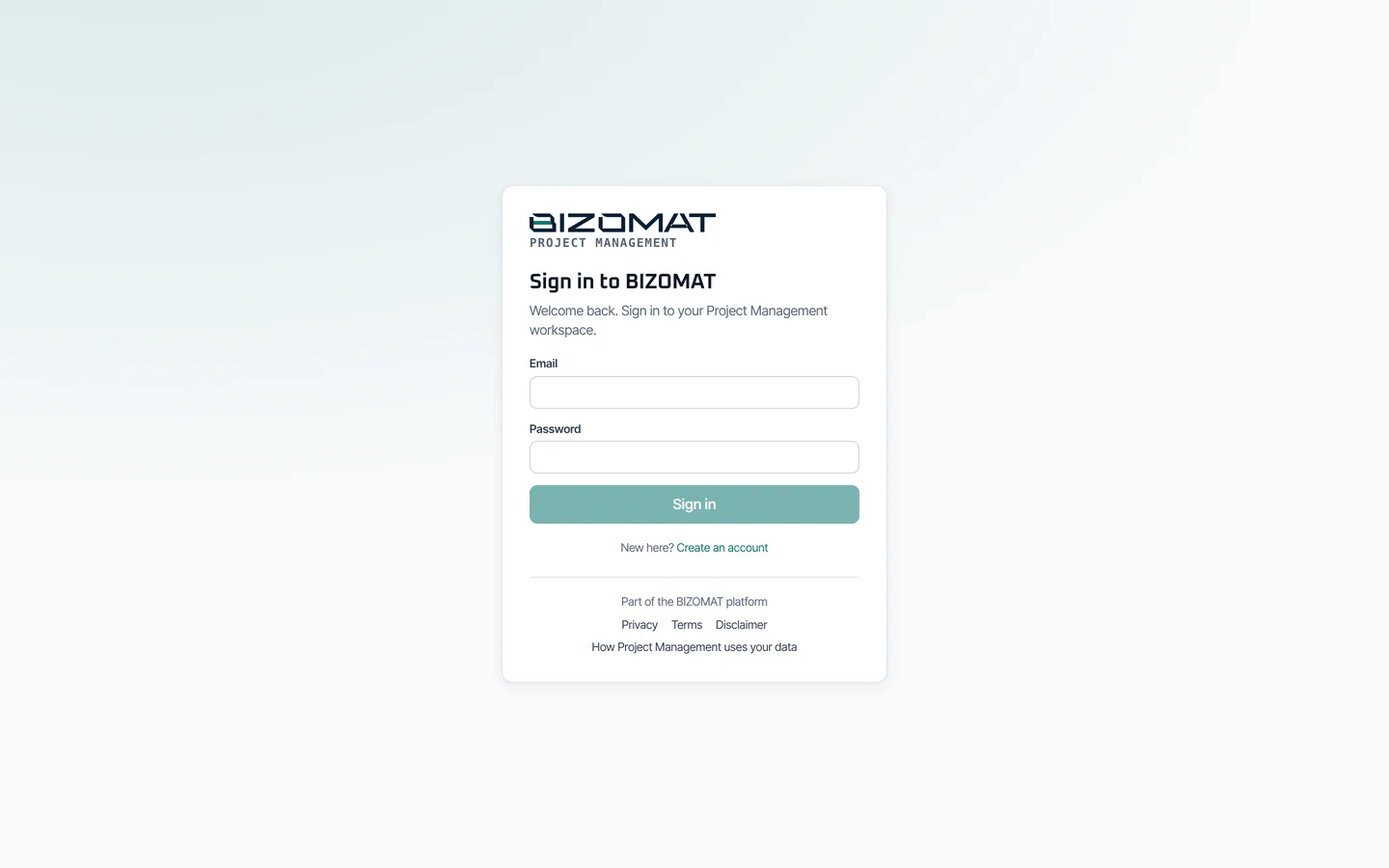
At bizomat.ai/erp, with your BIZOMAT email and password, or Google where it is configured.
The ERP module rail
Projects and Tasks opens your workspace; My Work opens what is assigned to you. The rail stays at the left of every screen.
Workspace Home
Counts of overdue and upcoming work, what needs your attention, recent activity and My Day.
Boards
Every board you can open, in folders, with All, Personal and Archived tabs, New board and Personal board.
A board
Groups, items and columns in the Table view. The header has Members, Activity, Automate, Project controls and, for people who may, Reports.
Views
Tabs above the board add Kanban, Calendar, Timeline, Chart, Workload, Form, Map and Files views, shared or personal.
An item
Opens beside the board with Updates, Details, Schedule, Subitems, Files, Activity, Time, Docs and Access.
Documents and Goals
Rich-text documents linked to the work, and goals with progress set by hand or from boards.
Dashboards
Widgets computed from the boards you choose.
Automations and Integrations
The automations across your boards, switched on or off in one place, and webhooks to Slack, Microsoft Teams and other services.
Settings
Your profile, notifications and security; the workspace, its members and teams; and, for administrators, finance settings, email, export and the audit trail.
Getting started
Start in 7 steps
Most people have a first board with real work on it in one sitting. The user guide covers each step, and everything after it.
Sign in
Open BIZOMAT ERP and sign in with your BIZOMAT account, or create one on the sign-in page where it is offered.
Open Projects and Tasks
Choose Projects and Tasks in the module rail on the left.
Create a workspace
Name it and choose Create workspace. A registered company already has one: its owner gives you a role in it.
Create a board
Choose New board, name it, and pick a template such as Project plan, or a blank board.
Add the work
Add items, give each an owner, a status and dates, and break big ones into subitems.
Invite your team
In Settings, Members, invite people by email and choose each person's role.
Track it
Switch to the Timeline or Kanban view, and add a dashboard to follow progress across boards.
Typical workflows
How the pieces fit in real work
Connected
From a won deal to a delivery project
- In Sales and CRM, open the deal and choose Start a project, in the section headed Across and your company's name.
- A board named after the deal is made in the company's Projects workspace.
- Add the tasks, owners and dates, and set dependencies and milestones on the timeline.
- In the company area, choose Track in Finance on the project and set its budget. Costs posted in Finance then show against it.
Needs a company account that runs Sales and CRM, Projects and Finance.
Live
Requests through a form
- Create a board from the Request intake template. It comes with a request form view and a Files view.
- Requests entered through the form arrive as items in New requests.
- Triage each one: set its priority, give it an owner and move it to Triaged.
- Add an automation, for example to notify the owner when the due date arrives and the item is not done.
Live
A monthly progress report
- Keep statuses and dates current on the board, and log time on items.
- Check progress, overdue work and workload on the project's dashboard.
- Choose Reports on the project, pick Monthly progress report and the month, and add your commentary.
- Preview it, then save it. The PDF, Excel, HTML and CSV files are kept as a version you can download later.
Integration with other BIZOMAT systems
Connected to sales, finance and your company
Projects works on its own, and inside a company account it links to the other systems. Each link checks both systems' own permissions, and money is read from Finance, never copied.
With BIZOMAT systems
- BIZOMAT ERP
- Connected Projects opens inside the ERP, in Projects and Tasks, with My Work in the rail. The ERP Dashboard shows the workspace's open, overdue and upcoming tasks, and Reports lists its dashboards.
- Sales and CRM: follow-up to task
- Connected A CRM follow-up becomes a task in a project you choose, linked back to the customer.
- Sales and CRM: deal to project
- Connected In a company account, a deal starts a project board named after it, once per deal.
- Finance: project costs and budget
- Connected In a company account, a project gets a Finance tracking project and a budget. Income and costs posted to it in Finance show against the budget, to people whose Finance role sees reports.
- Company accounts
- Connected A company runs one Projects workspace. Each person's Projects role is set in the company, and each department appears as a team.
With other tools
- Webhooks
- Live Signed outgoing webhooks and incoming webhooks for Slack and Microsoft Teams. Personal API tokens. Google sign-in when it is configured.
- Google Drive, Calendar, Gmail and GitHub
- Planned Listed in the app as "Requires setup". They cannot be switched on yet.
Frequently asked questions
Questions about BIZOMAT Projects
- How do I create a project?
- In BIZOMAT Projects a project is a board. Open Projects and Tasks in BIZOMAT ERP, choose New board, give it a name and pick a template (Project plan, Sprint board, Request intake and others) or a blank board, and choose who can see it. In a company account, a CRM deal can also start the project for you.
- How do I assign tasks?
- Add an item to the board and set its owner in the person column, with a status and a due date. An automation can also assign items, for example every new item to a chosen person. The person is notified and the task appears in their My Work. A task can be shared with someone outside the project from its Access tab.
- How do team members collaborate?
- Each item has updates and replies with @mentions, attachments, an activity history, time tracking and linked documents. Documents have autosave, version history and comments. Notifications cover assignments, mentions, replies, status changes and due dates.
- Can tasks depend on each other?
- Yes. The Timeline and Gantt view supports dependencies and milestones, and you drag a task to reschedule it. Boards also have a Dependency column type.
- How do I see reports on progress?
- Dashboards are computed from live board data, with 11 widget types such as task status, completion, workload, overdue work and project progress. People allowed to generate reports (project managers and administrators, by default) can also save project reports, such as a monthly progress or outstanding tasks report, as PDF, Excel, HTML and CSV.
- Who can see my projects?
- Only members of your workspace, as their roles allow. A board can be private to its members, and one task can be shared with a guest without the rest of the project. One workspace never sees another.
- Is it the same account as the CRM and Finance?
- Yes. Projects, Sales and CRM, and Finance and Accounting use one BIZOMAT account and open inside BIZOMAT ERP. Signing in once reaches every tool you have a role in.
- I used BIZOMAT Project Management. Do I start again?
- No. BIZOMAT Projects is the same application under its new name. Sign in with the email and password you already use; your workspaces and boards are where they were.
Something not covered here? Read the user guide or contact BIZOMAT.
Bring your projects and your team into one place.
Opens inside BIZOMAT ERP, in the Projects and Tasks module.