

BIZOMAT Engineering AutomationFormerly CAD Automation (CADOS)
Your AI assistant, working in SOLIDWORKS on your own computer.
BIZOMAT Engineering Automation brings AI automation to SOLIDWORKS: an AI CAD assistant that works in your own files. It connects Claude, ChatGPT or another assistant that supports MCP connectors to SOLIDWORKS on your PC. You describe the part, the change or the check; it builds native, editable features in your own files.
Its application is called CAD Automation. Needs SOLIDWORKS on your own Windows computer, the BIZOMAT add-in and Companion, and an AI assistant that supports MCP connectors. CAD Automation keeps its own sign-in for now.
What it does
Your assistant asks. Your SOLIDWORKS does the work.
An engineering automation system takes repeated design work off your hands. Here, your AI assistant calls BIZOMAT's tools over MCP; BIZOMAT checks each step and sends it to your computer, where the add-in makes native features in your SOLIDWORKS session.
- Live Works today in BIZOMAT.
- Connected Works today by linking two BIZOMAT systems, without copying records.
- In development Being built: parts exist, but it is not switched on for everyone yet.
- Planned Designed, not built. Not available today.
Install on Windows
One installer adds the SOLIDWORKS add-in and the BIZOMAT Companion, a small tray app that starts with Windows.
Pair the computer
Sign in once from the Companion. The computer gets its own key, kept in Windows and never exported.
Connect your assistant
Add the connector address in Claude, ChatGPT or another MCP app and sign in. The assistant now has the SOLIDWORKS tools.
Ask in plain language
Describe the work. Each command goes over an outgoing HTTPS link to your computer and runs in your SOLIDWORKS session.
Local execution, by design Live
- SOLIDWORKS runs on your computer, with your licence, templates and file locations.
- Only commands and their results travel. Model files are read and saved where they are.
- Each sketch is solved and each feature is rebuilt on BIZOMAT's own kernel first, so the expected volume and size are known before SOLIDWORKS changes anything.
- Several computers can be paired; you choose which one runs a command.
- CAD Automation runs no AI of its own: your assistant does the reasoning.
Works with Claude, ChatGPT (where your plan allows custom connectors) and any assistant that supports remote MCP servers over Streamable HTTP.
Who should use it
For people who design and document in SOLIDWORKS
It needs SOLIDWORKS on a Windows computer you use. Without a local SOLIDWORKS installation it has nothing to work in.
Mechanical designers and engineers
People who model parts and assemblies in SOLIDWORKS and want an assistant to build, change and check them from a plain request.
Drafters
People who turn models into drawings: standard views, preferred scales, model dimensions, section and detail views, notes and a parts list.
Engineering teams
Teams with repeated work, such as standard plates, brackets and fasteners, or checks to run before a design is released.
Administrators
The people who add accounts, keep track of paired computers and connected AI apps, and suspend access when someone leaves.
Problems it solves
Less repetition, more checking
Live
Repetitive modelling
Describe the plate, bracket or bushing in words. The assistant builds it as native, editable SOLIDWORKS features.
Live
Standard parts drawn by hand
ISO screws, nuts, washers and ball bearings are made to size, ready to insert and mate.
Live
Drawings that take long to lay out
A native drawing with standard views, a preferred scale, model dimensions and title block fields, refined with section and detail views and a bill of materials.
Live
Mistakes found late
Each sketch is solved and each feature rebuilt on BIZOMAT's kernel before SOLIDWORKS changes anything. Interference checks and measurements report what is really there.
Live
Assistants that can talk about CAD but not touch it
The assistant gets 31 tools that act in your own SOLIDWORKS session, with your templates and file locations.
Live
Files and licences that must stay in-house
SOLIDWORKS runs on your computer with your licence. Only commands and their results travel; model files are read and saved where they are.
Features: capabilities
Parts, assemblies and drawings, in plain language
Everything it makes is a native SOLIDWORKS feature you can edit like any other.
Live
Parts
Sketches with relations and dimensions, solved before they reach SOLIDWORKS; over-defined sketches are refused. Extrude, revolve, sweep, loft, hole, fillet, chamfer, shell, draft, mirror, patterns and reference planes.
Live
Assemblies
Insert components, add mates, find mate candidates and check interference. ISO screws, nuts, washers and ball bearings made to size.
Live
Drawings
Native .SLDDRW drawings with standard or named views, preferred scales, model dimensions and title block fields. Section, detail and projected views, notes and a bill of materials.
Live
Your existing files
Open your own parts and assemblies, read features, dimensions and topology, change parameters and equations, measure and preview.
Live
Import and export
Open STEP, IGES and Parasolid files. Export STEP, STL, Parasolid or IGES, and drawings as PDF (every sheet), DWG or DXF.
Live
Checks before changes
Every feature is rebuilt on an OpenCascade kernel first, so the expected volume and size are known before SOLIDWORKS is touched. Deletions ask you to confirm on your computer.
Live means available in CAD Automation today. Testing on real SOLIDWORKS installations is still under way: see Where it stands.
Features: supported operations
All 31 tools your assistant can call
The same list the application shows. Long commands report progress and can be cancelled.
Connection and documents Live
- sw_status
- Connection status. Checks that SOLIDWORKS is connected and lists the open documents.
- sw_get_guide
- Working guide. Gives the assistant the workflow and the feature format before it builds.
- sw_create_document
- New part or assembly. Creates a part or assembly from your default template and saves it.
- sw_open_document
- Open a file. Opens a SOLIDWORKS file, or brings it to the front.
- sw_save
- Save. Saves the document, or saves it under a new name.
- sw_get_document
- Read a document. Reads the feature tree, sketches, dimensions and rebuild errors as they are now.
Building and changing parts Live
- sw_add_features
- Add features. Makes sketches and features: extrude, revolve, sweep, loft, hole, fillet, chamfer, shell, draft, mirror, patterns, planes. Every sketch is solved and checked first.
- sw_batch
- Build in one step. Runs several steps as one change; if one fails, the whole change is taken back.
- sw_delete_items
- Delete features. Deletes features or components. By default you confirm it in SOLIDWORKS first.
- sw_undo
- Undo. Undoes recent changes. By default you confirm it in SOLIDWORKS first.
- sw_set_parameter
- Global variables. Creates, changes or removes a global variable.
- sw_set_equation
- Equations. Drives a dimension with an equation of global variables.
- sw_standard_part
- Standard parts. Makes an ISO screw, nut, washer or ball bearing to size, ready to insert.
Assemblies Live
- sw_insert_component
- Insert a component. Inserts a part or sub-assembly at a position.
- sw_add_mate
- Add a mate. Adds a mate between two components.
- sw_find_mate_candidates
- Suggest mates. Finds likely mates, such as shafts in holes and faces lying on each other.
- sw_check_interference
- Interference check. Lists every pair of components that overlap, with the overlap volume.
Checking and measuring Live
- sw_inspect_design
- Inspect the design. Reports feature states, volume, area, centre of mass and size, to compare with what you meant.
- sw_measure_items
- Measure. Measures faces, edges and points, like Evaluate > Measure.
- sw_body_topology
- Faces and edges. Lists the body's faces and edges so the assistant can pick the right ones.
- sw_preview
- Preview image. Shows a picture of the model from any standard view.
Drawings Live
- sw_create_drawing
- Create a drawing. Makes a native drawing with standard views, a preferred scale, model dimensions and title block fields.
- sw_get_drawing
- Read a drawing. Reads the sheet, every view and the title block.
- sw_edit_drawing
- Edit a drawing. Adds section, detail and projected views, notes and a bill of materials, and moves or rescales views.
Files Live
- sw_import
- Import a file. Opens a STEP, IGES or Parasolid file and saves it as SOLIDWORKS files.
- request_upload
- Send a large file. Gives the assistant a one-time link to send a large file for import.
- sw_export
- Export. Exports STEP, STL, Parasolid, IGES, PDF, DWG or DXF and returns a download link valid for one hour.
Computers and commands Live
- sw_list_devices
- Your computers. Lists your paired computers and which have SOLIDWORKS open.
- sw_command_status
- Command progress. Shows where a long command is and its result when done.
- sw_cancel_command
- Cancel a command. Cancels a command that has not finished.
- sw_selftest
- Self test. Checks a computer step by step: sketches, features, an assembly and a drawing.
Requests to try
Make a part
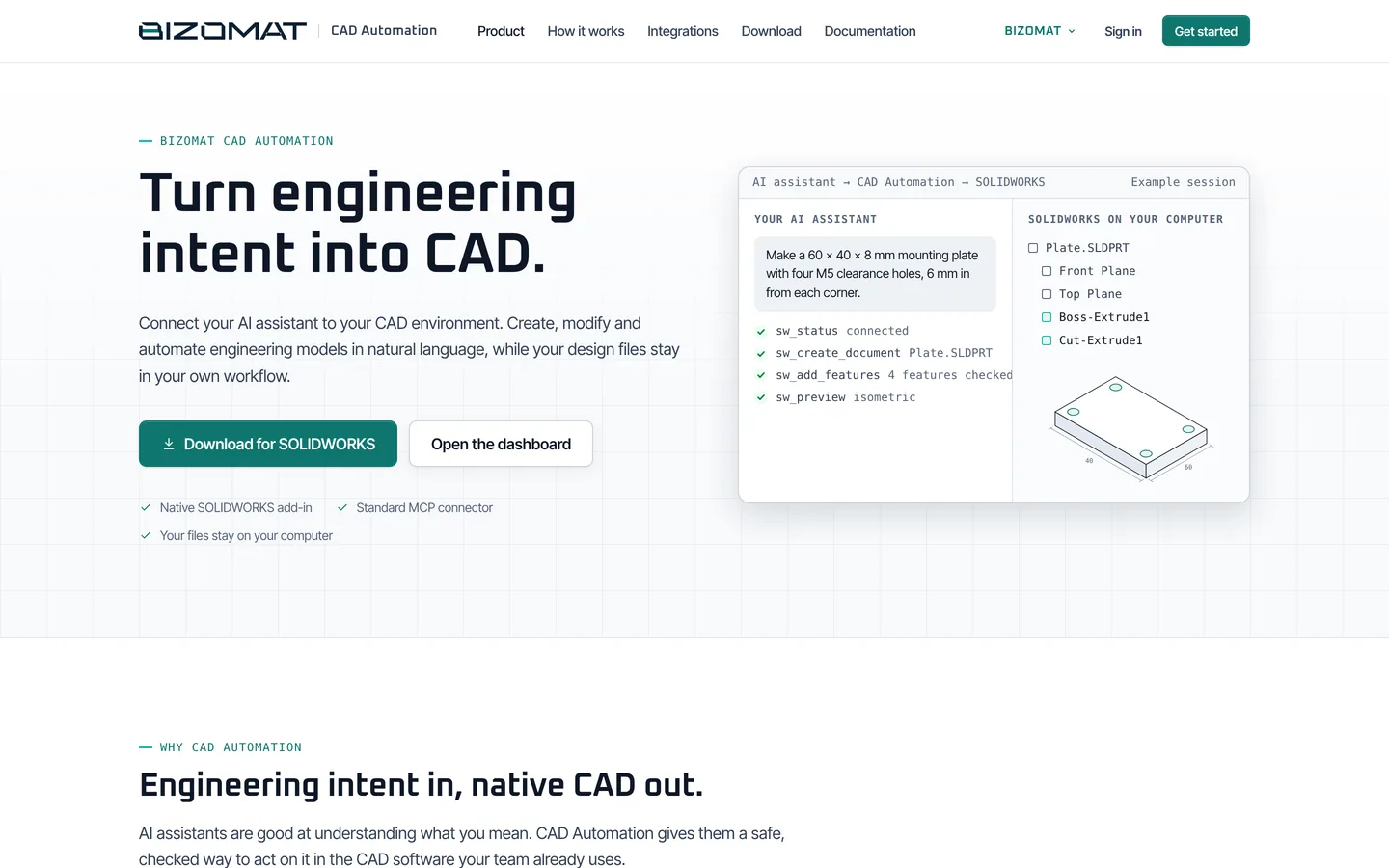
“Make a 60 x 40 x 8 mm mounting plate with four M5 clearance holes, 6 mm in from each corner.”
“Make a flanged bushing: 30 mm outside, 16 mm bore, 25 mm long, with a 45 mm flange 5 mm thick.”
Change a design
“In the open part, make the plate 10 mm thick and add 2 mm fillets to the outside edges.”
“Add a global variable called wall, set it to 2.5 mm and drive the shell thickness with it.”
Assemblies
“Insert the plate and four M5 x 12 socket head cap screws into a new assembly and mate the screws in the holes.”
“Check the open assembly for interference and tell me which parts overlap.”
Features: security
Built to keep your CAD environment yours
Live
Signed commands
Every command to your computer is signed by BIZOMAT (ES256) and checked by the Companion before it runs. Replayed, expired or altered commands are refused.
Live
A key per computer
Pairing makes a key on the computer, kept by Windows (in the TPM where there is one) and never exported. Removing a computer cuts it off.
Live
Sign-in for every AI app
Assistants sign in with OAuth (PKCE, refresh rotation, revocation). You see each connected app and can disconnect it.
Live
You confirm deletions
Deleting features or undoing work asks you in SOLIDWORKS first, by default.
Live
Your files stay with you
SOLIDWORKS saves your models on your computer. To check and measure, BIZOMAT works on a copy of the current body held briefly in memory; exports you ask for are kept for one hour.
Live
Outgoing connections only
The Companion reaches BIZOMAT over HTTPS; nothing on your network has to accept incoming connections.
Screenshots
Your assistant, your computers and your tools, in one place
Captured from the running application with example data.
The main dashboard
Where you start, and where you check
CAD Automation's own Home is where you work. BIZOMAT ERP shows the same set-up for your company, beside its other systems.
Live
CAD Automation Home
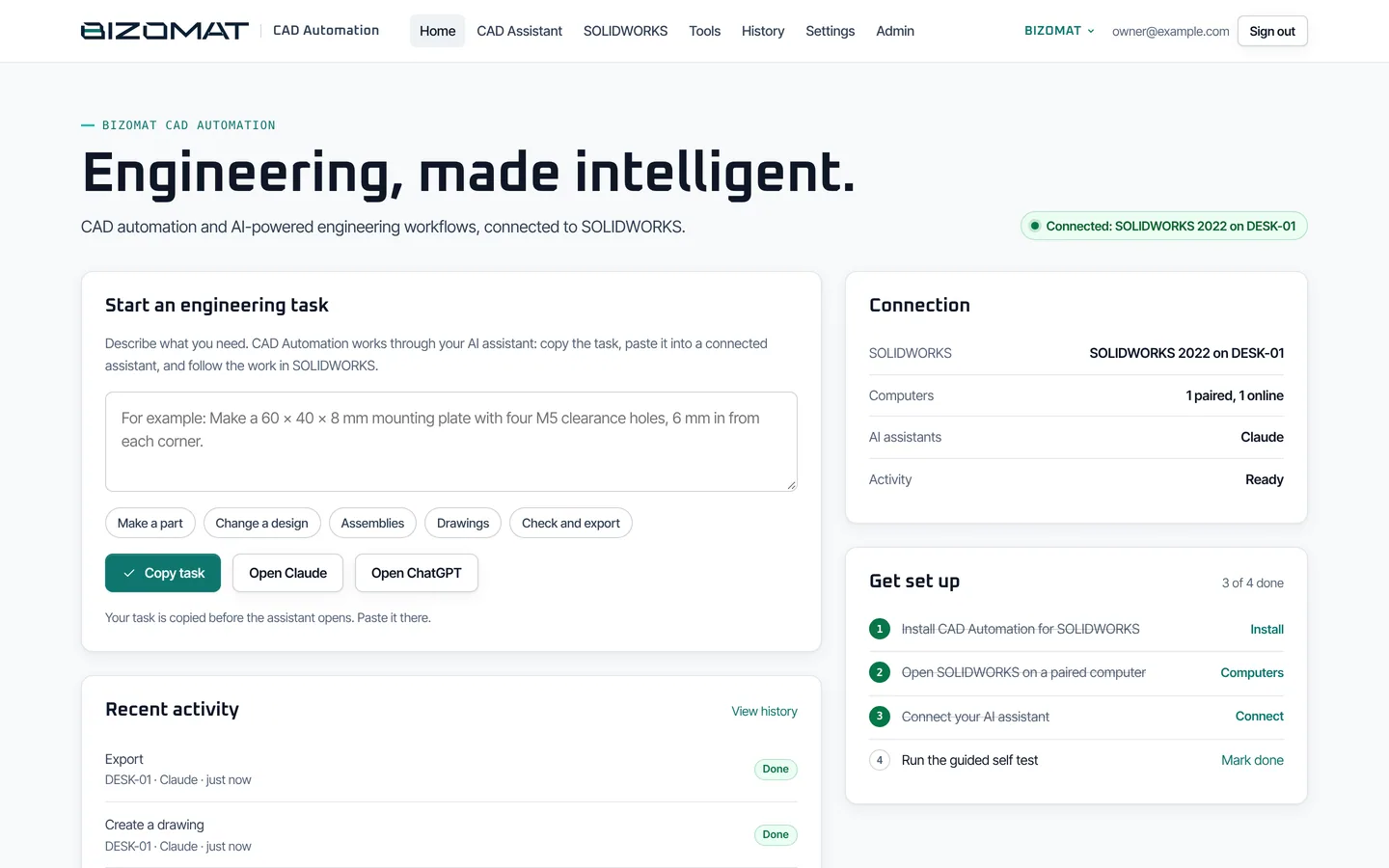
"Engineering, made intelligent." Start an engineering task: describe it, copy it and open Claude or ChatGPT. The Connection panel shows SOLIDWORKS, your computers, your AI assistants and current activity. Get set up lists four steps, and Recent activity lists the latest commands.
Live
Connection states
Connected, Disconnected, Checking connection, Authentication required, Installation required or Connection error. The page updates every few seconds while it is open.
Connected
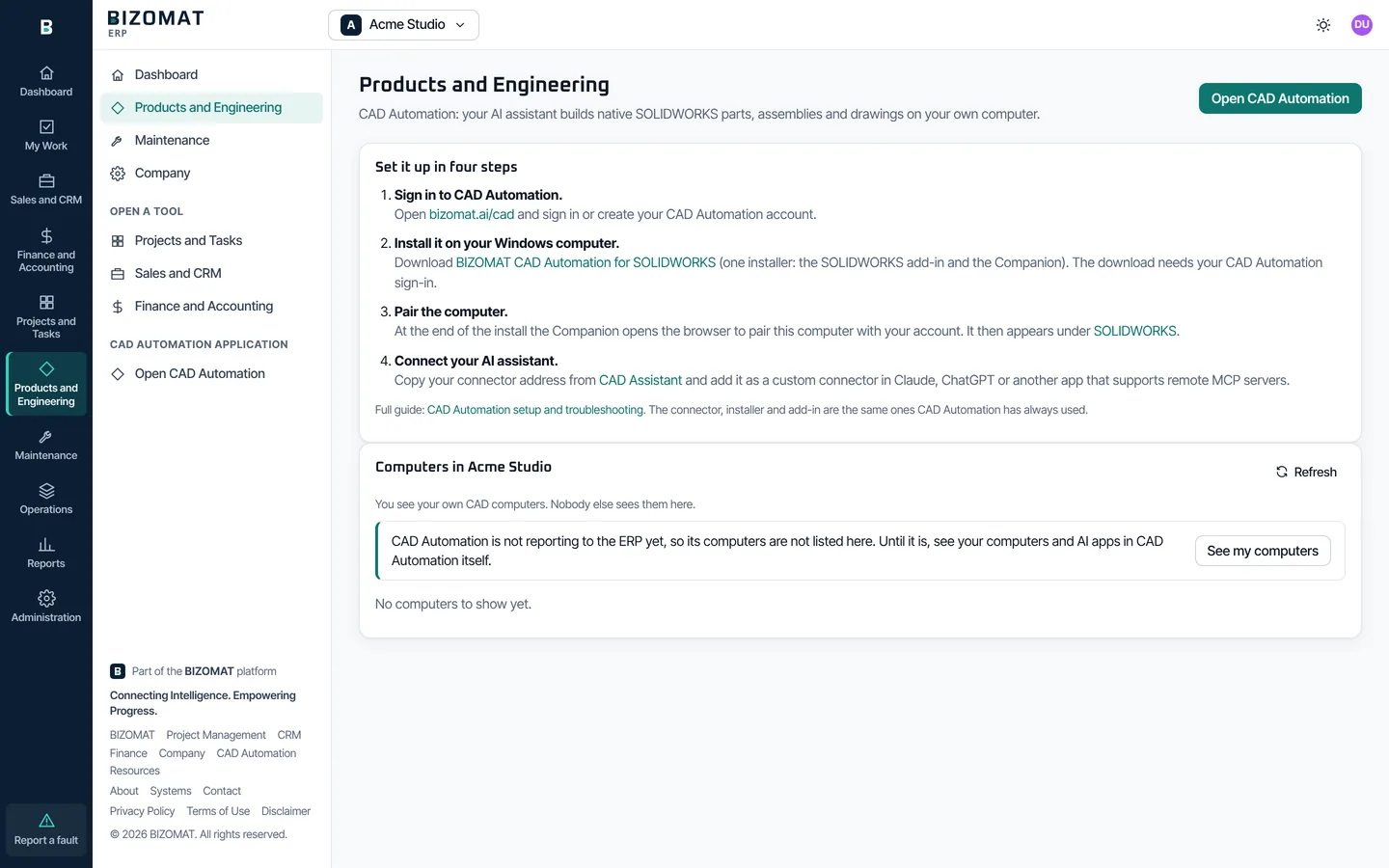
BIZOMAT ERP: Products and Engineering
The same four set-up steps, with links into CAD Automation, and the computers of your company: the owner and administrators see everyone's, members their own, and other companies nothing.
In development
Your computers' status in the ERP
Live computer status in the ERP needs CAD Automation to report to it, which is not switched on yet. Until then the ERP page says so and links to your computers in CAD Automation.
Screen by screen
A walk through CAD Automation
The application's pages, then what you see on your own computer. The user guide explains each step.
LiveEvery screen below is in CAD Automation and its installer today.
Sign in
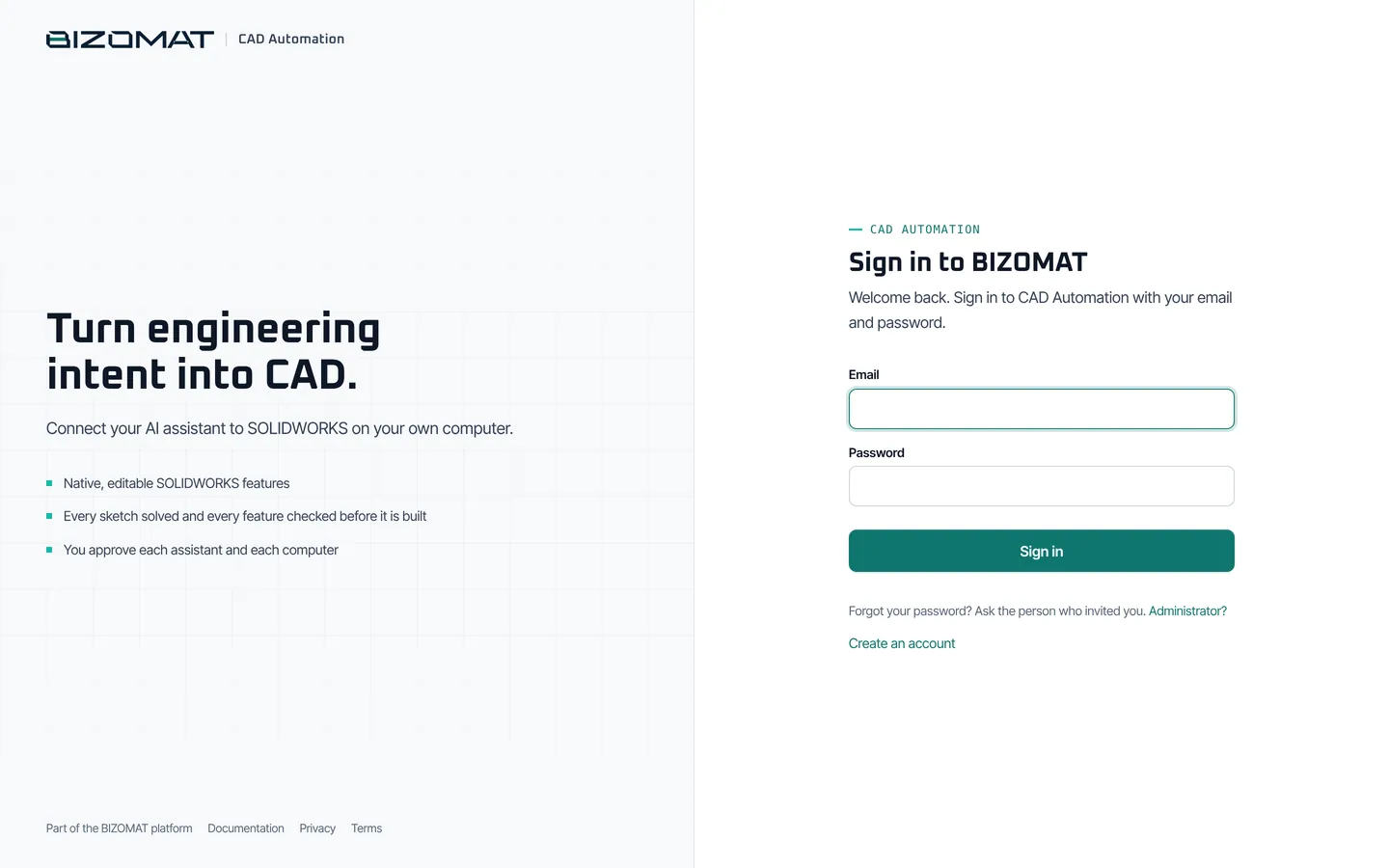
At bizomat.ai/cad, with your CAD Automation email and password, or Google where your administrator turned it on.
Home
The task box, connection status, the four set-up steps and recent activity.
CAD Assistant
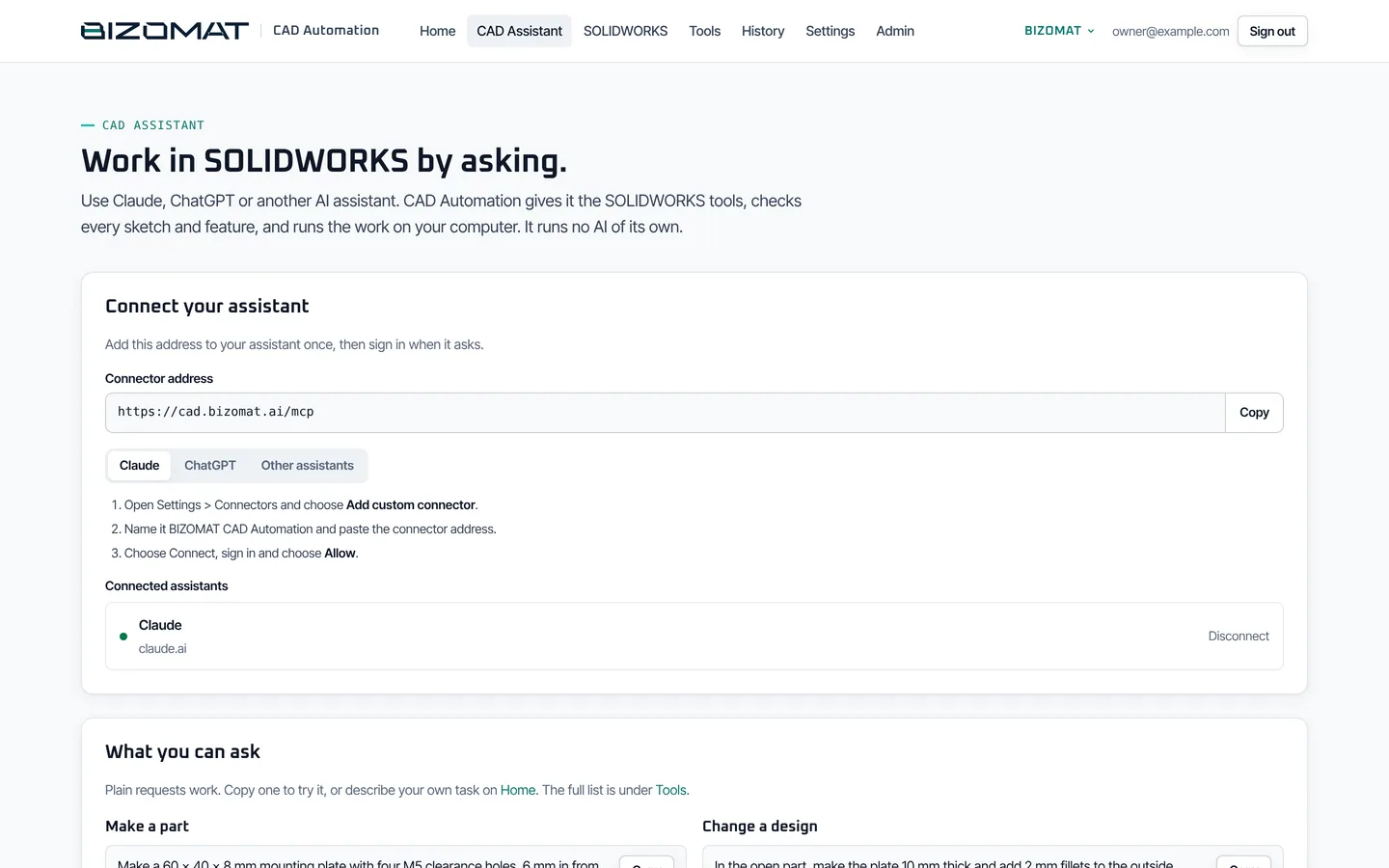
Your connector address, steps for Claude, ChatGPT and other assistants, connected assistants with Disconnect, and example requests.
SOLIDWORKS
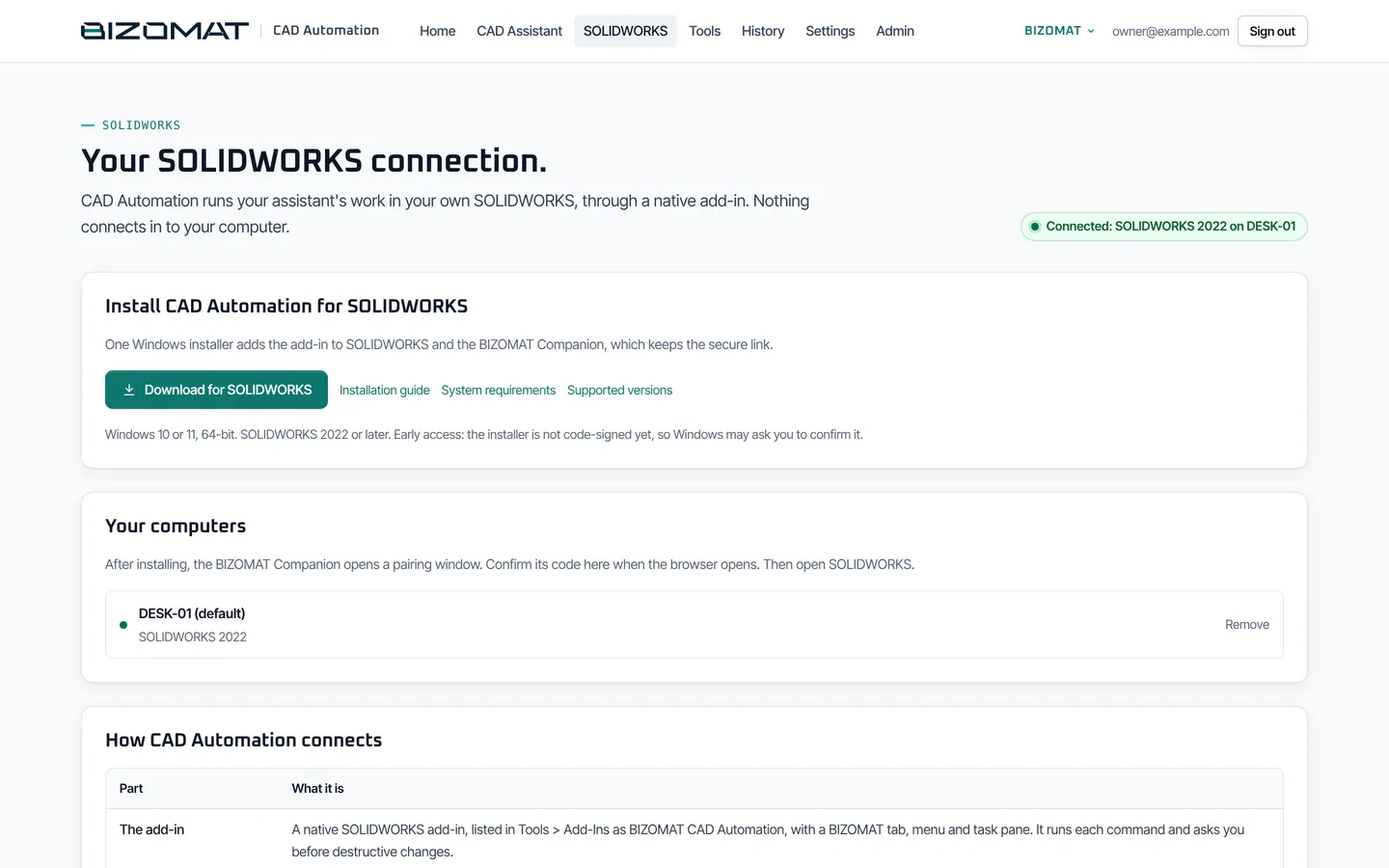
The installer, your paired computers (make one the default or remove it) and how the add-in connects.
Tools
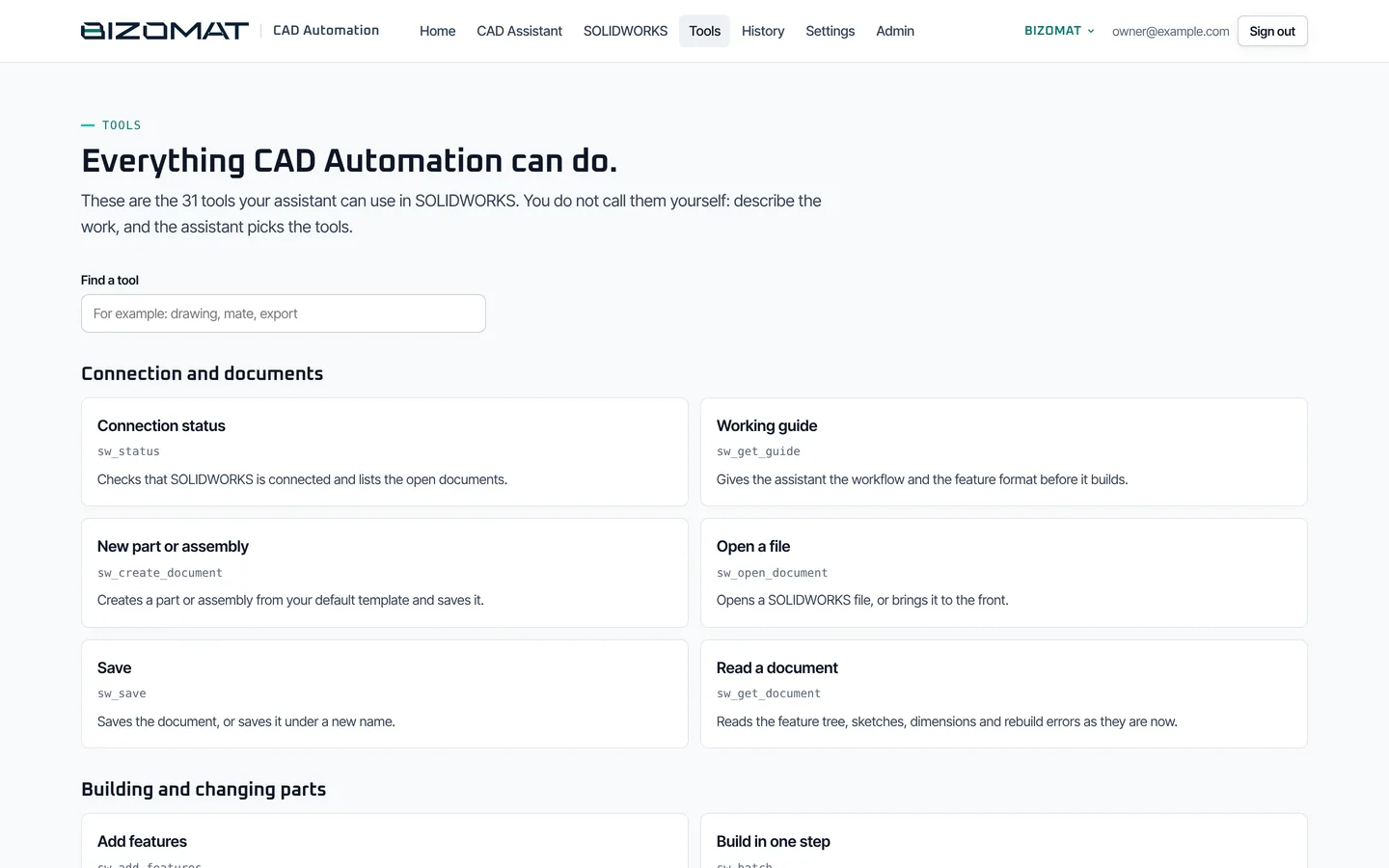
All 31 tools your assistant can call, in plain words, searchable.
History
Commands sent to your paired computers, newest first: the tool, the computer, the assistant and how it ended.
Settings
Your account, the private address for assistants that cannot sign in, the add-in key, your password and sign out.
Admin
For the server's administrator only: add people, invite links, open sign-up, passwords, suspension, and each person's computers and AI apps.
In SOLIDWORKS
The add-in's tab, menu and task pane show the connection, prompts to copy, the confirmation setting and live activity. A confirm window appears before destructive changes.
The Companion
A tray app that starts with Windows. It pairs the computer, holds the signed link to BIZOMAT, and can be paused from its menu.
Getting started
Set up in four steps, then test
Sign in to CAD Automation
Open bizomat.ai/cad and sign in with the CAD Automation account your administrator gave you.
Install on your Windows computer
Download BIZOMAT CAD Automation for SOLIDWORKS, close SOLIDWORKS and run the installer. It adds the add-in and the Companion.
Pair the computer
The Companion opens its pairing window. Enter your email and password, or confirm the code in your browser.
Connect your assistant
Copy the connector address from the CAD Assistant page, add it as a custom connector in your assistant, and sign in.
Run the self test
Ask your assistant to run it. It builds a plate, a set of shapes and an assembly on your computer, makes a drawing and a PDF, and reports each step as ok, check or failed with the reason.
The download needs a CAD Automation account. The user guide walks through every step.
What you need
- Windows 10 (version 1903 or later) or Windows 11, 64-bit, with .NET Framework 4.8, which is included in Windows.
- SOLIDWORKS 2022 or later, 64-bit, installed on that computer. The add-in is built against the SOLIDWORKS 2022 API; 2023 to 2026 are expected to work but are not yet validated.
- Administrator approval on the computer once, for the installation.
- A CAD Automation account. Your administrator adds you or sends an invite link.
- An AI assistant that supports remote MCP connectors, such as Claude, or ChatGPT where your plan allows custom connectors.
SOLIDWORKS 2021 or older, 32-bit Windows or SOLIDWORKS, and SOLIDWORKS run as administrator are not supported. Windows Server is not tested.
Typical workflows
What a session looks like
Each request is in plain words. The assistant picks the tools; you follow the work in SOLIDWORKS and in the add-in's task pane.
Live
A new part from a request
- Ask, for example: "Make a 60 x 40 x 8 mm mounting plate with four M5 clearance holes, 6 mm in from each corner."
- The assistant reads the working guide, then builds in small stages, each one checked before it is sent.
- It compares the expected volume and size with what SOLIDWORKS made, and fixes any difference.
- The new part is saved when it is made; later changes are saved when you or the assistant save.
Live
Change an existing design
- Open your own part, or ask the assistant to open it.
- It reads the feature tree, sketches and dimensions as they are now.
- It changes dimensions, global variables or equations, or adds features such as fillets.
- It inspects and measures the result and shows you a preview image.
Live
An assembly with standard fasteners
- Make the ISO screws, nuts or washers to size.
- Insert the components into a new assembly.
- Add mates, with suggestions such as shafts in holes and faces lying on each other.
- Run an interference check, which lists every overlapping pair and its volume.
Live
A drawing for the workshop
- Create an A3 drawing of the saved part with the standard views, an isometric and the model dimensions.
- Add a section or detail view, notes and a bill of materials.
- Check the sheet with a screenshot and adjust views or scales.
- Export it as PDF, DWG or DXF. The download link works for one hour.
Integration with other BIZOMAT systems
What connects today, and what comes next
Works today
- BIZOMAT ERP: set-up
- Connected Products and Engineering in the ERP's module rail has a CAD Automation tab with its four set-up steps and links into the application.
- AI assistants
- Live Claude, ChatGPT where your plan allows custom connectors, and other assistants that support remote MCP servers.
- SOLIDWORKS
- Live A native add-in with a tab, menu and task pane, built against the SOLIDWORKS 2022 API.
Not yet
- BIZOMAT ERP: your computers
- In development The ERP lists a company's computers (the owner and administrators see everyone's, members their own, other companies nothing) once CAD Automation reports to it. That reporting is not switched on yet; until it is, the ERP page says so and links to your computers in CAD Automation.
- Sign in with BIZOMAT
- In development One BIZOMAT account for CAD Automation too. Until it is switched on, CAD Automation keeps its own sign-in.
- Product and engineering records
- Live Products with revisions, bills of materials, engineering changes and documents work today in BIZOMAT ERP, where a document can reference a CAD file on your computer. Making a drawing from an ERP product is planned.
There is no automatic link between CAD Automation and Projects, the CRM or Finance today.
Frequently asked questions
Questions about BIZOMAT Engineering Automation
- How do I connect SOLIDWORKS?
- Install BIZOMAT CAD Automation for SOLIDWORKS on the Windows computer where SOLIDWORKS runs. One installer adds the SOLIDWORKS add-in and the Companion. Pair the computer with your CAD Automation account in the Companion's pairing window, then open SOLIDWORKS: the add-in loads by itself and connects through the Companion. Nothing has to connect in to your computer.
- What is MCP?
- MCP, the Model Context Protocol, is an open protocol that lets an AI assistant call tools in other software. CAD Automation is an MCP server: it gives your assistant 31 SOLIDWORKS tools. You add its connector address to your assistant once and sign in; the assistant then decides which tools to call for your request.
- What are the computer requirements?
- Windows 10 (version 1903 or later) or Windows 11, 64-bit, with .NET Framework 4.8, which is included in Windows. SOLIDWORKS 2022 or later, 64-bit, installed on that computer. The add-in is built against the SOLIDWORKS 2022 API; 2023 to 2026 are expected to work but are not yet validated. Administrator approval on the computer once, for the installation. A CAD Automation account. Your administrator adds you or sends an invite link. An AI assistant that supports remote MCP connectors, such as Claude, or ChatGPT where your plan allows custom connectors. SOLIDWORKS 2021 or older, 32-bit Windows or SOLIDWORKS, and SOLIDWORKS run as administrator are not supported. Windows Server is not tested.
- Do I need SOLIDWORKS installed locally?
- Yes. All modelling happens in the SOLIDWORKS installed on your own Windows computer, with your licence, while it is open and connected through the Companion. Without a local SOLIDWORKS installation and its connection, the assistant has nothing to work in.
- Which AI assistants work with it?
- Any assistant that supports remote MCP servers over Streamable HTTP. In Claude, add it as a custom connector. In ChatGPT, add it where your plan allows custom connectors; your workspace administrator may need to allow them first. It has been tested with the MCP Python SDK client and Claude Desktop; ChatGPT's connector has not been tested yet.
- Does BIZOMAT run its own AI?
- No. CAD Automation runs no AI of its own. Your assistant does the reasoning; CAD Automation gives it the tools, checks each step and runs it in SOLIDWORKS.
- Do my models leave my computer?
- Your model files stay where SOLIDWORKS saves them, on your computer. To check and measure, BIZOMAT works on a copy of the current body, held briefly in memory, and exports you ask for are kept for one hour.
- Is it the same account as BIZOMAT ERP?
- Not yet. CAD Automation keeps its own sign-in for now, so your CAD Automation account is separate from the BIZOMAT account you use for BIZOMAT ERP, Projects, the CRM and Finance. Sign in with BIZOMAT for CAD Automation is in development. Meanwhile the ERP shows CAD Automation's set-up steps under Products and Engineering.
- How far has it been tested?
- Automated tests cover every SOLIDWORKS tool through a simulated SOLIDWORKS and the real Windows Companion link against the real server. Field testing of the installed product on Windows with SOLIDWORKS 2022 is the next milestone. The add-in is built against the SOLIDWORKS 2022 API and has not yet been run on many real SOLIDWORKS installations, so run the self test on each computer and SOLIDWORKS version you use.
- Can I use more than one computer?
- Yes. Install and pair each one; each gets its own key. When more than one is online, the assistant asks which one to use, and you can make one the default.
Something not covered here? Read the user guide, the application's set-up and troubleshooting guide, or contact BIZOMAT.
Bring your assistant into SOLIDWORKS.
CAD Automation has its own sign-in for now. Its setup and your company's computers are also in BIZOMAT ERP, under Products and Engineering.