

BIZOMAT WHS · User guide
How to use BIZOMAT WHS
Step by step, from roles and sites to reports, risk assessments, investigations, notification records and actions. Buttons and fields are named as they appear in BIZOMAT ERP, under Health and Safety.
What the labels mean
Each part and some steps carry one of these labels.
- Live Works today in BIZOMAT.
- Connected Works today by linking two BIZOMAT systems, without copying records.
- In development Being built: parts exist, but it is not switched on for everyone yet.
- Planned Designed, not built. Not available today.
Step 1 of 9
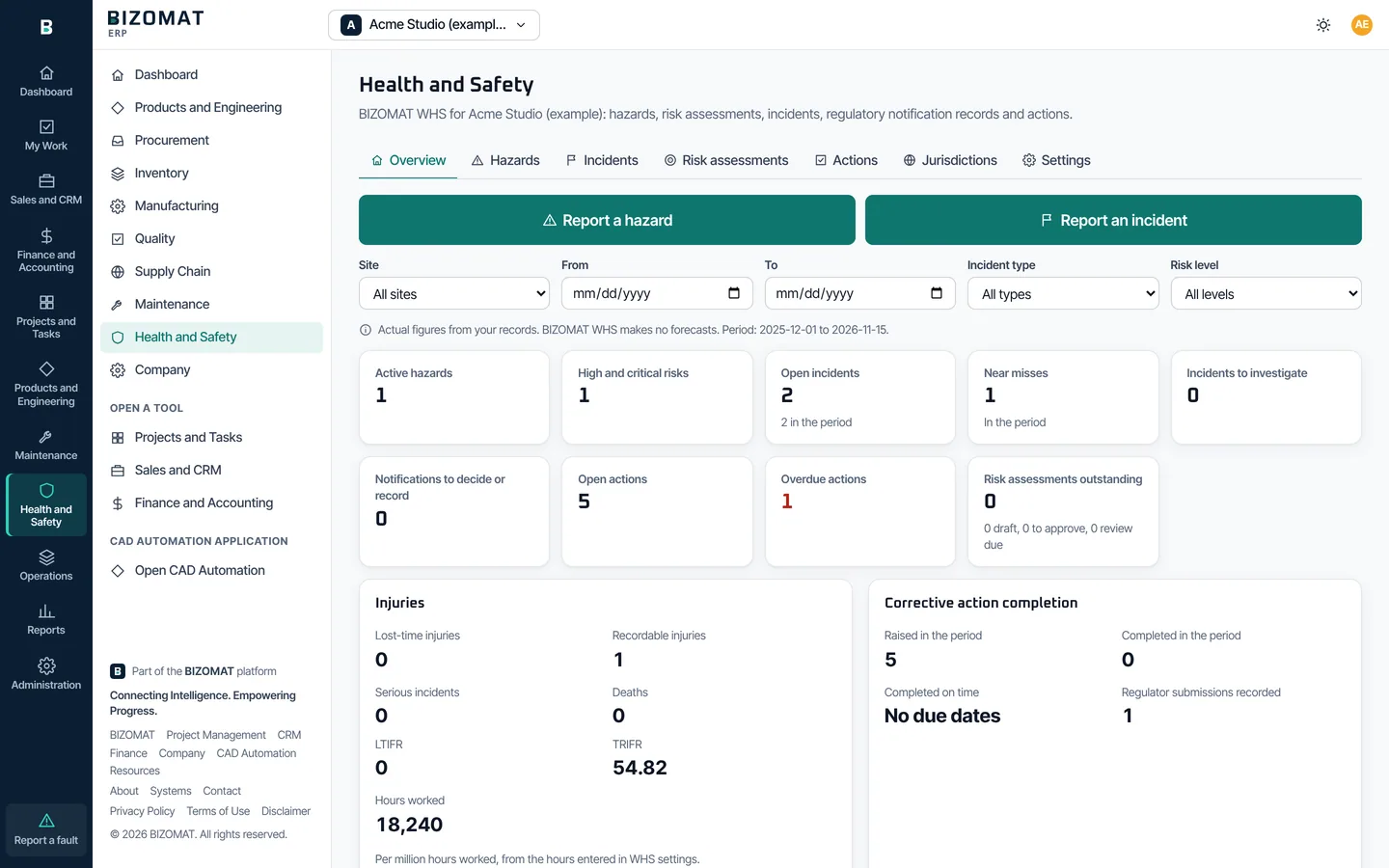
Open Health and Safety and set it up
Live
BIZOMAT WHS is the Health and Safety module of BIZOMAT ERP. Sign in, choose your company, then choose Health and Safety in the rail.
Try the example company
Acme Studio (example) has invented health and safety records: a hazard being controlled, an approved JSA, a near miss and an injury with its investigation, and a notification record marked as example data. Only you see it, and it sends no email.
Give WHS roles
In Administration, ERP roles, the company's owner or an administrator gives people WHS manager, WHS officer or supervisor, Incident investigator, Health and safety representative or Health officer. Everyone in the company can report without a role.
Who reads medical details
Only health officers read medical treatment details. A WHS manager does not, unless the same person is also given Health officer.
Give each site its jurisdiction
Sites come from Maintenance (Maintenance, Settings). In Health and Safety, Settings, Sites and their jurisdictions, a WHS manager chooses each site's jurisdiction, for example New South Wales. An incident is checked against its own site's jurisdictions only.
Set the risk matrix
Settings, Risk matrix shows the default 5 by 5 matrix. A WHS manager can change the scales, labels and levels; each change is a new version, and every rating keeps the version it was made on.
Enter hours worked
For injury frequency rates, a WHS manager enters the hours worked per site per month in Settings, Hours worked. Without hours, no rate is shown.
Step 2 of 9
Report a hazard or an incident
Live
Report a hazard and Report an incident are the first two buttons in Health and Safety, large on a phone.
Report a hazard
Type what you saw, choose its kind and the site, say where, and take a photo with the phone's camera. Choose Send the report.
Report an incident
Choose what kind (injury, near miss, dangerous occurrence and others), what happened, when and where, who was involved, any witnesses and what was done straight away. Choose Send the report.
Confidential reports
For a psychosocial hazard or incident, such as bullying or harassment, tick Confidential. The form says before you send who will read it: the WHS managers and health officers.
First aid and treatment
Medical treatment details go into the confidential health record. Only health officers read it.
Follow your report
Your own reports show on the Overview with where each stands. A serious incident alerts the WHS managers at once, in the app and by email.
Step 3 of 9
Control a hazard
Live
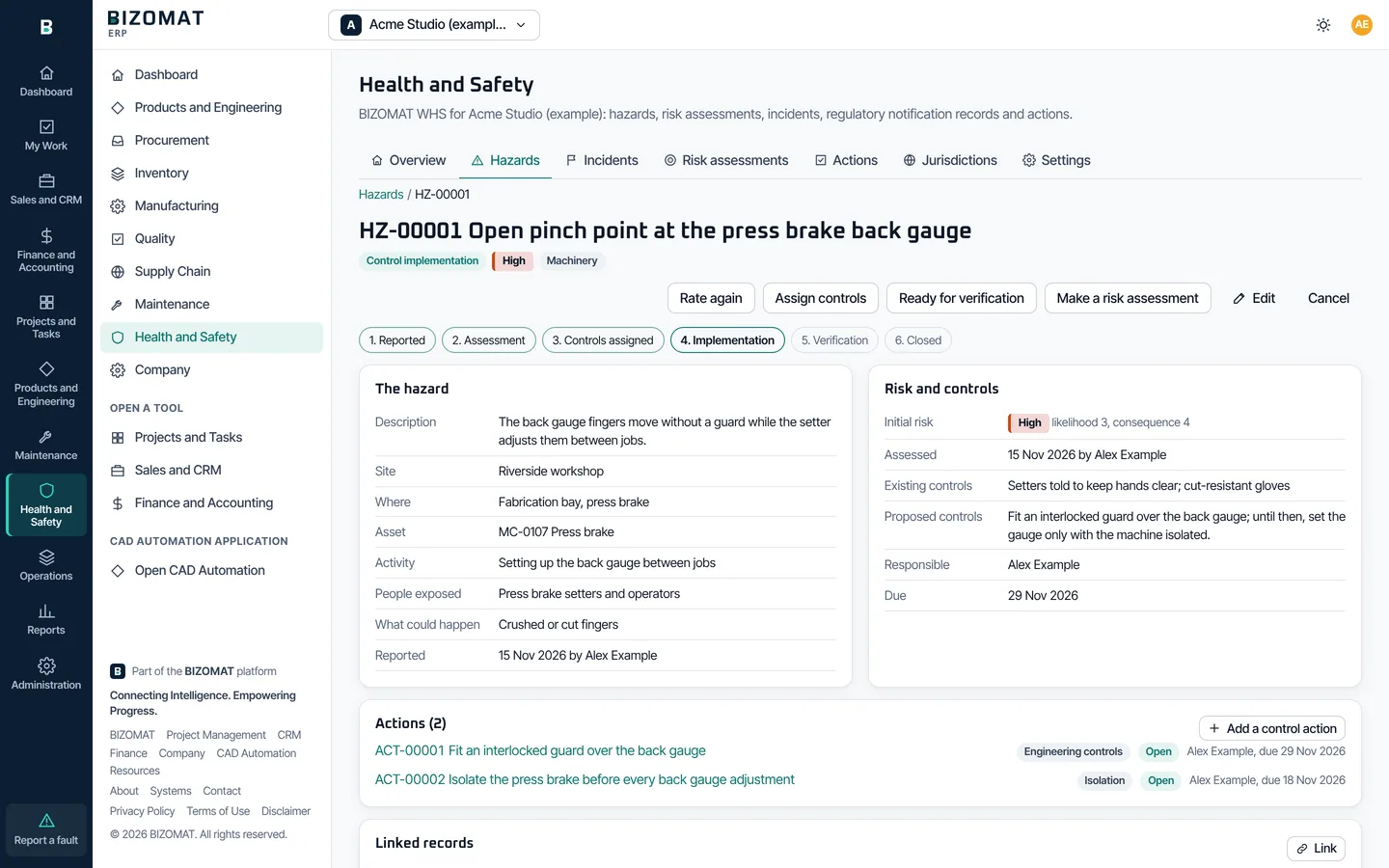
Hazards lists every hazard with its risk level. Its steps: Reported, Assessment, Controls assigned, Implementation, Verification, Closed.
Assess the risk
A WHS officer opens the hazard and chooses Assess the risk: the likelihood and the consequence on the company's matrix give the level.
Assign controls
Choose Assign controls. Each control is an action with a responsible person, a due date and its place in the hierarchy of controls: elimination, substitution, isolation, engineering, administrative or PPE. A high risk that relies on administrative controls and PPE alone shows a warning.
Implement and verify
Choose Start implementation. Once every control action is done and verified, choose Ready for verification, then Verify and close with how the controls were checked and the residual risk.
Link records
Link a hazard to a risk assessment, an incident or a Maintenance work order. Choose Make a risk assessment to start one from the hazard.
Step 4 of 9
Make a risk assessment
Live
Risk assessments has twelve kinds: JSA, JHA, SWMS, task, workplace, plant, chemical, manual handling, construction, environmental, psychosocial and contractor.
Make the draft
Choose New risk assessment, its kind, title, site and review date, then Make the draft.
Steps, hazards and controls
Choose Edit steps, hazards and controls. Add the steps of the task, then each hazard with the harm, who is affected, the initial rating, the existing and additional controls and the residual rating.
Submit and approve
Choose Submit for approval. A WHS manager who did not draft it approves it or returns it for changes. Approving over a warning needs the warning acknowledged.
Review it
At its review date, or when the work, equipment, controls or circumstances change, choose Review: new revision. The approved revision stays until the new one is approved.
The risk register
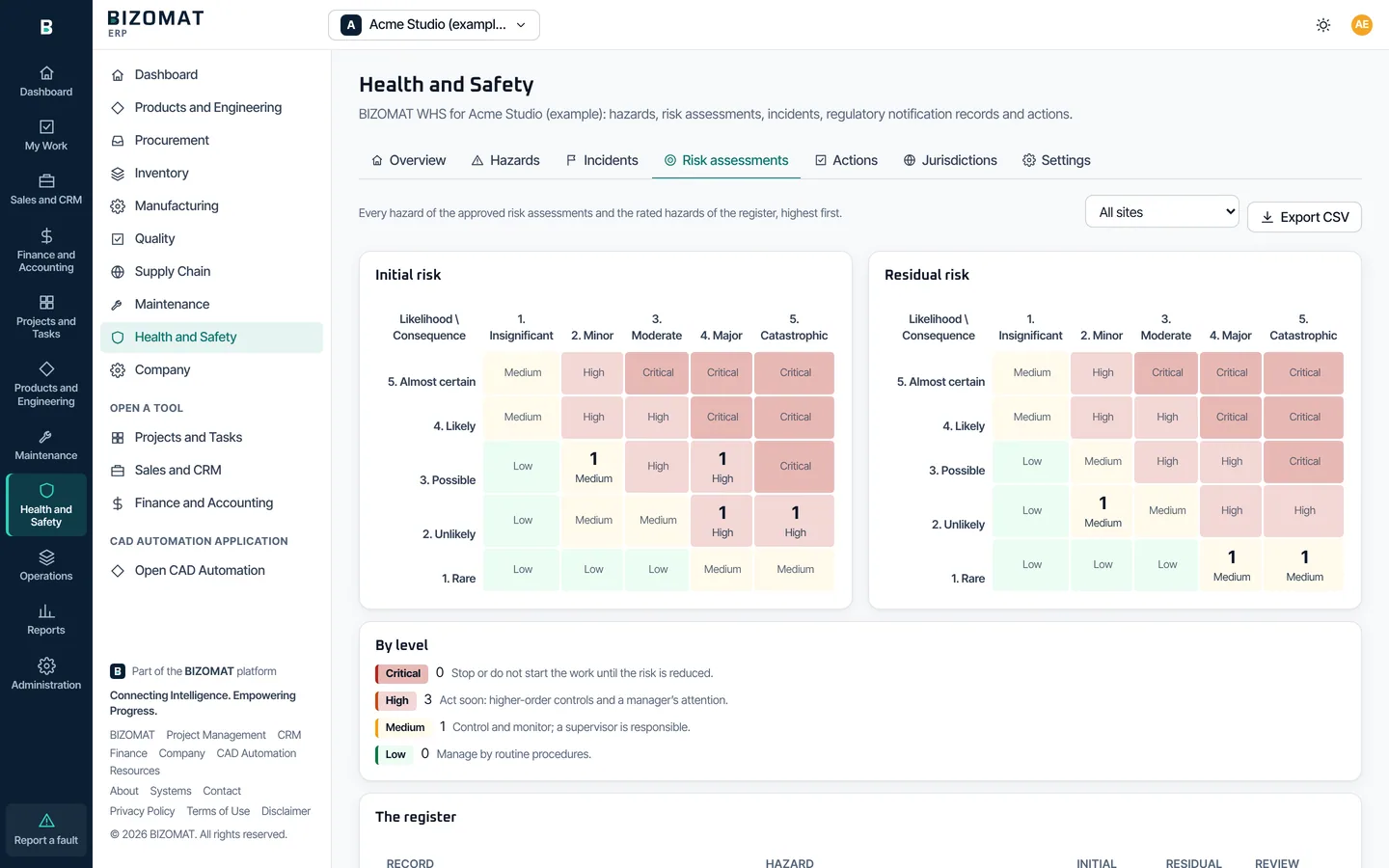
Choose Risk register and heat map: the initial and residual risk of every approved assessment and rated hazard, by site.
Step 5 of 9
Respond to and investigate an incident
Live
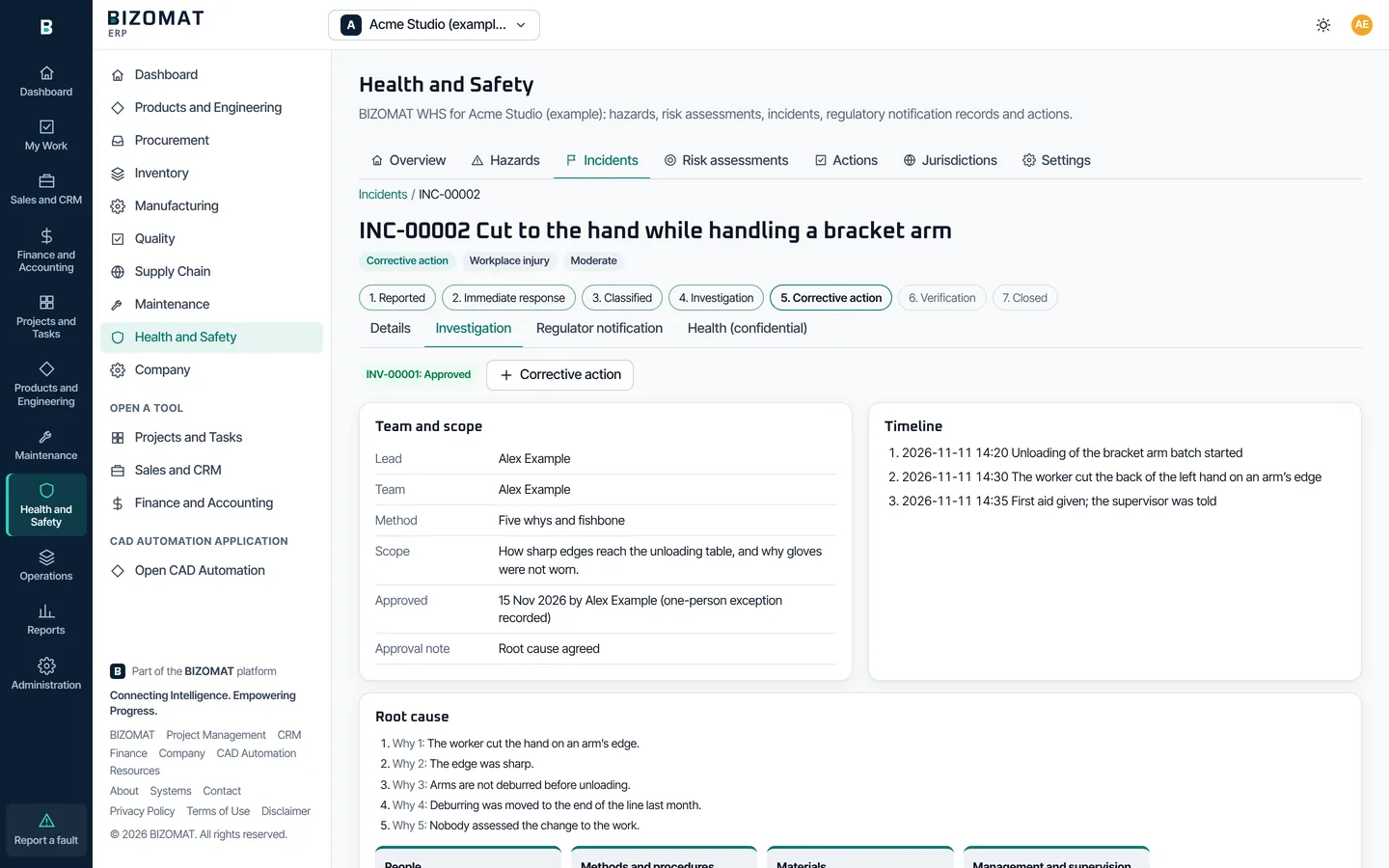
An incident's steps: Reported, Immediate response, Classification, Investigation, Corrective action, Verification, Closure. It is never deleted.
Immediate response
Choose Record the immediate response: what was done straight away, whether first aid was given, and who was told first.
Classify
Choose Classify: the kind, the outcome, the severity, the body part and nature of injury, and whether it is to be investigated. After this, every change to the incident is recorded with who made it, when, and the value before and after.
Investigate
Choose Start the investigation and the lead investigator. In the Investigation tab, add the team, the timeline and witness statements, then choose Root cause analysis: five whys, the fishbone (cause and effect), contributing factors and the controls that failed.
Approve the investigation
Choose Submit for approval once the root cause is recorded. A WHS manager who did not lead or submit it approves it or returns it for changes.
Corrective action and closure
Raise corrective actions, choose To corrective action, then Ready for verification once they are done. Choose Verify and close with how they were verified.
Step 6 of 9
Record a regulator notification
Live
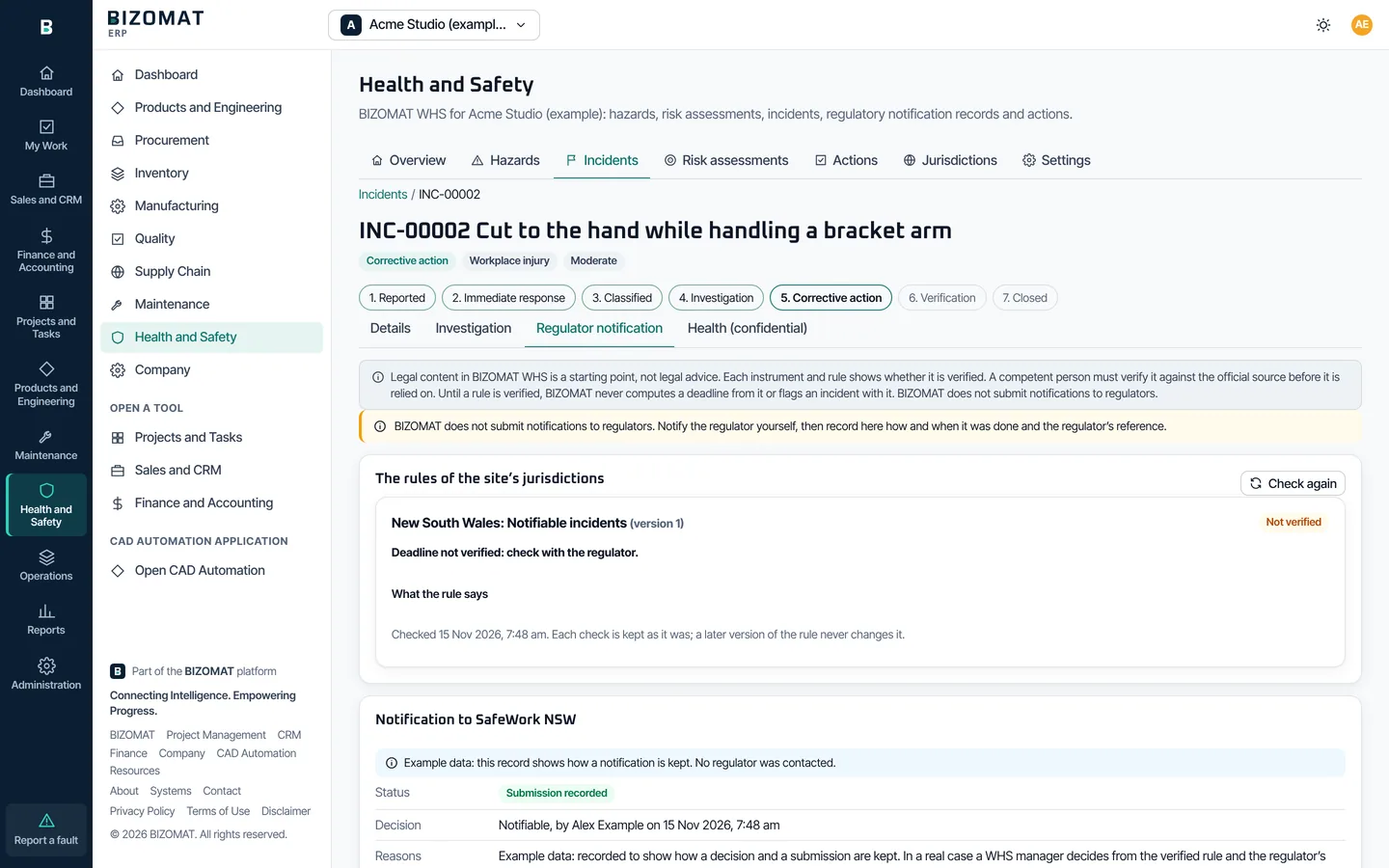
The Regulator notification tab of an incident. BIZOMAT never decides whether to notify, and does not submit to regulators.
The rules of the site's jurisdictions
The incident is checked against the rules of its site's jurisdictions. A rule that is Not verified shows "Deadline not verified: check with the regulator." Only a rule that is verified and in effect on the incident's date flags it as possibly notifiable and works out a due time.
Decide, with reasons
A WHS manager chooses Record the decision: notifiable or not, and why. The decision is the person's, never the system's.
The checklist
Tick each item as it is done: the regulator told by the means the rule requires, the site preserved, the information given, written notice sent if asked for, and the confirmation attached.
Record the submission
After you notify the regulator yourself, choose Record the submission: how (phone, online form, email or in person), when, who notified, the regulator's reference and the confirmation file. Until then the incident never shows as notified.
Submit electronically Planned
Sending a notification to a regulator from BIZOMAT is not built.
Step 7 of 9
Follow actions to a verified close
Live
Actions lists every corrective, preventive and improvement action, from hazards, incidents, investigations and risk assessments.
New action
Choose New action: the title, the responsible person, the priority, the due date and whether evidence is required.
Complete it
The responsible person chooses Start, then Complete with what was done. An action that needs evidence cannot be completed until a photo or document is added.
Verify and close
Someone other than the person who completed it chooses Verify (or Not effective, which sends it back), then Close.
Overdue actions
An overdue action is escalated in the app to the responsible person and the WHS managers, and shows in My Work and on the dashboard.
Step 8 of 9
Read the jurisdiction packs
Live
Jurisdictions lists each pack: the regulator, the instruments and the rules, each labelled for what it is and whether it is verified.
What is in a pack
Legislation, regulations, approved codes of practice, standards, government guidance and model laws, each with its official source. Rules have versions with effective dates, so a change such as one starting on 1 December 2026 applies only from that date.
Not verified
Every instrument and rule shows Not verified until a competent person verifies it against the official source in the platform console. Treat them as a starting point, not legal advice.
Company policies
A WHS manager adds the company's own policies beside the packs, labelled Company policy.
Countries
Australia: the Commonwealth, each state and territory, and Victoria under its own laws. Skeleton packs: New Zealand, the United Kingdom (Great Britain), Canada (federal and four provinces), Singapore and South Africa.
Step 9 of 9
What is not built yet
Planned
Release 1 is the core. What follows is planned and labelled Planned in the application.
Inspections and audits Planned
Workplace inspections, checklists and audits.
Documents and SWMS acknowledgement Planned
Safe work procedures with document control, and workers acknowledging a SWMS.
Permits, contractors and visitors Planned
Permits to work, contractor safety and visitor sign-in.
Training and competency Planned
Training, competencies and licences.
Chemicals, plant, PPE and emergencies Planned
Chemicals and safety data sheets, plant and equipment safety, PPE management and emergency management.
Consultation, health surveillance and the compliance register Planned
Safety committees and consultation records, health surveillance, and the register of legal obligations.
Common questions
Before you ask
- Do I need a separate sign-in?
- No. BIZOMAT WHS is part of BIZOMAT ERP, with the same account, companies and roles.
- Can someone delete an incident?
- No. Incidents, health records and notification records are never deleted, and every change after classification is kept with who made it and when.
- Can I approve my own risk assessment or investigation?
- Not in a company of several people: someone else with the right role approves. In your own company, where you are the only person, you may, and the exception is recorded.
- Is the legal content advice?
- No. The packs are a starting point and are Not verified until a competent person verifies them. Check your duties with the regulator or a qualified adviser.
- Does BIZOMAT notify the regulator for me?
- No. You notify the regulator, then record the submission in BIZOMAT with the regulator's reference.
More on the whole ERP: the BIZOMAT ERP user guide. Something not covered? Contact BIZOMAT.